
A roster is an organised schedule that allocates members to specific shifts over a defined period such as a day, week, or month. It consolidates all planned shifts and their designated members, ensuring proper coverage, balanced workloads, and smooth operational efficiency.
Make sure to complete all the steps below to manage rosters effectively.
Here's an elaboration on the purpose of each setup step:
- Step 1. EOH: Entire OnHire operates on a flag-based model for handling features which is auto enabled by Xeople as per your pricing plan.
- Step 2. XR Marketplace - Enable EOH integration: XR Marketplace integrates with EOH to seamlessly connect both platforms when enabled. This integration allows you to view rosters—an organised schedule that allocates members to specific shifts.
Configurations:
- Step 3. XR - Master Data - Filters: Help refine and control the data displayed in the Rosters Calendar View. Advanced filters can be configured from the Filter Master and easily applied or removed directly within the calendar.
- Step 4. XR - Master Data - View: Create a Calendar View to control which source data appears on the screen. Each view is linked to a specific source, so only data related to the selected view will be displayed.
- Step 5. EOH - Allocation Status Master: Defines all shift statuses used in the allocation workflow. These statuses describe the exact stage a shift is in and guide agencies, clients, and members through the allocation process.
- Step 6. EOH - Allocation Section Master: Helps you manage shifts efficiently by organising all shift statuses into four clear stages: Process, Hold, Finalise, and Completed.
Use:
-
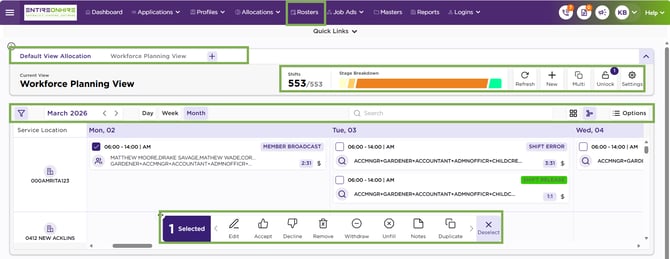
Step 7. Rosters – Calendar View - Overview and Navigation: Check out how to navigate to the calendar view.
- Step 8. Calendar View - Header - View: Lets you switch between different views created in the View Master. Only views you have permission to access are displayed, and if no custom views exist, the default view loads automatically.
- Step 9. Header – Shift Summary Panel -Shifts Filtered/Total Shifts: Provides a quick, high-level overview of all shifts displayed in the calendar, grouped by Shift Stages (aligned with Shift Sections in Client Allocation). It organises data into colour-coded stages—Open (Yellow), Pending (Orange), Booked (Green), and Cancelled (Red)—so you can quickly identify where attention is needed and take action efficiently.
- Step 10. Page Header – Screen Action Panel: Provides access to actions that are not linked to any specific shift. These actions remain available at all times and support commonly used, system-wide operations.
- Step 11. Calendar – Apply Filter: Controls which shifts appear on the Allocations screen. It allows you to refine the displayed shift data based on selected criteria and view only what is relevant to you.
- Step 12: Date-Based Filtering and Timeline Controls: You can apply a date (time)-based filter using the slider, which works together with the selected period—Day, Week, or Month. By default, each view is set to Week (configured in Master Data – View), so the calendar initially loads with a weekly filter, and the time slider operates within that weekly range.
Roster - Calendar View