
The Filter controls which shift appear in the Allocations screen. It allows you to refine the displayed shift data based on selected criteria and display only what is relevant to you.
Filters operate at a user level. Once you apply filter settings, the system saves them automatically and keeps them active even after you refresh the browser. Your selections remain in place until you change them.
Filters are source specific. The system displays only those filter fields that exist in the selected source’s database. As a result, only source-defined fields appear in the filter panel. To configure filter fields at the source level, click here: Master Data – Filters.
Because filters depend entirely on the source configuration, filter behaviour (conditions) does not change based on the view currently displayed on screen. Instead, the filter logic, available fields, and filter variants are all driven by the Source parameters, regardless of which calendar view or allocation view you select.
Filter Categories
Filters are grouped into categories based on how you understand and use them. In Entire OnHire, filters appear under three categories:
- Client-Based Filters
- Shift-Based Filters
- Member-Based Filters
To navigate to the filters, follow the steps below:
- Upon clicking the Rosters, you will see the calendar view.
- Click on the Filter button. It has two distinct states:
- Inactive State (No Filters Applied)
- Shows the default Filter button and is clickable.
- Opens the filter split-screen panel so that you can apply filters.
- Active State (Filters Applied)
- Displays a counter: Filters - number of applied filters.
- Click on the arrow (v) against each filter to add filter criteria. Select include and exclude and Confirm to apply. For example: Service Location is a simple-select field. You only choose which service locations you want to display on the screen.
- Inactive State (No Filters Applied)
- Include vs Exclude
- Include the selected values.
- Exclude the selected values. Example: State filter. Useful for filtering out unwanted values without selecting everything else.
- Clear: Removes the applied filter. For example, clearing a service location filter removes only that filter.
- Clear Filter: Removes all applied filters in a single click.
- Search Option
- When you select a filter like Service Location, the system displays a search bar so you can quickly find the location you need. You can type to search or click the field to open the full drop‑down list. Fields with large datasets (e.g., thousands of service locations) always include this search bar for easier selection.
- Searches only within the filter’s field values.
- Includes a clear (X) button when text is entered.
- When you select a filter like Service Location, the system displays a search bar so you can quickly find the location you need. You can type to search or click the field to open the full drop‑down list. Fields with large datasets (e.g., thousands of service locations) always include this search bar for easier selection.
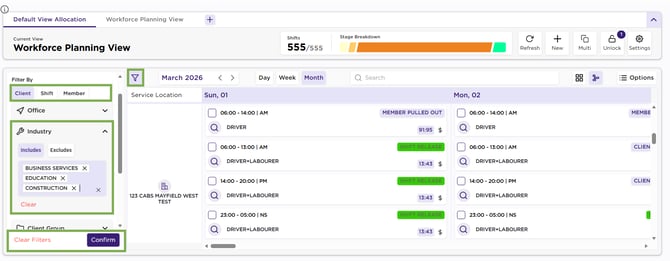
Calendar – Filter – Apply
Recommend Reading: How filters work on the allocations screen, click here: How to Search and Filter Shifts within the Allocations Screen.