
Member-related items appear on a shift card based on the data fetched from the source configuration.
- Appointed: When a member is assigned to the shift, the Member item appears with its configured display.
- Broadcast: When multiple members are assigned or broadcast to the shift, the Broadcast item appears.
Recommend Reading: How to Broadcast Shifts to Members and Send a Notification, click here: How to Broadcast Shifts to Members and Send a Notification.
- Unassigned: When no members are appointed, the Search item appears, allowing you to find and assign a member.
Recommend Reading: How each search option works, click here, click here: Allocations Search Options.
To navigate to the member-related items on the card, follow the steps below:
- Click Rosters to open the Calendar View.
- In the Card View, you’ll see the member’s name and profile picture (or broadcast/search button) displayed on each shift card.
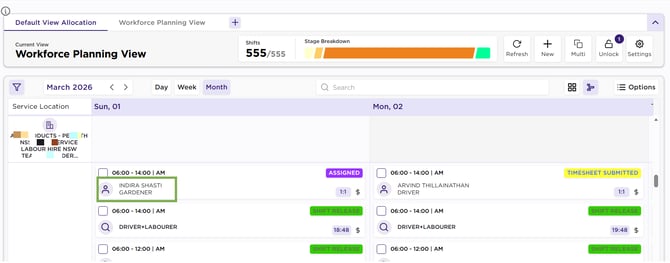
Shift Card – Member
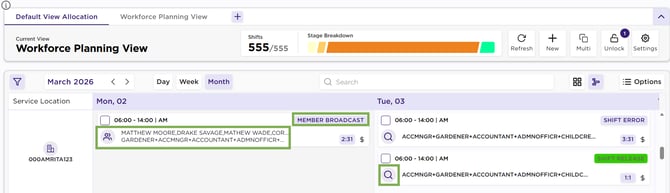
Shift Card – Broadcast/Search
Member Item: Appears when a single member is appointed to the shift.
Appointed - Display Configuration:
- Primary: Click on the Member Name to open the Member Contact Card pop-up.
Recommend Reading: How member contact card works in details, click here: Member Contact Card.
- Secondary | : The ‘Matched Qual shows the qualification that aligns between the member’s qualifications and the shift’s requested qualification. The Requested Expertise displays the specialty linked to the shift). When you click this field, the system opens the Member Compliance page for that shift in a new window.
- Icon (Member Profile): Shows the member’s photo if available. If not, it displays a default person or user button. When you click the button, a small menu appears with these options:
- Call: Start a call through VXT or directly in your browser.
- Send SMS: Open the pop-up to send an SMS to the member.
- Send Email: Open the pop-up to send an email to the member.
- View Profile: Open the member’s contact card.
Broadcast Item - Display Configuration: Appears when multiple members are broadcast or assigned to a shift.
- Primary: List of member names (e.g., John, Lisa, Priya...) — truncated with ellipses and full names available via tooltip.
- Secondary: Qualification, Expertise
- Icon: Generic group or people icon.
- Send SMS (opens Send Members SMS pop-up)
- Send Email (opens Send Members Email pop-up)
- View Profiles (opens Member Contact Cards pop-up)
Search Item - Display Configuration: Appears when no members are assigned to the shift (assuming the status is Shift Entered, Shift Opened, etc).
- Primary (Requested Qualification): Clicking it opens Standard Search pop-up.
- Secondary (Requested Expertise): Clicking it opens Expertise Search pop-up.
- Tooltip: When you click the icon, the following search options appear:
- Standard: Opens the Standard Search pop-up.
- Proximity: Opens the Proximity Search pop-up.
- Been Before: Opens the Been Before pop-up.
- Client Request: Opens the Client Request Search pop-up.
- Member Request: Opens the Member Request Search pop-up.
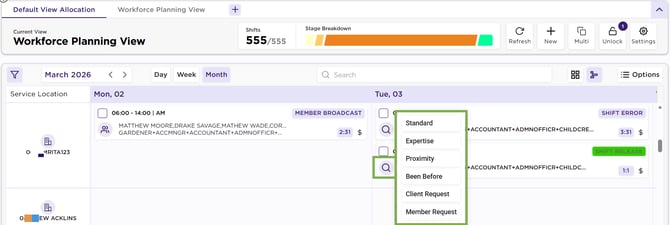
Card - Search Item