
The Select Icon helps you quickly identify and select shift(s) on the calendar. Each shift card displays both a Select and Lock icon, indicating whether the shift is selectable, selected, or locked. Always select a shift before performing actions such as editing via the timing element, adding notes, or accessing the booking ratio, etc.
- Selectable (Default): The shift is available for action.
- Selected: You’ve selected the shift to perform an action, and the update is sent to the source.
- Locked (Not Selectable): Another user has locked the shift. Hover over the icon to see who locked it.
- Unselectable (Disabled): The shift can’t be selected or edited, but it’s not locked by another user, for example, when a timesheet has already been submitted.
|
Select-box |
Lock Icon |
Calendar View |
Shift Selectable? |
||
|
Default/Empty |
Blue lock → Unlocked |
Unselected |
Yes |
||
|
Selected |
Red lock → Locked |
Selected |
N/A (already selected) |
||
|
Unselectable |
Red lock → Locked |
Locked |
No |
||
|
Unselectable |
Blue lock → Unlocked |
Disabled |
No |
||
To navigate to the Select Icon, follow the instructions:
- Upon clicking the Rosters, you will see the calendar view.
- Each card view has a select icon (checkbox). Click on the checkbox to perform actions against a shift.
- The icon changes to Selected, and the action is communicated to the source.
- Once selected, non-actionable shifts automatically become Unselectable.
A red lock indicates that the shift is locked by another user. You can hover over the icon to view the message Locked by John Deo. Locked shifts cannot be selected or edited.
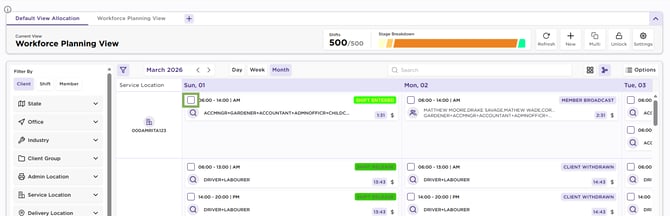
Shift – Select Button