
Provide a user-friendly, streamlined way to perform quick actions on one or more shifts directly from the screen depending on your role and permissions. To read more details on the role and permissions, click here: Main Masters - Users Authorisation.
To access the shift action bar, follow the below steps:
- On the card view page at the bottom, you will see an Action Bar.
- Upon selecting a shift, the number will update accordingly to show how many shifts have been selected. For example, if you have selected two shifts it would show 2 selected.
You can only select shifts that share the same Service Location and Status. Actions are shown directly in the shift action bar based on the selected status, so there’s no need to remember them. If you select a shift with the wrong status, helpful alerts will guide you on which status is required to perform a specific action.
Recommend Reading: Purpose of shift status code, click here: Glossary of Shift Status Codes. To read the logic of Member Compensate status, click here: How to Use Member Compensate.
Action Panel Behaviour based on the Shift Status
The options shown in the Action Panel depend on the status of the selected shift. Each action is automatically enabled or disabled based on the shift’s current status. The table below outlines which actions are available for every shift status.
Legend
- ✔ = Action is enabled for this shift status
- ✖ = Action is disabled for this shift status
Shift Status to the options available in the action panel
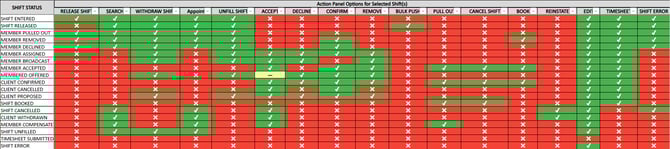
Shift Action Bar Status Mapping (Excel Link)
Action Panel – Actions you can perform against Shift(s)
- This action panel shows you other options as follows:
Using this option automatically updates the shift status. Example: If you appoint a member using the Appoint action, the shift status changes to Member Assigned.
-
- Edit: Lets you edit shift(s). Clicking on edit will open the edit shift pop-up. To read more on how a sift is edited, click here: How to Edit a Shift.
Shifts can always be edited while they are being processed (before the status is Timesheet Submitted). Once a shift reaches Timesheet Submitted status, editing is only allowed if the, allow editing of shift with status as Timesheet Submitted flag is ON in your system settings. By default, this flag is OFF and shifts at this status cannot be edited except for the Order No. If the flag is ON, users can edit single shifts, multiple shifts, or booking ratio shifts even after timesheet submission.
After a shift has Timesheet Submitted status in Entire OnHire, it can move to:
- Client Approved: The client has reviewed and approved the timesheet.
- Awaiting Review: The timesheet is waiting for client review/approval.
- Timesheet Disputed: The client or agency has disputed details in the submitted timesheet.
-
- Appoint: Allocations staff can assign members to shifts directly from the Allocations screen. Members can only be appointed to shifts that sit in the Process This option will change the shift status from Shift Entered for example to Member Assigned.
- To appoint a member, first lock the shift by clicking the selection box.
- For a single shift, select one shift and appoint the member.
- For multiple shifts, select all required shifts and appoint the member to all of them at once. To read more, click here: How to appoint member for single and multiple shifts, why can I not appoint a Member to a Shift?
Recommend Reading: Various shift status and their action button, click here: What are various Shift Status and their Actions Buttons?
-
- Release Shift: The purpose of releasing a shift is to make the shift visible to all suitable members, allowing them to view and accept it through the Mobile App. This option will change the shift status from Shift Entered for example to Shift Released. To read more details, click here: Released Shifts.
- Search: Helps you to automatically match members to client shifts based on availability and shift requirements. Simply right-click a shift to view the search options. To read more details, click here: Allocations Search Options. This option will change the shift status from Shift Entered for example to Member Assigned in case of one member, if multiple Member Broadcast.
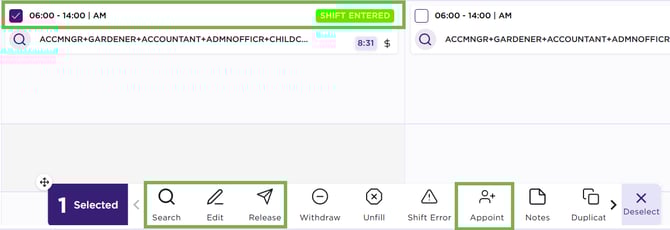
Shift Action Bar – Shift Entered - Actions
-
- Notes: Notes allow you to record important shift(s)-related information for clarity, coordination, and audit purposes. To read more, click here: Shift Card – Notes.
In case of multiple shifts selection, system is not extracting any recorded notes for the shift. To view the existing notes, please select single shift & then hit notes.
-
- Duplicate: Allows you to duplicate shifts on the same day, next and or create multi booking. Make sure to read: How to create duplicate shifts?, How to Enter Bookings for Multiple Shifts/Dates.
- Accept: Use this action to confirm a member’s acceptance on their behalf. When you click Accept, the system automatically updates the shift status from Member Assigned to Member Accepted, ensuring the shift reflects the confirmed booking. To read more in details, click here: How to Accept a Member into a Shift.
- Decline: Use this action to decline a shift on behalf of the member. When you click Decline, the system updates the shift status from Member Assigned to Member Declined, clearly indicating that the member has refused the shift. To read more in details, click here: How to decline a shift on behalf of member.
- Remove: This option will remove a member from the assigned shift. When you click Remove, the system updates the shift status from Member Assigned to Member Removed, clearly indicating that the member has been removed from the shift. To read more in details, click here: How to Remove Member/s From a Shift.
- Confirm or Client Confirmed:The client has confirmed the member’s name for attendance, but the member has not yet accepted or declined the shift. Often called pre-selling, it indicates the client expects the member to attend, while the member’s final confirmation is still pending.
- Upon clicking confirm a pop-up appears, select the Professional Name (client contact).
- Click on the Yes green tick. This will change the status from Member Assigned to Client Confirmed.
-
- Book: Shifts in the Finalise section with a Member Accepted status must be booked with the shift location (client). This option will change the shift status from Member Accepted for example to Shift Booked. Booking automates allocation, ensures compliance, matches qualified members, and reduces manual effort. For more info, click here: How to Book a Shift.
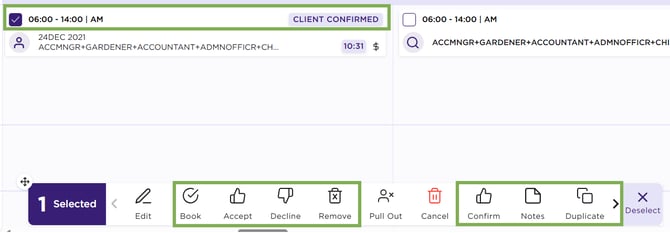
Shift Action Bar – Client Confirmed - Actions
Shift can be Pulled out only when the status is Member Accepted, Shift Booked, Member Compensated, or Client Confirmed.
-
- Pull Out - Member : Is used to remove a member from a booked shift after they have already accepted it. This can happen if, for example, the member needs to withdraw from the shift for any reason after being confirmed. When a member is pulled out, their status is updated, and a reason for the withdrawal is recorded. This helps keep records accurate and allows the shift to be re-allocated to someone else if needed. This option will change the shift status from Client Confirmed for example to Member Pulled Out. For more info, click here: How to pull out a member from a booked shift.
- Cancel Shift: Officially removes it when it’s no longer required. This keeps records accurate, prevents unnecessary attendance or payment, and ensures the shift isn’t filled. This option will change the shift status from Member Accepted for example to Client Cancel. To read more details, click here: How to Cancel a Shift.
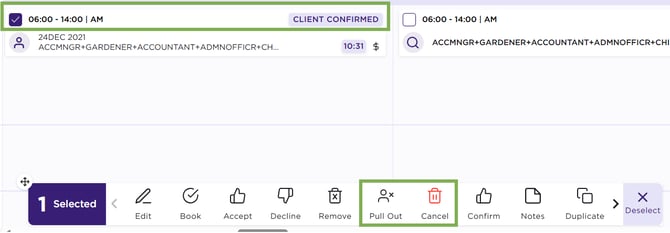
Shift Action Bar – Client Confirmed - Actions
-
- Reinstate: Makes the shift active again. This option will change the shift status from Client Withdrawn for example to Shift Entered with Shift Status Notes updated as Shift Reinstate.
To reinstate a shift, select a shift with status Shift Cancelled or Client Withdrawn.
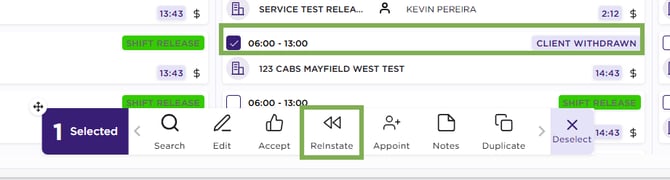
Shift Action Bar – Client Withdrawn - Reinstate
-
- Withdraw Shift: Notifies the agency and staff that a client has cancelled a shift before it’s accepted, keeping records clear and preventing members from responding to an unavailable shift. This option will change the shift status from Shift Entered for example to Client Withdrawn. To read more details, click here: How to withdraw a shift.
- Shift Unfill: Used when a shift can’t be filled before its start time, indicating it remained vacant. This helps identify coverage gaps and improve future staffing. To check, click here: Glossary of Shift Status Codes.
- Upon clicking Unfill, you will get a pop-up.
- Select the Professional Name and Reason from the drop-down list.
- Click on the green Yes After this, the shift status will be Shift Unfill.
Shift can be Unfilled only after status is Assigned/BroadCast/Offered/Proposed/Confirmed/Accepted/Declined/Removed/Facility Cancel/Member Cancelled/Entered/Released.
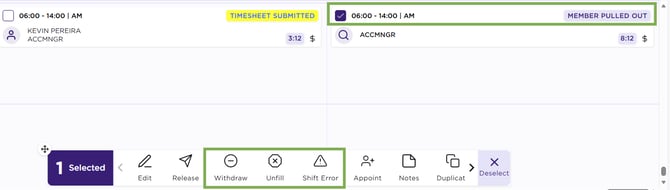
Shift Action Bar – Member Pull Out - Actions
-
- Bulk Push: The Released - Send Notification Options let you quickly notify members about available released shifts (Shift Status – Release Shift). When you use this option:
- You can select from several notification types depending on who should receive the alert.
- The system checks member eligibility (like client restrictions, visa or qualification expiry, and priority limits) so only members who meet requirements get the notification.
- You pick which eligible members should be notified, then send a push notification to their mobile devices.
- Bulk Push: The Released - Send Notification Options let you quickly notify members about available released shifts (Shift Status – Release Shift). When you use this option:
Optional Reading: How Release – Send Notification works, click here: Released - Send Notification Options.
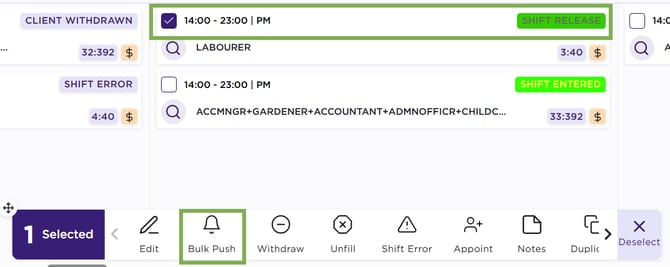
Shift Action Bar – Shift Release – Bulk Push
-
- Timesheet: This option will let you update the shift status to Timesheet Submitted. Member has submitted their timesheet after attending the booked shift. How candidates submit the timesheet via the member app, click here: How to Submit a Digital Timesheet Member App.
- Shift Error: Refers to a correction made when there is a problem with a shift booking—such as a member being incorrectly assigned or a scheduling conflict. The shift status will change to Shift Error if selected in the action panel.
- Deselect: Clears all selected shifts on the current screen. For example, if you applied a weekly filter and locked shifts, then switched to a monthly filter and locked more shifts, returning to the weekly view will automatically unlock the previously selected shifts on that screen.
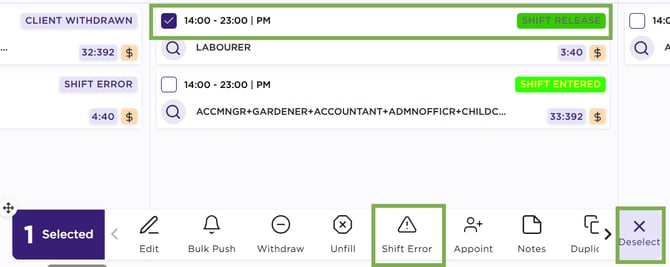
Shift Action Bar – Actions