
Concepts:
- Released Shifts
When a shift is released, it becomes visible under Released Shifts in the App and Portal to all Members who match the shift and system criteria. - Broadcast Shifts
Broadcast shifts are visible only to selected Members chosen by internal users. These appear under My Shifts in the App and Portal, allowing Members to view and accept or decline the shift. To check on how it appears on the member app, click here: Broadcast vs Released Shifts.
There are two ways to release a shift, follow the steps below:
- Step 1: Select the shift with the status Shift Entered by ticking the checkbox next to it, then click Release in the action panel.
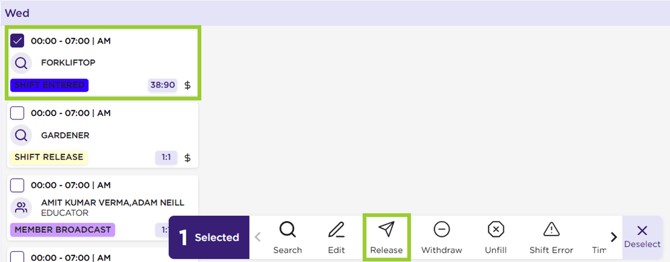
Shift Status – Shift Entered – Action Panel – Release0
- Step 2: When creating a single or multi shift from the New or Multi on the menu will give you an option to Confirm & Release.
Confirm & Release option is invalid on selecting a member from the Appoint Member drop-down to Assign, Accept, Confirm or Book.
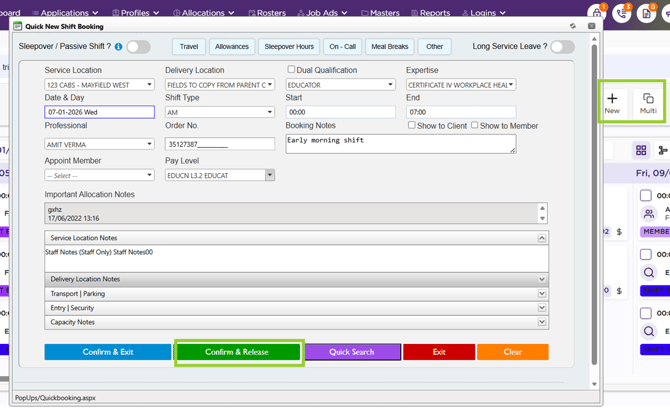
Shift – Confirm & Release
To broadcast a shift, follow the steps below:
For shift statuses such as Shift Entered, Shift Released, Member Declined, or Shift Unfilled, the shift card includes a search bar to assign members. If you select one member, the status updates to Member Assigned. If you select multiple members, the status updates to Member Broadcast.
- Click on Search button on the shift card and select from the options like Standard, Expertise, etc.
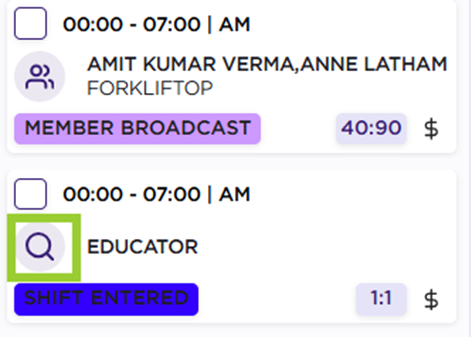
Shift Card – Shift Entered – Search
- This will open the assign members screen for member broadcast. To read details on member broadcast, click here: How to Nominate Members into Broadcast and Send Notification.
- Upon allocating members, the shift status will change from Shift Entered to Member Broadcast.
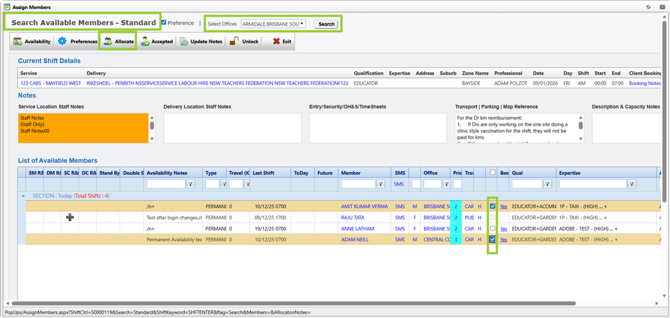
Assign Member Screen – Search – Select - Allocate
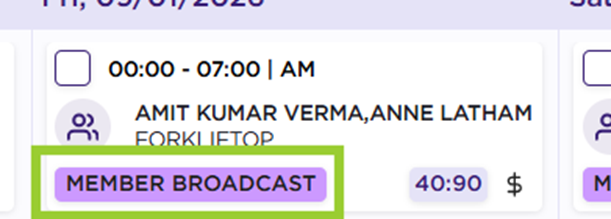
Status – Shift Entered to Member Broadcast