
A Shift Card displays the detailed information for each shift based on the grouping selected and the filters applied on the Calendar. To learn how grouping and filter works, refer to Shift Card – Grouping, Calendar – Apply Filter, Calendar – Select Date, Calendar – Select Period, Calendar – Search and Calendar – Additional Options & Timing.
The Shift Card can be displayed in either Block Mode or Timeline Mode, offering two distinct ways to visualise roster information based on your needs. The data extracted form source is bounded in these formats.
Recommend Reading: To check block or timeline mode purpose and navigation, click here: Calendar – Block or Timeline Mode.
How Shifts are Pulled and Displayed on the Calendar:
- The system fetches shift(s) from the source (EOH).
- Each source is attached to a View.
- The View configuration controls which fields and shifts the calendar shows. (See: Master Data - View.)
What You See on a Shift Card (Example: Grouping by Service Location):
The grouping (Service Location / Delivery Location / Member / Shift Type) determines which fields appear on each card. (Check out this article for details: Shift Card – Grouping).
- Select Button: Selects the shift for single or multiple actions
- Shift Timing: Start and end time of a shift
- Shift Type – AM, PM, NS is the time zone
- Member Name and Role
- Shift Status
- Booking Ratio / Job Button – shows ratios or opens the Edit Shift pop-up
- Notes – opens the specific Notes section (see Shift Card – Notes)
If you change the grouping (e.g., to Member), the details shown on the Shift Card will adjust accordingly.
Taking Actions Directly from the Shift Card
Almost every field on the Shift Card is clickable once you select a shift. This allows you to take quick and contextual actions.
- Shift Selection Box & Timing Element:
- Shift Selection: Provide a simple and flexible way to select shifts on screen. It is important to select a shift before performing actions like edit shift via the timing element, adding note(s), booking ratio, etc.
Recommend Reading: How the selection box works in detail, click here: Shift Selection.
- Timing Element: Displays shift timing details for each shift, ensuring clarity on screen. Selecting a shift and clicking it opens an Edit Shift pop-up for making necessary updates.
Recommend Reading: How the timing element works in detail, click here: Timing Element.
- The Item (general case) element provides a flexible way to display associated entities related to a shift on screen. It includes the following components:
Review Shift Card Grouping to understand how grouping and filters affect the data displayed on the card view.
- Primary Text: Shows key details such as Service Location and Delivery Location mapped to the client booking the shift (if the grouping is on shift type (AM, PM, NS, etc)) (this varies based on the grouping and filters applied).
Recommend Reading: How service location, delivery location, member photo, and name appear on a shift card, click here: Shift Card Behaviour Based on Grouping, Shift Cards > Member / Broadcast / Search.
- Secondary Text: It also displays (in case of Status – Broadcast Member):
- Broadcasted members (assigned members) who can take the shift.
Broadcasted Members: Who have been pre-selected or shortlisted for a specific shift and notified through the system. They receive the shift details and can choose to accept or decline the assignment. This feature ensures quick fulfilment of urgent or high-priority shifts by targeting qualified members rather than broadcasting to the entire pool. Broadcasted members appear on the shift card with their names, qualifications, and expertise, allowing schedulers to monitor responses and finalise allocations efficiently.
Recommend Reading: How to pull out a member from a booked shift, click here: How to pull out a member from a booked shift.
- Role/Specialty details relevant to the shift.
- Icon: Profile image or an SVG It is clickable and triggers options like send SMS, email or opens the member or client profile, or invokes a parent response).
- More Options on the shift card:
- Shift Status and Shift Log: Each shift has a Shift Status that shows where it sits in the workflow and what actions can be taken. To read more on how these status change from the calendar view, click here: Shift Action Bar -Actions.
- This helps you to quickly see which shifts needs attention. The tag’s text and background use the set Text Colour and Background Colour, and the name shown is the Reason Status, which maps to the system’s internal status name.
- For example, consider a shift with the status “Shift Booked.” The associated View uses a Shift Status Tag set defined with the following properties: System Status as Shift Booked, Display Name as Booked, Text Colour as #458B00, and Fill Colour as #DEF1CC. On screen, this appears as a “Booked” tag with green text on a light green background, making it easy to identify the shift’s current status at a glance.
- Clicking on the status opens the shift log.
- This helps you to quickly see which shifts needs attention. The tag’s text and background use the set Text Colour and Background Colour, and the name shown is the Reason Status, which maps to the system’s internal status name.
- Shift Status and Shift Log: Each shift has a Shift Status that shows where it sits in the workflow and what actions can be taken. To read more on how these status change from the calendar view, click here: Shift Action Bar -Actions.
Recommend Reading: How the Shift Status are configured and Shift Log work in detail, click here: Allocation Master – Shift Status.
- Shift Status & Booking: To understand how shift status codes work and how to book a shift, refer to:
- Glossary of Shift Status Codes
- Book a Shift
- Shift Booking Ratio: Shift is always associated with a shift ratio. Each shift card displays a Shift Ratio, showing how the shift was created.
Recommend Reading: How the Shift Booking Ratio works in detail, click here: Shift Booking Ratio.
- Notes Button: Gives you the ability to access the default four types of notes associated with a shift.
- You can select one of the four note types to display on the shift card via Options on the right side of the timeline mode. Each note type has two states, empty (no content or documents) or filled (content or documents uploaded). The available note types are Shift Status Notes, Booking Notes, and Finance Notes for long-text entries, and Shift Documents for uploading documents. These notes help capture and reference key shift-related details directly on the card.
- The selected note type appears dynamically at runtime. On hover, a tooltip displays the note’s content (if available). When empty, clicking the icon opens the associated notes pop-up of Entire OnHire.
- When multiple shifts are selected, existing notes records may not display; select a single shift to view or edit its notes.
- Note edits sync back to the source and vice versa.
Recommend Reading: How Notes work in detail, click here: Shift Card - Notes.
- Select Button – Actional Panel - Single vs. Multi-Shift Selection: The actions available on the Action Bar depend on:
- The number of shifts selected.
Always select shifts with the same status and service location to perform actions correctly.
- The current status of the selected shift(s). See: What Are Various Shift Status and Their Action Buttons, Actions to perform based on Shift Status,
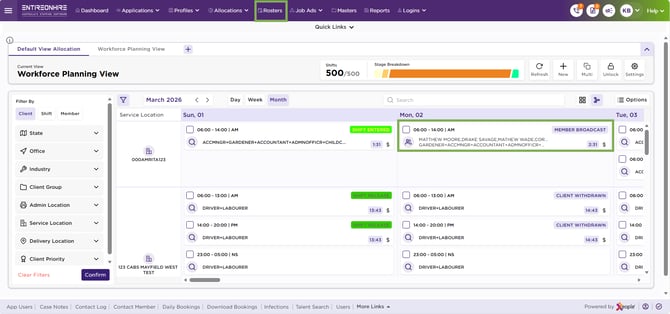
Shift Card – Card View
If you select multiple shifts, notes may appear blank. Any edits you make will be added to the end of the existing notes.
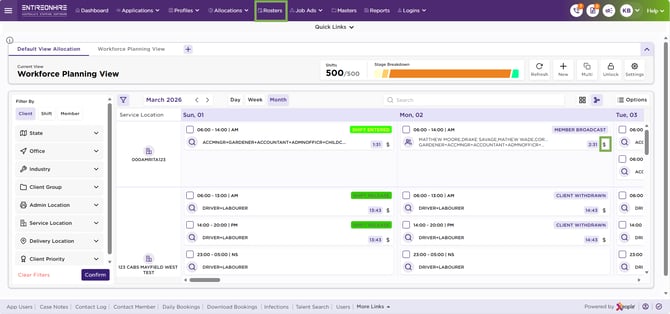
Shift Card – Note