
To navigate to this option, follow the steps below:
- Click Allocations on the top header.
- Select Client Allocations.
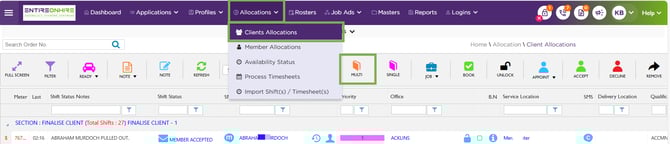
Allocations – Client Allocations
- Select the shift from which you want to pull the member out.
Shift can be pulled out only when the status is Member Accepted, Shift Booked, Member Compensated, or Client Confirmed.
- Select Member Pulled out from the Status drop-down box.
- Click on the Update Status button.
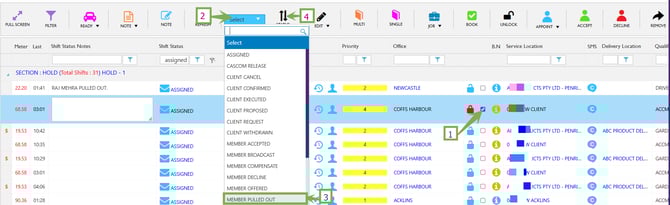
Shift - Status – Member Pulled Out – Update
- A pop-up box will appear, select the reason why they are pulling out.
- Select the reason and click on Yes.
- Priority Change? - Select the updated priority level for the member when they pull out of the shift.
- Remove Day Availability? - Select Yes if the member should no longer be considered available for any shifts on that entire day.
- Remove Shift Availability? - Select Yes if the member should no longer be considered available only for that specific shift time.
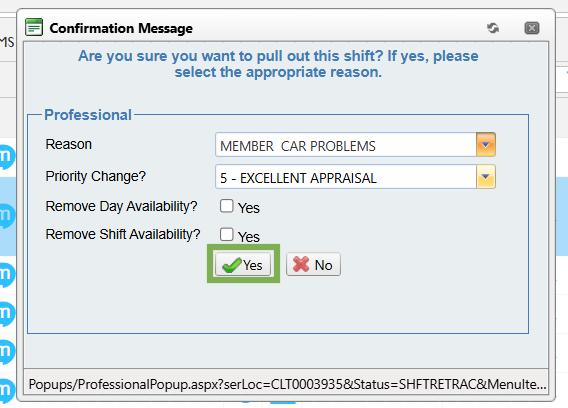
Confirmation Message – Reason – Yes
- Upon clicking Yes, the shift will return to its previous status, and the associated member(s) will be effectively removed from the shift.
Recommend Reading: Pull-out member option in the shift action bar on the calendar view, click here: Shift Action Bar - Member Pull Out.