
The member chooses not to accept the offered shift. This process allows the allocations staff to decline a shift on behalf of a member.
- Go to the Allocations section.
- Locate the shift where the member is assigned and select the shift using the checkbox.
- Click on the Decline option.
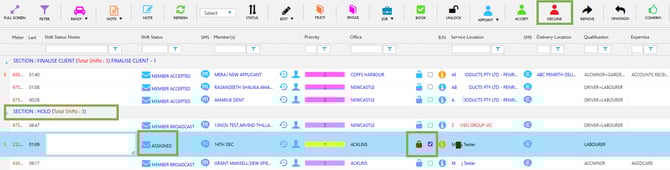
Allocation – Select Shift – Decline Member
- Select the reason for declining, choose the member, provide the reason, and click Yes.
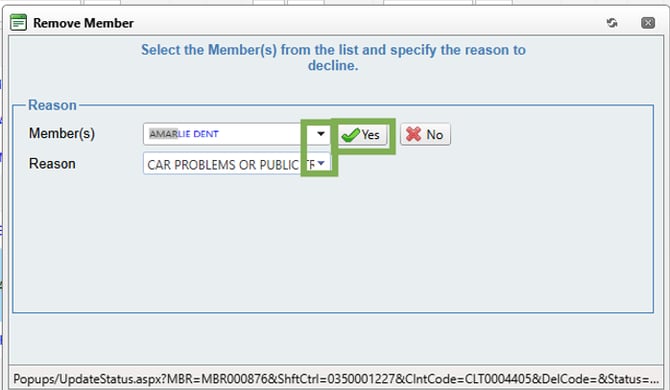
Decline Member – Yes
Another way to decline a member from a shift:
- Select a shift from the Hold section that already has appointed members.
- Use the checkbox to select the shift, then choose the required status (Member Decline) from the Status drop‑down menu.
- Finally, click Update Status to apply the change.
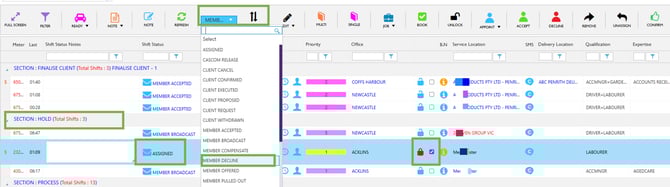
Hold Section - Status – Update
Recommend Reading: How you can decline a member from the calendar view, click here: Decline - Shift Action Bar.