
This section explains how allocations staff accept a member into a shift on their behalf. A member can only be accepted after they have been appointed to that shift. Appointed members appear in the HOLD section of the Allocations screen, where the shift shows a Member Assigned status and the member’s name is listed in the Member(s) column.
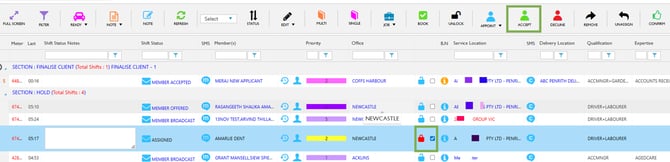
Allocations – Hold – Select Member – Accept
- Upon clicking Accept, you will receive a confirmation message asking you if you are sure you want to accept the member into the shift.
- Select OK, the member will now be in the shift.
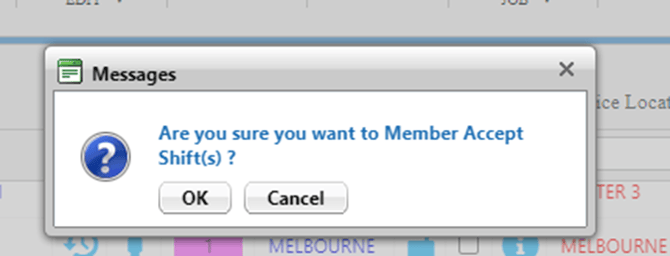
Confirmation Message - OK
- The shift will be moved to the Finalise section of the Allocations screen and the shift status will now display as Member Accepted.
- Shifts that are in the Finalise section are now ready to be Booked with the client.

Finalise – Member Accepted
Other way to accept member in a shift:
- Select a shift from the Hold section that already has appointed members.
- Use the checkbox to select the shift, then choose the required status from the Status drop‑down menu.
- Finally, click Update Status to apply the change.
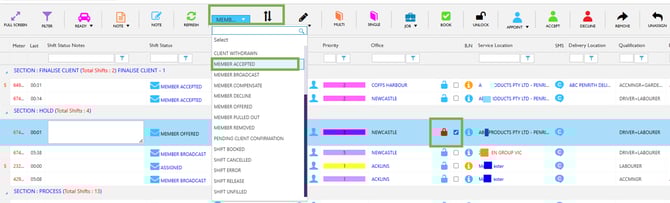
Allocation – Hold Section - Status – Update
- A confirmation pop‑up will appear. Click OK to proceed.
- Once confirmed, the shift moves to the Finalise section, and the member’s status updates to Member Accepted.

Finalise Section – Member Accepted
Recommend Reading: How you can accept a member from the calendar view, click here: Accept - Shift Action Bar.