
You can book a shift only when:
- It appears in the Finalise section of the Allocations screen.
- Its shift status is Member Accepted.
Steps to Book the Shift
- Select the shift you want to book.
- In the quick action toolbar, click Book.

Allocations – Select Shift – Book
- A confirmation window appears. Enter the Professional’s Name (the person from the client/location who requested the shift).
- Click Yes to confirm.
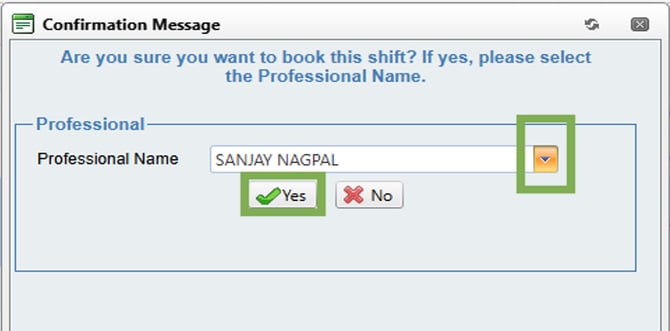
Book – Confirmation Pop-up
- The shift will then be moved to the Completed section of the Allocations screen, and the shift status will now be changed to Shift Booked.

Completed Section – Shift Booked
Recommend Reading: How to book a shift from the calendar view, click here: Book - Shift Action Bar.