
When a shift is released, it becomes visible to all suitable Members in the Mobile App, allowing them to view and accept it.
If a Member cannot see a released shift, it means one or more system parameters are preventing unsuitable Members from viewing or accepting that shift.
Why a Member May Not See Released Shifts
-
Availability - If a member has made themselves not available or their booked shift clashes with date/shift time they will not see the released shifts.
-
Qualification - For a shift to be visible to a Member they are required to have the same qualification listed in the shift.
-
State - Released shifts will only show to members living within the same State as the Service Location.
-
Restrictions - The shift will not be visible to any Members that are restricted from the Service/Delivery Location.
-
Member Priority - The system can restrict Members from viewing and accepting released shifts with a specific Member Priority.
-
Visa restricted Hours- The system has a program in place that checks future shifts against restricted Visa Working hours and will hide any released shifts that could take Members over their hours for that week.
-
Visa Expiry Date- The system will not show any released shifts that have a date greater than their Visa Expiry Date.
-
App Version - It is really important that Members have the most recent Mobile App installed. Features and functionality can be compromised if the Member is using an outdated version of the Mobile App.
How to release a shift
- To release a single shift right-click on the shift and select Release Shift.
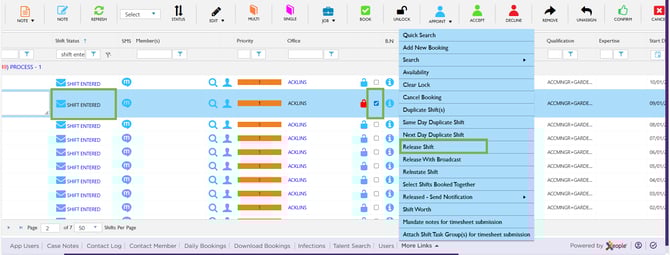
Shift Entered - Select Shift –Release Shift
To release Multiple Shifts:
- Please select shifts with the same shift status and service location
- Select Shift Release into the drop-down box
- Update Status.
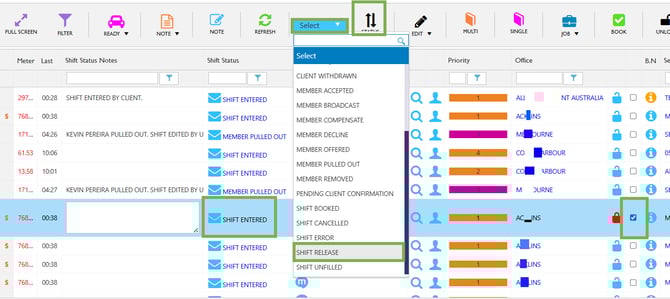
Shift Entered – Select Shift – Shift Release – Update
How to send a Notification for a release shift
To send a notification to members for a released shift please follow the steps below:
- Right-click on the released shift and select Released - Send Notification.
When you send push notifications for a Released shift using ‘Released – Send Notification’, you can choose from several notification types. Each option has its own rules and system checks, explained below:
1. Released - Notification (Available) - Availability based notification
Conditions:
- State base check- Notification will be sent to all Members in the same state as the service location.
- Members Availability Check - Notification will send to all Members that have their availability set as Available for Date/Shift Type.
2. Release - Notification (Office) - Office based notification
Conditions:
- Office Base Check Applied - Notification will only be sent to members under the same office as the service location.
- Member is Not Booked - Notification will send to all Members that are not booked for Date/Shift type.
3. Release - Notification (State) - State based notification
Conditions:
- State Base Check- Notification will be sent to all Members in the same state as the service location.
- Members Availability Check - Notification will send to all Members that have their availability set as Available for Date/Shift Type.
4. Release - Notification (Available, Female) - Availability & Gender based notification
Conditions:
- Gender Based Check - Notification will get delivered to Female staff only
- Members Availability Check - Notification will send to all Members that have their availability set as Available for Date/Shift Type.
Office and state check is not applicable in this notification option, and it will be delivered to all available female members within the system.
5. Release - Notification (Available, Priority) Availability and Priority based notification
Conditions:
- Members Availability Check - Notification will send to all Members that have their availability set as Available for Date/Shift Type.
- Office Base Check Applied - Notification will only be sent to members under the same office as the service location.
6. Release - Notification (Unknown, Office)
Conditions:
- Members Unknown Availability Check - Notification will send to all Members that do not have any availability set for Date/Shift Type.
- Office Base Check Applied - Notification will only be sent to members under the same office as the service location.
7. Release - Notification (Expertise)
Conditions:
- Member Expertise Check - Notification will send only to members who have the shift expertise within their profile.
- Member is Not Booked - Notification will send to all Members that are not booked for Date/Shift type.
Office and state check is not applicable in this notification option and it will be delivered to all members with this expertise within the system.
8. Release - Notification (Expertise, Female)
Conditions:
- Member Expertise Check - Notification will send only to members who have the shift expertise within their profile.
- Gender Based Check - Notification will get delivered to Female staff only.
- Member is Not Booked - Notification will send to all Members that are not booked for Date/Shift type.
Office and state check is not applicable in this notification option, and it will be delivered to all female members who have this expertise within the system.
System Checks Applied to All Notification Options
- Client/Member Restriction Check -System will not send released notifications to Members that are Client/Member restricted from the Service Location.
- Visa Expiry Checks - System will not send notifications to members if their Visa details are expired for the shift date.
- Qualification Expiry Checks - System will not send notifications to members if their Registration details are expired for the shift date.
- Police Expiry check - System will not send notifications to members if their Police Check details are expired for the shift date.
- Work with Children Permit Checks - System will not send notifications to members if their Working with Children permit details are expired for the shift date.
- Priority Max Limit Checks - If a Member's priority is higher than the Max limit for Release/Standby & Max Limit for Release notifications they will not receive any released notifications. Notifications will only be sent to members where their priority is set to less than or equal to the Max limit set within the Masters.
- Choose a Released Notification option from the menu.
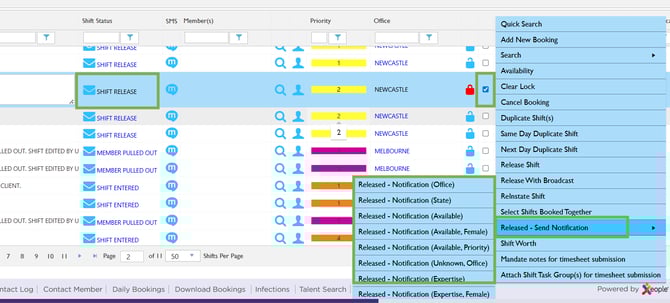
Release Shift – Select – Release – Send Notification
- A new tab will open in your internet browser with a list of all members matching the notification option.
- Select the members you wish to notify by ticking the boxes on the left. If you do not wish to notify a Member(s) ensure the box directly next to their name is unticked.
- Click on Push Notification in the bottom left corner.
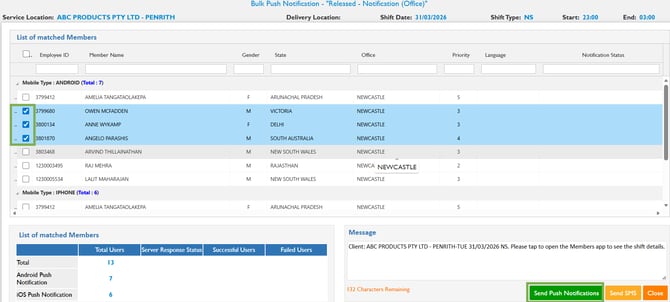
Bulk Push Notification – Members – Send Notification
- You will see a summary of the notification being sent.
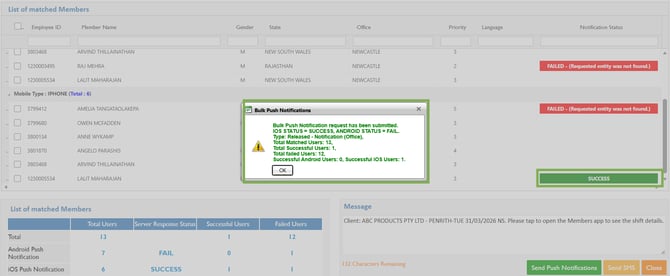
Bulk Push Notification - Summary
Recommend Reading: How to release a shift from the calendar view, click here: Broadcast vs Released Shifts.