
To edit a shift, follow the steps below:
- Select the shift(s) you want to update.
- Make sure all selected shifts have the same Status and Service Location.
- Click on the Edit button on the top header and either select single or multiple shifts.

Select Shift(s) – Edit – Single/Multiple Shifts
- Update the required fields and click Confirm.
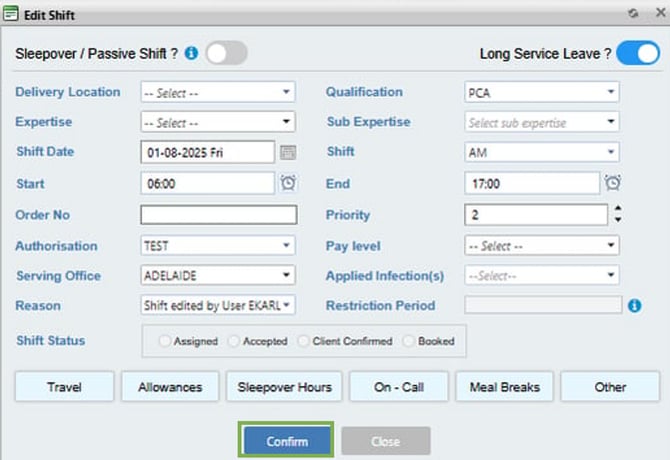
Edit Shift – Confirm
Update a Booked Shift and Request Member Reconfirmation
If you need to update a shift for a booked member and require them to reconfirm the changes, follow the same editing steps mentioned above and just do two additional things:
- Change the shift Status to Client Confirmed so the member can accept or decline the updated shift.
- Send them a message explaining the change.
- Click Confirm.
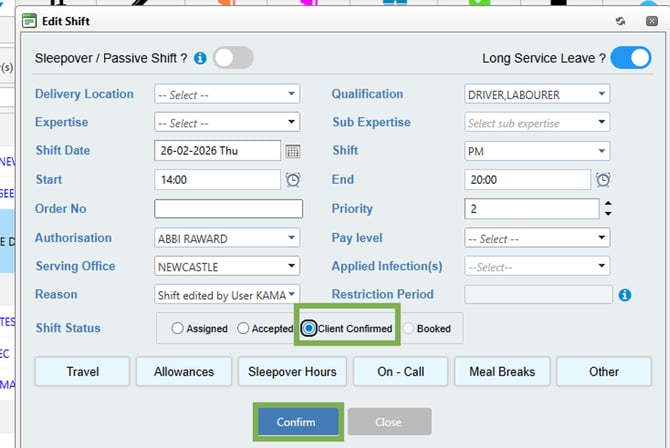
Edit – Member - Client Confirmed – Confirm
Recommend Reading: How you can edit a shift from the calendar view, click here: Edit- Shift Action Bar.