
Content
SuperReady Setup & Authorisation
How to Configure SuperReady Setup & Authorisation?
Super Compliance Services
Authorising Stapled Fund Lookup Access via Flare
SuperReady Status in Member Financial Details
What is a Member Verification Request (MVR)?
What is a Member Registration Request (MRR)?
Super Status Update and System Behaviour
Introduction of New SuperReady Menu Option
A new SuperReady menu option is introduced in the Staff Portal. This option is displayed only when the SuperReady - Superannuation Compliance Automation feature is rolled out by the Xeople team.
To access this menu option:
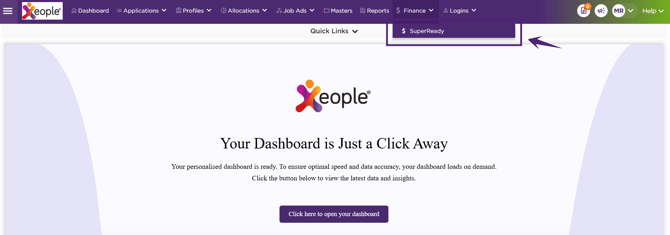
- Click Finance → SuperReady.
- The SuperReady menu redirects you to the Dashboard page.
Note that access to this submenu is managed through the Users Authentication master.
SuperReady Configuration Settings
The SuperReady Configuration Settings enable organisations to configure the information and integrations required to process compliance checks for Member Verification Request (MVR), Member Registration Request (MRR), Super Contribution processing, and Declare TFN and Connect ATO (Super Selection & Staple Fund) within the system.
These settings include Employer Payroll Profile, SuperReady Setup & Authorisation, Ozedi Account Registration, and Flare Registration, ensuring the organisation is properly registered with the required service providers, and all payroll and compliance details are correctly configured.
Through the SuperReady configuration, organisations can:
- Configure the Employer Payroll Profile, including Organisation & Payroll, Contact & Address, and Super Fund Identifier information. These details are used for MVR/MRR processing, super contribution payments, and Declare TFN and Connect ATO (Super Selection & Stapled Fund).
- Define SuperReady Setup & Authorisation to enable and authorise SuperReady processing within the system. Configure SuperReady settings for each entity. These settings must be completed before super contributions can be processed.
- Register the organisation with Ozedi for MVR, MRR, and Super Contribution processing. This is mandatory for all entities and must be completed before any compliance checks or super processing can be performed.
- Register with Flare to support TFN Declarations to the ATO. TFN declaration to the ATO is available via the Applicant Portal and Member App. This helps applicants and members view their stapled fund during super selection.
Completing these configuration steps ensures the organisation is fully prepared to calculate, submit, and manage superannuation contributions securely and in compliance with ATO SuperReady requirements.
How to Access Configuration Settings?
To access Configuration Settings:
- Click Finance → SuperReady.
- Click the Configuration Settings icon (as shown in the figure below).

-
The Configuration Settings page opens, where you can configure:
-
Employer Payroll Profile
-
SuperReady Setup & Authorisation
-
Provider Registration & Payment Setup (for Ozedi and Flare Account Registration).
-
Employer Payroll Profile
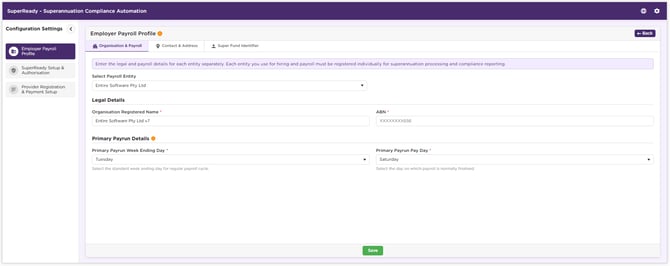
The Employer Payroll Profile feature enables organisations to provide and maintain the essential information required to process MVR, MRR, SuperReady contributions, and register the account for TFN Declaration to ATO via Flare.
This feature allows users to capture organisational information in Organisation & Payroll, Contact & Address, and Super Fund Identifier sections.
You must complete all mandatory fields marked with an asterisk (*) to ensure successful configuration and compliance setup.
How to Access Employer Payroll Profile?
To access the Employer Payroll Profile:
- Click Finance → SuperReady.
- Click the Configuration Settings icon, and the Employer Payroll Profile tab opens by default.
Organisation & Payroll
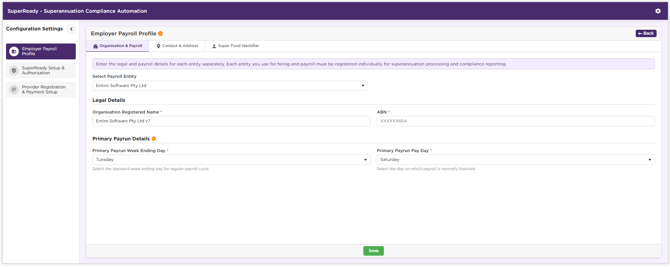
The Organisation & Payroll section allows you to provide key organisational and payroll configuration details required for SuperReady setup and processing. Each entity used for hiring and payroll must be registered separately to enable superannuation processing and compliance reporting.
To enter the details:
- Select a Payroll Entity (This field is displayed only when multiple entities exist).
- Provide the Legal Details, including Organisation Registered Name, and ABN.
- Select Primary Payrun Details, including Primary Payrun Week Ending Day, and Primary Payrun Pay Day. These two new settings are configured per ABN.
- Click Save.
|
Field Name |
Description |
|
Select Payroll Entity |
Select the relevant Payroll Entity. By default, the main entity is selected. This field is displayed only when multiple entities exist. |
|
Organisation Registered Name |
Provide the registered name of the Organisation. |
|
ABN |
Provide the 11-digit ABN (Australian Business Number). |
|
|
|
|
Primary Payrun Week Ending Day |
Select the standard week ending day for the regular payroll cycle. This day represents the end of the payroll work period. You can select any day from Monday to Sunday. This setting is saved at the branch level. This is the standard day on which a pay period ends for the primary (regular) payrun. This field defines the organisation’s payroll cycle and is used to determine the next regular payday for calculating Super Guarantee (SG) due dates. |
|
Primary Payrun Pay Day |
Select the day from Monday to Sunday on which payroll is normally finalised. Pay Day: The date on which payroll is processed, and employee payments are finalised in the application. The payrun where the Primary Payrun Week Ending Day and Primary Payrun Pay Day are the same as defined in the configured settings. It will be treated as the Primary Payrun Pay Day for the selected entity and is used to calculate due dates for super payment processing. |
Contact & Address
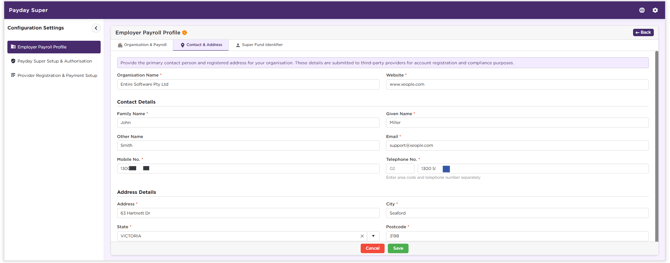
The Contact & Address Details section allows you to provide your organisation’s contact information, including the primary contact person and registered address. These details are submitted to third-party providers, i.e., Ozedi and Flare, for account registration and compliance purposes.
To enter the details:
- Provide Organisation Name and Website address.
- Provide Contact Details:
- Family Name
- Given Name
- Other Name. Here, 'Other Name' refers to any additional name or middle name used by the contact person
- Email address
- Mobile No
- Telephone No. Enter the area code and telephone number separately.
- Provide Address Details, including City, State, and Postcode.
- Click Save.
You can click Edit to update the required Contact & Address Details.

Super Fund Identifier
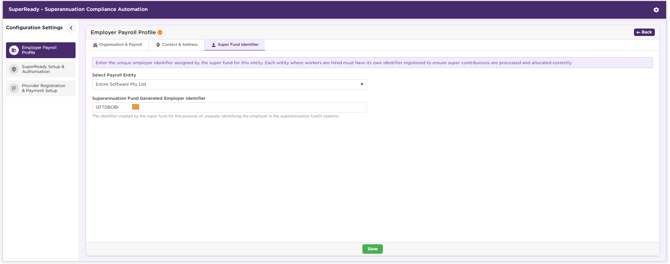
The Super Fund Identifier allows you to enter the unique employer identifier assigned by the super fund for each entity. Each hiring entity must have its own identifier registered to ensure super contributions are processed and allocated correctly.
Previously, the Super Fund Identifier was available in the Finance portal, but did not support multi-entity setups. Now, this field is introduced in the Staff Portal to enable employer registration with the fund or initiation of contributions, and to support both single-entity and multi-entity configurations.
To enter the details:
- Select a Payroll Entity (This field is displayed only when multiple entities exist).
- Provide the Superannuation Fund Generated Employer Identifier, a unique reference number assigned by a superannuation fund to an employer when the employer registers with the fund or begins making contributions.
This unique identifier helps the super fund to link super contributions to the correct employer, process contributions more accurately and quickly, and avoid errors when multiple employers contribute to the same fund. This identifier is included in the Super Clearing House Export / Super SAFF file for superannuation repayments processed from Entire OnHire. - Click Save.
SuperReady Setup & Authorisation
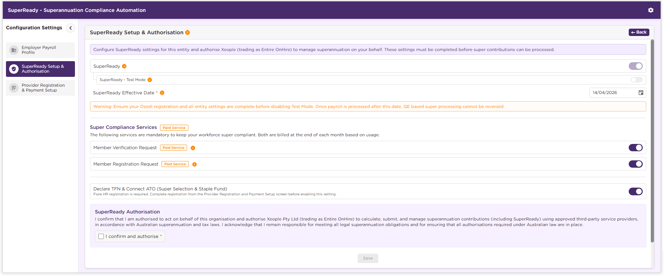
The SuperReady Setup & Authorisation section allows you to configure SuperReady settings for the selected entity and authorise Xeople (trading as Entire OnHire) to manage superannuation on your behalf. These settings must be completed before super contributions can be processed.
How to Access SuperReady Setup & Authorisation?
To access SuperReady Setup & Authorisation:
- Click Finance → SuperReady.
- Click the Configuration Settings icon and select the SuperReady Setup & Authorisation tab.
How to Configure SuperReady Setup & Authorisation?
Employers must configure the required settings and authorise SuperReady functionality.
To configure and authorise:
- Review and update the required settings.
- Read SuperReady Authorisation and select the I confirm and authorise checkbox to provide authorisation (applicable if OZEDI is selected as the super contribution processing provider).
- Click Save to store the configuration and authorisation settings successfully.
|
Field Name |
Description |
|
SuperReady |
Enables the SuperReady feature. Allows the client to set up their Ozedi account for MRR/MVR requests and Super Contribution Processing. Note: This setting is read-only and will be enabled by the Xeople team at the start of the new financial year, when SuperReady becomes effective. |
|
SuperReady - Test Mode |
Test Mode allows you to set up and upload for MVR/MRR, and Super Configuration files without triggering live payroll processing. No Payments are processed; only file uploads are validated. Note: This setting is read-only and applicable to Beta clients only. It will be enabled and managed by the Xeople team. Once beta testing is complete, the Xeople team will ensure Test Mode is turned off before SuperReady becomes effective. Warning: Ensure your Ozedi registration and all entity settings are complete before disabling Test Mode. Once payroll is processed after this date, QE based super processing cannot be reversed. |
|
SuperReady Effective Date |
Specifies the employer-level effective date for SuperReady processing. From this date, superannuation will be processed using Qualifying Earnings (QE) during payroll runs. Once Test Mode is turned off and payroll is processed on or after this date, QE-based super processing becomes permanently active and cannot be reversed. |
|
Super Compliance Services |
|
|
Member Verification Request |
Enables automated verification of member details against ATO and super fund records to ensure workforce super compliance. This is a mandatory requirement for maintaining compliance under ATO legislation from 1 July 2026. Click here to view the details on: Important Note: |
|
Member Registration Request |
Enables automated registration of new members with their nominated employer’s default super fund. This ensures each worker is correctly registered before super contributions are processed. MRR feature will be available in production from 1st July 2026 as per ATO guidelines. Click here to view the details on: |
|
Declare TFN & Connect ATO (Super Selection & Staple Fund) |
From 1 July 2026, the stapled fund lookup will be a mandatory step in the onboarding process for businesses using Flare. Enables TFN Declarations and Connect with ATO through Flare integration for the Applicant Portal and Workforce App. When this flag is set to ON, tax information details are submitted directly to the ATO. This is mandatory to establish the employer–employee relationship to retrieve an employee’s stapled fund during super selection. Tax information (including TFN declaration) must be submitted to the ATO, as this enables the ATO to validate the relationship and return stapled fund details. Flare HR registration is required. Complete registration from the Provider Registration and Payment Setup screen before enabling this setting. Note that the Stapled Fund will be displayed to the employee during the super fund selection process. TFN Declaration to ATO feature will be available in production from 1st July 2026 as per ATO guidelines. |
For Finance Portal: Whenever you update the SuperReady Setup and Authorisation, please log off and log back in to ensure the new settings take effect.
Provider Registration & Payment Setup
The Provider Registration & Payment Setup feature allows your organisation to register as a client with Ozedi (for Compliance & Payment Setup) and Flare HR (for TFN Declaration & Staple Fund).
Provider Registration & Payment Setup with OZEDI is required for the following:
- MVR (Member Validation Request) - Enables automated verification of member details against ATO and super fund records to ensure workforce super compliance. This is a mandatory requirement for maintaining compliance under ATO legislation from 1 July 2026. Click here for more details.
Not all super funds will support MVR requests by 1 July 2026. The Entire OnHire system automatically identifies eligible funds and sends requests accordingly when super fund details are saved. Based on the super fund response (accept/reject), the system automatically updates the member/ applicant SuperReady Status to Ready / Not Ready.
MVR Feature will be available in production from 1st July 2026 as per ATO guidelines. - MRR (Member Registration Request) - Enables automated registration of new members with their nominated employer’s default super fund. This ensures each worker is correctly registered before super contributions are processed. Click here for more details.
MRR Feature will be available in production from 1st July 2026 as per ATO guidelines.
How to Access Provider Registration & Payment Setup?
To access Provider Registration & Payment Setup:
- Click Finance → SuperReady.
- Click the Configuration Settings icon and select the Provider Registration & Payment Setup tab.
Ozedi — Compliance & Payment Setup
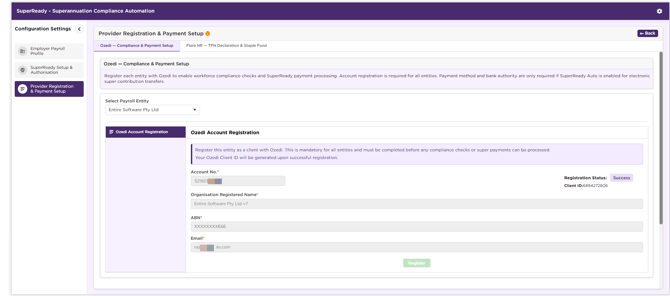
The Ozedi — Compliance & Payment Setup section allows register each entity with Ozedi to enable workforce compliance checks and SuperReady payment processing. Account registration is required for all entities.
Through this section, you can complete the Ozedi Account Registration setup:
- Ozedi Account Registration: Register the entity as a client with Ozedi. This is mandatory for all entities and must be completed before any compliance checks or super payments can be processed. Your Ozedi Client ID will be generated upon successful registration.
You must ensure Ozedi Account Registration is fully configured to enable SuperReady compliance and processing within the application.
All mandatory fields are marked with an asterisk (*) on the screen. The Payroll Entity field appears only if multiple entities exist.
Ozedi Account Registration
The Ozedi Account Registration section allows you to provide organisational details required to register your organisation with Ozedi. This performs compliance checks, including MVR/MRR, and processes super payments.
This is mandatory for all entities and must be completed before any compliance checks or super payments can be processed. An Ozedi Client ID is generated upon successful registration.
Who Needs to Complete This Setup
This setup is applicable to clients who opt for any of the following:
- MVR (Member Validation Request).
- MRR (Member Registration Request).
How to Register with Ozedi?
- Displays the mandatory Account No. registered in the OZEDI dashboard, as pre-setup by Entire OnHire.
- The Organisation Registered Name, ABN, and Email fields are automatically populated from the Employer Payroll Profile section.
- Update details (if required).
- Click Register. Once registration is successful, the Register button is disabled.
Once registration is successful:
- The Registration Status changes to Success.
- A Client ID is generated and displayed on screen.
|
Field Name |
Description |
|
Account No. |
Displays the account number registered in the OZEDI Dashboard. Clients with multiple ABNs will have a single account number that will be the same across all ABNs. |
|
Registration Status |
Displays the registration status as Success or Fail. When registration is completed successfully, the status changes to Success. |
|
Client ID |
Displays the client identification number generated after successful registration. |
|
Organisation Registered Name |
Displays the registered name of the organisation as provided in the Employer Payroll Profile. |
|
ABN |
Displays the 11-digit ABN as provided in the Employer Payroll Profile. Note: If the organisation's ABN is updated in Organisation & Payroll, the registration details for Ozedi become editable. You can update the Organisation Registered Name and ABN, then re-register the selected branch. |
|
|
Displays the email address configured in the Employer Payroll Profile. This email address is not editable. To update the email address, please contact support@xeople.com. Notifications for each upload request related to MVR, MRR, and super contribution processing are sent to this email address. |
Flare HR — TFN Declaration & Staple Fund
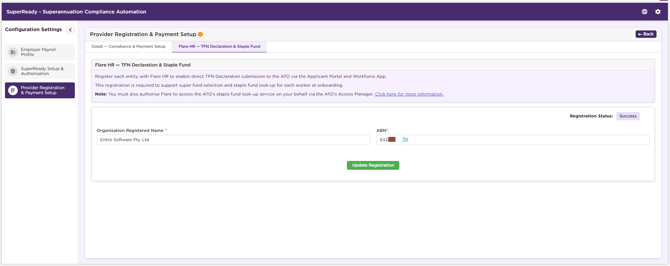
Register with Flare HR to enable direct TFN Declaration to the ATO via the Applicant Portal and Workforce App. This registration is required to support super fund selection and stapled fund lookup for each employee during onboarding.
From 1 July 2026, the stapled fund lookup will be a mandatory step in the onboarding process for businesses using Flare. To support this requirement, the ‘Declare TFN & Connect ATO (Super Selection & Stapled Fund)’ flag must be set to ON in the SuperReady Setup & Authorisation settings.
TFN Declaration to ATO feature will be available in production from 1st July 2026 as per ATO guidelines.
Tax information (including TFN declaration) must be submitted to the ATO, as this enables the ATO to validate the relationship and return stapled fund details. This is mandatory to establish the employer–employee relationship to retrieve an employee’s stapled fund during super selection in the Applicant portal and Workforce App via flare.
To complete the registration:
- Confirm or update the Organisation Registered Name and ABN.
- Click Register.
- On clicking Register, an employer Flare account is automatically created using the details provided in the Employer Payroll Profile section.
- If an account already exists, it is automatically updated with the Legal Entity details. The Organisation Registered Name and ABN can be edited before submission. Once the details are edited, click Update Registration.
Note: If the organisation's ABN is updated in Organisation & Payroll, the registration details for Flare HR become editable. You can update the Organisation Registered Name and ABN, then re-register the selected branch.
Registration Status
Once the registration is completed successfully:
- The Registration Status is displayed as Success.
- The Update Registration button is available for future changes.
If any of the following details are updated - Account Name, Website, Contact Details (Family Name, Given Name, Email, Mobile Number), or Legal Entity Information (Organisation Registered Name, ABN, Address, or Phone Number), please ensure they are also updated in the SuperReady Configuration Settings.
After making the updates, click the Update Registration button in Flare Registration to keep the employer information up to date within Flare.
Authorising Stapled Fund Lookup Access via Flare
To enable stapled fund lookups during employee onboarding, you must authorise Flare to access the Australian Taxation Office (ATO) stapled fund lookup service on your behalf via the ATO Access Manager.
What is Changing?
From 1 July 2026, a stapled fund lookup will become a mandatory step for any businesses using Flare during the onboarding process. If a stapled fund is identified, it must be presented to the employee alongside other available options during their fund selection.
Entire OnHire has partnered with Flare Pty Ltd to provide this service. To enable Flare to perform this stapled look-up on your behalf, you must follow a step-by-step process in the ATO Access Manager.
What Do You Need to Do?
To ensure a seamless onboarding experience and avoid disruptions, this authorisation must be completed in the ATO Access Manager by 1 July 2026, when the legislation comes into effect. Without this, employees may experience a more complex onboarding process.
Steps to Authorise Access:
- Log in to the ATO Access Manager as a Principal Authority or Authorised Administrator.
- Navigate to Manage Permissions / Access.
- Locate Flare (or search using the provided ABN/RAN).
- Grant the required permissions to allow stapled fund lookup on your behalf.
Refer to the help article for detailed step-by-step instructions on how to authorise access for Flare or for common FAQ's related to authorising stapled fund lookup access via Flare, click here.
SuperReady Status in Member Financial Details
The Financial Details page displays the SuperReady Status for each member. This status is shown only when the SuperReady feature is effective or in Test Mode.
The SuperReady Status indicates whether a member is ready for super contribution processing based on successful MVR/MRR compliance checks and validation of their super fund details. For detailed information, refer to Super Status Update and System Behaviour.
For existing members, the default SuperReady Status is Not Ready. This status also appears for members who do not have a super fund configured.
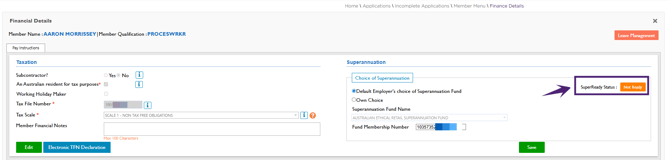
When you click the SuperReady Status button, you will be redirected to the Member Super Health page. The Member Super Health page shows the member’s overall Super Status, along with other related statuses such as Member Verification Request (MVR) and Member Registration Response (MRR), TFN Declaration Status.
From this page, staff can perform all required actions related to a member’s super setup and compliance. Click here to view the detailed Member Super Health article.
What is a Member Verification Request (MVR)?
A Member Validation Request (MVR) enables automated verification of member details against ATO and super fund records to ensure workforce super compliance. Employers must submit an MVR before making the first superannuation contribution to a super fund for an employee, ensuring that the member's details are validated before processing any contributions.
This is mandatory for employers from 1 July 2026 in accordance with ATO requirements. An MVR can be initiated only when:
- The selected superannuation fund is an APRA-regulated fund.
- The fund has a valid CONT3.0-X certification in FVS.
- The certification is currently effective and has not expired, based on the latest Fund Validation Service (FVS) data.
Click here for detailed information on:
When is an MVR Mandatory?
An MVR is mandatory in the following scenarios:
- For new employees.
- When an employee nominates or changes their super fund.
- After a stapled fund lookup for a new employee.
- After a refund is received, a corrected fund is identified.
- When an employee notifies the employer of a merged fund (Successor Fund Transfer).
Why is MVR Important?
MVRs help ensure that:
- Member details are correct.
- Fund details are valid.
- The fund is ready to receive contributions.
- The SMSF ABN is registered with the nominated ESA.
This validation plays a critical role in accurate and compliant super processing:
- Up to 89% of contribution refunds caused by “member not found” errors can be avoided by using MVRs.
- Refunds are time-consuming and labour-intensive, increasing operational overhead.
- Refunds pose a significant compliance risk due to the 7-day rule.
- Corrected contributions must be received by the super fund within 7 business days from payday, even if a refund has occurred.
- Employers have up to 20 business days to make contributions for new employees or when employees change funds, allowing time to obtain an MVR and confirm membership.
To minimise errors and refunds, contributions should not be processed until a verification status of 'Ready' is received.
If an error response is received, the status remains Not Ready, and the error details can be viewed on the Member Super Health screen. Click here to view the detailed Member Super Health article.
When is MVR not required?
- When a new employee accepts the employer’s registered default fund, an MRR (Member Registration Request) is sent instead of an MVR.
- When an employee updates personal details (such as name, TFN, or date of birth), sending an MVR is optional.
When should MVR not be sent?
- MVR should not be sent before every pay run.
- MVR should not be sent for every employee. MVR is used only to validate or update member details and should not be sent for all employees, especially when their super fund details are already correct and verified.
Important Note:
-
An MVR is required only once per fund, before the first contribution.
-
It is not required for regular payroll contribution cycles.
- Not all super funds will support MVR requests by 1 July 2026. The Entire OnHire system automatically identifies eligible funds and sends requests accordingly when super fund details are saved. Based on the super fund response (accept/reject), the system automatically updates the member/ applicant SuperReady Status to Ready / Not Ready.
- MVR Feature will be available in production from 1st July 2026 as per ATO guidelines.
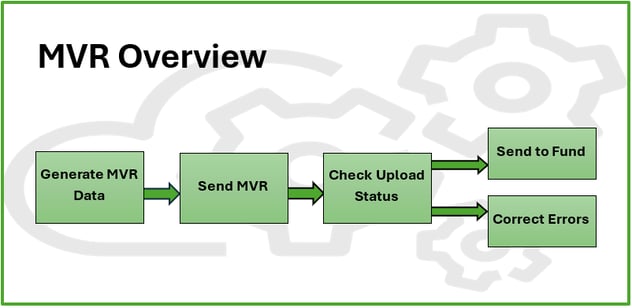
When a member’s super fund details are updated, a Member Validation Request (MVR) is automatically triggered. The system generates the required TSV file and sends it to Ozedi for processing.
Based on the response received:
- If successful, the member’s status is updated to Ready.
- If an error occurs, the status remains Not Ready, and the error details can be viewed on the Member Super Health screen. Click here to view the detailed Member Super Health article.
This process is applicable only when you have opted for MVR, and the SuperReady Configuration Settings flag is enabled.
How to create a new Member Verification Request (MVR) feature will be available in a future release. Stay connected.
What is a Member Registration Request (MRR)?
A Member Registration Request (MRR) enables automated registration of new members with their nominated employer’s default super fund. This ensures each worker is correctly registered before super contributions are processed.
An MRR can be initiated only when:
- The selected superannuation fund is the employer's default fund.
- The fund has a valid CONT3.0-X or CONT1.0-X certification in FVS.
- The certification is currently effective and has not expired, based on the latest Fund Validation Service (FVS) data.
Click here for detailed information on:
When is an MRR Required?
When an employee nominates the employer’s default fund, this service is triggered if both the MRR flag and SuperReady flag are set to ON, based on the SuperReady Effective Date.
Employers must ensure that this default fund is compliant and correctly registered.
When an Employee Chooses Their Own Fund
- If an employee nominates a fund that is not the employer’s default fund, the employee is responsible for:
- Registering with that fund.
- Providing the required details to the employer.
The employer can then use these details to process contributions.
Existing Fund Accounts and Registration
If an employee already has an account with their nominated fund but is new to the organisation:
- A new MRR must still be submitted.
- This ensures a member identifier is issued via the Member Registration Outcome Response (MROR).
- Once the member identifier is received, the employer uses this identifier when submitting contributions.
MRR Processing Details
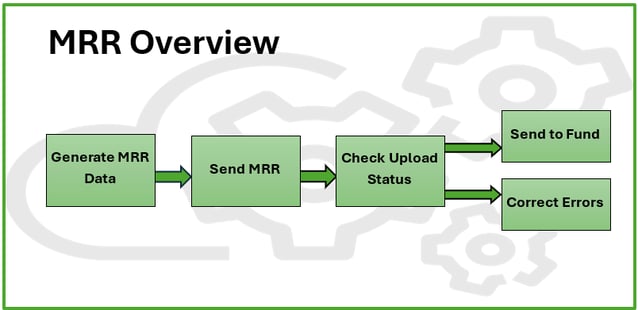
When a super fund is saved or updated for a member, the system automatically checks whether a Member Registration Request (MRR) is required. If the MRR is applicable:
- The Super Status is ‘Not Ready.’
- A Member Registration Request (MRR) is automatically triggered for the member or applicant, and the system generates the required MRR TSV file for registration.
This process occurs when MRR is selected, and both the MRR and SuperReady flags are set to ON in the Super Compliance Services settings, based on the SuperReady Effective Date. -
The generated file is automatically uploaded to Ozedi via the Ozedi API for processing. Ozedi then forwards the request to the respective super fund.
If the registration is successful, the fund returns a membership number, which is saved automatically in the system, and the member’s status is updated to Ready.
If an error response is received, the status remains Not Ready, and the error details can be viewed on the Member Super Health screen. Click here to view the detailed Member Super Health article.
TSV File Generation
During the MRR process, the system validates all mandatory fields required for TSV file generation. If any required information is missing or incorrect, validation errors are displayed. You can view errors by clicking the MRR Status in the MRR Status column on the Super Health Status page.
The MRR Status indicates the processing state of a member or applicant registration and can display one of the following values:
- Success – indicates registration is completed based on the response received from the super fund.
- In Progress – indicates the SAFF file is generated and/or submitted to Ozedi, and the system is awaiting a response.
- Error – indicated an error or warning was received from Ozedi or the super fund, or a validation error occurred during file generation.
The MRR Status and MRR Processing Details, creating a new Member Registration Request (MRR) feature, will be available in a future release. Stay connected.
Super Status Update and System Behaviour
This section explains how an employee’s Super Status is updated in response to changes to their superannuation details, as well as the outcomes of MVR (Member Validation Request) and MRR (Member Registration Request) processing.
Click here to view the details on:
1. Processing MVR/MRR When the Super Fund is Updated and
SuperReady feature is enabled.
Superannuation validation and registration for compliance checks are managed via Ozedi using Member Validation Request (MVR) and Member Registration Request (MRR), based on the MVR and MRR flags.
This behaviour applies only when the SuperReady feature is enabled, and the current date is on or after the SuperReady Effective Date.
When is MVR/MRR Triggered?
The process is automatically triggered when:
- Super fund details are updated for a member or applicant from any of the following actions:
- Staff Portal – Member’s finance section, and Create New Member page.
- Applicant Portal – Member’s Finance Section.
- Finance Portal - Member’s finance section.
- Workforce App - Choice of Super Fund menu.
- The member’s Super Status is Not Ready, and
- Business rules determine that MVR and/or MRR are required.
This approach ensures a consistent, automated, and compliant process for managing superannuation validations and registrations across all entry points.
When a member’s or applicant’s super fund details are updated, the system automatically sets the Super Status to Not Ready.
The status is updated to Not Ready when there is a change in any of the following:
- Choice Type.
- Fund Name.
- Fund Membership Number.
This ensures that any changes to superannuation information are revalidated before further processing, maintaining accuracy and compliance.
How SuperReady Status is Managed Across the System
The SuperReady Status is visible when the SuperReady, Member Registration Request/ Member Verification Request flags are enabled, and the current date is on or after the SuperReady Effective Date.
Scenario 1: Fund Choice Updated from Blank/Own Choice to Default Fund
When a user updates the fund choice from Blank/Own Choice to Default Fund, the system sets MRR Status to New and SuperReady Status to Not Ready, and triggers Member Registration Request (MRR) via Ozedi.
Condition:
The MRR process is initiated only if the super fund holds an FVS certificate of CONT1.0 or CONT3.0 that is valid for the relevant effective start and end dates in FVS. If this condition is not met, the MRR process will not be triggered, and the member’s Super Status will remain unchanged (Ready / Not Ready).
If the MRR response is successful:
- The SuperReady Status is updated to Ready, the MRR Status is marked as Success, and the Fund Membership Number returned by the super fund is automatically saved against the member or applicant.
If the MRR response is unsuccessful:
- The SuperReady Status remains Not Ready, and the MRR Status is marked as Error.
Member Registration Request (MRR) Flag Status - When SuperReady is Disabled
- The MRR Status is set to N/A.
- The SuperReady Status remains Not Ready.
- No MRR process is initiated, regardless of whether MVR is triggered or its outcome.
Scenario 2: Fund Choice Updated from Blank/Default to Own Choice, Fund Membership Number Updated for Own Choice/Default Fund, or Super Fund Updated Within Own Choice Type
Step 1: Check Fund Type and Compliance
- If the selected fund is not an SMSF (Self-Managed Super Fund) and is compliant (CONT-3) in the Fund Validation Service (FVS) for the effective date:
- MVR Status → New.
- SuperReady Status → Not Ready.
- An MVR (Member Validation Request) is triggered.
- If the fund is not compliant (CONT-3 not available in FVS) for the effective date:
- MVR Status → N/A.
- SuperReady Status → Not Ready.
- No MVR is triggered.
- If the selected fund is an SMSF (Self-Managed Super Fund):
- MVR Status → New.
- SuperReady Status → Not Ready.
- An MVR is triggered.
Step 2: Based on MVR Response
- If MVR is successful:
- MVR Status → Success.
- SuperReady Status → Ready.
- If MVR fails:
- MVR Status → Error.
- SuperReady Status → Not Ready.
- Error details can be viewed on the Member Super Health screen.
Special Case: FVS Data Not Available
If fund details are not available in the FVS:
- The system will still trigger MVR (based on enabled configuration settings flags), regardless of compliance status.
- MVR Status → New.
- SuperReady Status → Not Ready.
Member Validation Request (MVR) Flag Status - When SuperReady is Disabled
- MVR Status → N/A.
- SuperReady Status → Not Ready.
- No MVR is triggered.
Scenario 3: Edge Case - System-Update Membership Number Only (Default Fund)
This scenario applies when the system automatically updates only the Fund Membership Number as part of an MRR response, while the fund remains the Default Fund.
In this case, MRR Status is set to Success, and the SuperReady Status is updated to Ready. No additional MVR or MRR processes are triggered.
When SuperReady Feature is Not Enabled
When the SuperReady feature is disabled, the MRR Status is set to N/A, and the SuperReady Status remains Not Ready. No MRR process is initiated.
This ensures that system-driven updates from successful registration responses do not trigger unnecessary reprocessing.
Refer to the system behaviour when SuperReady is in Test Mode (for Beta Clients only).
Related articles: