
Content
Scenario 1: SuperReady Disabled
Scenario 2: SuperReady Not Yet Applicable (Pre-Effective Date)
Scenario 3: SuperReady is Applicable
Scenario 4: SuperReady in Test Mode for Beta Clients Only
SuperReady Applicability Logic and Activation Conditions in Finance Portal
This section provides an overview of the various activation modes of SuperReady, including Enabled mode, pre-effective scenarios, and Test Mode.
Until SuperReady becomes effective, the system continues to follow existing superannuation processing rules while displaying relevant UI indicators, validations, and configuration options to support a smooth transition. System behaviour is automatically determined by configured flags, effective dates, and Test Mode settings, ensuring users have clear visibility of SuperReady status.
Beta clients can use Test Mode to capture Qualifying Earnings (QE) and compliance checks for MVR/ MRR file uploads, reporting, and submission processes (via Ozedi) without impacting live payroll processing.
The SuperReady becomes applicable to a client based on factors such as SuperReady flags, Test Mode status, financial year-end date, legislative start date, employer effective date, and upcoming or unfinalised pay runs as explained below.
Refer to the SuperReady Configuration Settings section to configure the SuperReady feature.
Scenario 1: SuperReady Disabled
When your SuperReady feature is disabled, the following applies:
- The system will continue to operate as usual.
- Once the Entire OnHire rolls out changes, you can configure the SuperReady Configuration Settings for Superannuation Compliance Automation in the Staff Portal for Employer Payroll Details, SuperReady Setup & Authorisation, Ozedi Account Registration, and Flare Registration. Click here for more details.
- With the rollout of SuperReady, you can review Superannuation settings for pay components in the master, as per ATO guidelines for Qualifying Earnings, Additions and Deductions, Allowances, Member Shifts masters, and QE Exempt (where applicable), allowing you to prepare in advance of the SuperReady Effective Date. Click here for more details.
-
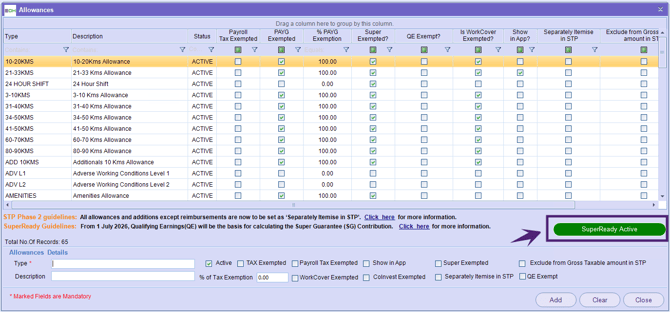
- The QE Exempt flag and SuperReady Guidelines are available in the following master screens:
- TFN Declaration cannot be submitted via Flare, even when the “Declare TFN & Connect ATO (Super Selection & Stapled Fund)” flag is ON in the SuperReady portal.
- In the Superannuation section for members/applicants, the SuperReady Status button will not be displayed as ‘Ready’ or ‘Not Ready’.
- In the Workforce app, the Choice of Super menu is not available.
- The Member Super Health and Dashboard pages will not be accessible in the SuperReady Portal [coming soon].
Scenario 2: SuperReady Not Yet Applicable (Pre-Effective Date)
When your SuperReady is not yet applicable (i.e., the SuperReady effective date is later than the current date) and your SuperReady flag is set to ON, the following applies:
-
The system will continue to operate as usual.
- Once the Entire OnHire rolls out changes, you can configure the SuperReady Configuration Settings for Superannuation Compliance Automation in the Staff Portal for Employer Payroll Details, SuperReady Setup & Authorisation, Ozedi Account Registration, and Flare Registration. Click here for more details.
- With the rollout of SuperReady, you can review Superannuation settings for pay components in the master, as per ATO guidelines for Qualifying Earnings, Additions and Deductions, Allowances, Member Shifts masters, and QE Exempt (where applicable), allowing you to prepare in advance of the SuperReady Effective Date. Click here for more details.
- Finance Portal: Payroll can still be processed as per Super cut-off dates, as SuperReady is not yet effective.
- The Member Super Health and Dashboard pages are accessible in the SuperReady Portal [coming soon].
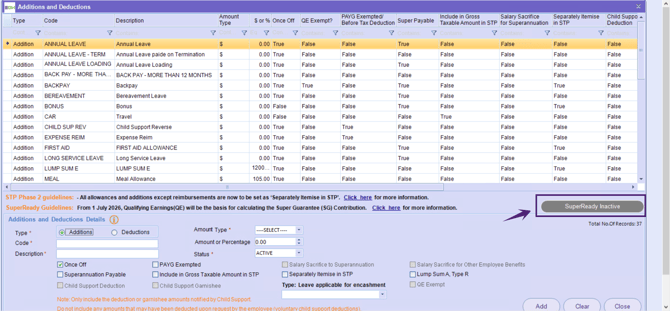
- The following screens will show the 'SuperReady – Inactive' badge:
- Members Shifts
- Allowances
- Additions/ Deductions
- Payroll Processing
- TFN Declaration cannot be submitted via Flare, even when the “Declare TFN & Connect ATO (Super Selection & Stapled Fund)” flag is ON in the SuperReady portal.
- No compliance checks - MVR/MRR will be applicable as per SuperReady Configuration Settings.
- In the Superannuation section for members/applicants, the SuperReady Status button will not display a ‘Ready’ or ‘Not Ready’ status.
- In the Workforce app, the Choice of Super menu is not available.
Scenario 3: SuperReady is Applicable
When your SuperReady is applicable (i.e., the SuperReady effective date has reached) and your SuperReady flag is set to ON, the following applies:
- Once the Entire OnHire rolls out changes, you can configure the SuperReady Configuration Settings for Superannuation Compliance Automation in the Staff Portal for Employer Payroll Details, SuperReady Setup & Authorisation, Ozedi Account Registration, and Flare Registration. Click here for more details.
- When the ‘Declare TFN & Connect ATO (Super Selection & Stapled Fund)’ flag is ON in the SuperReady Portal, tax information details are submitted directly to the ATO via Flare for applicant/members from the Applicant Portal and Workforce App to review staple fund details. The staple fund details are visible when the SuperReady feature is enabled. Click here for more details.
This is mandatory to establish the employer–employee relationship to retrieve an employee’s stapled fund during super selection. Tax information (including TFN declaration) must be submitted to the ATO, as this enables the ATO to validate the relationship and return stapled fund details. - With the rollout of SuperReady, you can review Superannuation settings for pay components in the master, as per ATO guidelines for Qualifying Earnings, Additions and Deductions, Allowances, Member Shifts masters, and QE Exempt (where applicable), allowing you to prepare in advance of the SuperReady Effective Date.
The system calculates Super on Qualifying Earnings (QE), and the QE amount is reported to STP. You do not need to set up super cut-off dates or super calculations, as super will be calculated per pay run. Click here for more details.- The QE Exempt flag and SuperReady Guidelines are available in the following master screens:
- Compliance checks - MVR/MRR processes will apply in accordance with the SuperReady configuration settings.
-
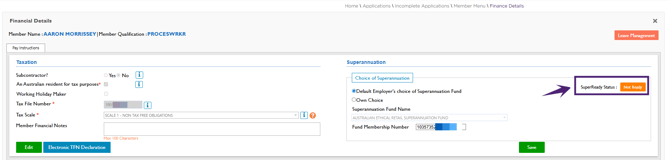
In the Superannuation section for members/applicants, the SuperReady Status button displays a ‘Ready’ or ‘Not Ready’ status.
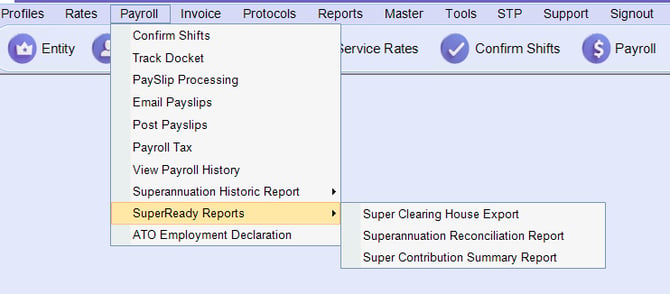
- New SuperReady Reports are available in the Finance portal to support export/import into your existing clearing house for super payments based on the selected week ending. These reports include the Clearing House Export File Utility, Reconciliation Report, and Contribution Summary Report. Click here for more details.
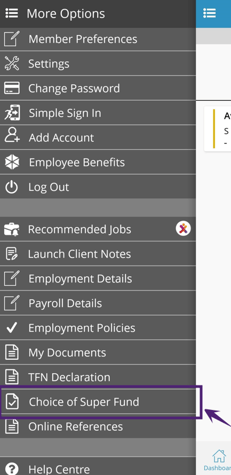
- In the Workforce app, the Choice of Super menu is available.
- The Member Super Health and Dashboard pages are accessible in the SuperReady Portal [coming soon].
- The following screens will show the 'SuperReady – Active' badge:
- Members Shifts
- Allowances
- Additions/ Deductions
- Payroll Processing
- Special Case Handling: Where 1 July 2026 marks the start of the financial year, the above conditions apply. If the financial year commences on a date other than 1 July 2026, the Legislative Date is applied to handle this scenario. Click here for further details.
Scenario 4: SuperReady in Test Mode for Beta Clients Only
When your SuperReady is enabled in Test Mode, the following applies:
- Once the Entire OnHire rolls out changes, you can configure the SuperReady Configuration Settings for Superannuation Compliance Automation in the Staff Portal for Employer Payroll Details, SuperReady Setup & Authorisation, Ozedi Account Registration, and Flare Registration.
- When the ‘Declare TFN & Connect ATO (Super Selection & Stapled Fund)’ flag is ON in the SuperReady Portal, tax information details are submitted directly to the ATO via Flare for applicant/members from the Applicant Portal and Workforce App to review staple fund details. The staple fund details are visible when the SuperReady feature is enabled.
This is mandatory to establish the employer–employee relationship to retrieve an employee’s stapled fund during super selection. Tax information (including TFN declaration) must be submitted to the ATO, as this enables the ATO to validate the relationship and return stapled fund details.
- With the rollout of SuperReady, you can review Superannuation settings for pay components in the master, as per ATO guidelines for Qualifying Earnings, Additions and Deductions, Allowances, Member Shifts masters, and QE Exempt (where applicable), allowing you to prepare in advance of the SuperReady Effective Date.
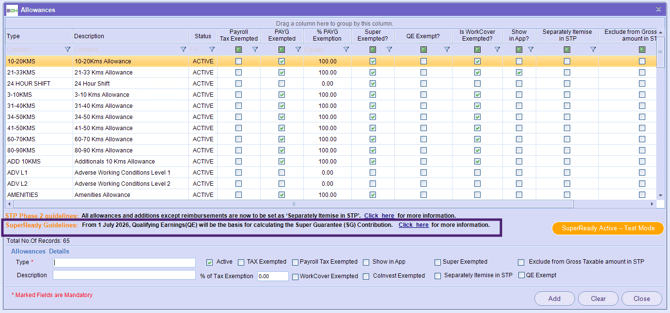
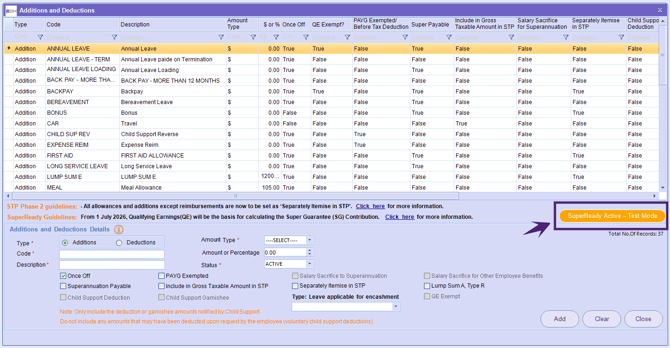
- The QE Exempt flag and SuperReady Guidelines are available in the following master screens:
- New SuperReady Reports are available in the Finance portal to support export/import into your existing clearing house for super payments based on the selected week ending. These reports include the Clearing House Export File Utility, Reconciliation Report, and Contribution Summary Report. Click here for more details.
The existing Superannuation reports continue to display data as per the super cut-off dates, and all reports are generated as usual. - Compliance checks - MVR/MRR can be tested as per SuperReady Configuration Settings; however, no data is pushed to super funds. Only file uploads can be tested.
- Finance Portal: Payroll can still be processed as per Super cut-off dates, as SuperReady is not yet effective. The Qualifying Earnings (QE) amount will not be reported in STP at this stage.
- In the Superannuation section for members/applicants, the SuperReady Status button displays either ‘Ready’ or ‘Not Ready’ in the Staff and Finance portals. It is not displayed in the Applicant Portal or Workforce App.
-
In the Workforce app, the Choice of Super menu is available.
- The Member Super Health and Dashboard pages are accessible in the SuperReady Portal [coming soon].
- The following screens will show the 'SuperReady – Test Mode' badge:
- Members Shifts
- Allowances
- Additions/ Deductions
- Payroll Processing
SuperReady Applicability Logic and Activation Conditions in Finance Portal
SuperReady applicability in the Finance Portal is determined based on a combination of system configuration, legislative requirements, and key dates defined in the SuperReady Setup & Authorisation.
Configuration Parameters
The following settings are used to evaluate applicability (assuming Test Mode is Off):
- SuperReady Effective Date
- Defines the date from which SuperReady becomes active for the client.
- SuperReady Legislative Date
- Default: 1 July 2026.
- Represents the mandatory compliance start date as defined by legislation (maintained by the Entire OnHire team).
Applicability Evaluation Logic
Within the Finance Portal, the system determines whether SuperReady is applicable using the following sequence:
- Financial Year-End Validation
- If the Financial Year-End Date is earlier than the Legislative Date → SuperReady is not applicable.
- If the Financial Year-End Date is on or after the Legislative Date → proceed to the next check.
- Effective Date Alignment
- If the SuperReady Effective Date is equal to the Legislative Date → SuperReady is applicable.
- Client-Specific Effective Date Check
- If the SuperReady Effective Date differs from the Legislative Date:
- If the current system date (user login date in the Finance Portal) is on or after the Effective Date → SuperReady is applicable.
- If the current system date is before the Effective Date → SuperReady is not applicable.
- If the SuperReady Effective Date differs from the Legislative Date:
Clients with an approved exemption from ATO for a different effective date must enable the SuperReady flag at the Employer level and configure the appropriate effective date.
Related articles: