
Content
Introduction
How to Access the Choice of Superannuation Fund?
How Can I Submit My Tax Information?
What Does My SuperReady Status Mean?
What Happens When You Access Superannuation?
How To Select New Super Fund
Select How Can I Update My Existing Super Fund?
Introduction
The Applicant Portal reflects the impact of SuperReady, ensuring that superannuation details are managed accurately and in compliance with Payday Super and Australian Taxation Office (ATO) obligations.
How to Access the Choice of Superannuation Fund?
To access the Choice of Superannuation Fund:
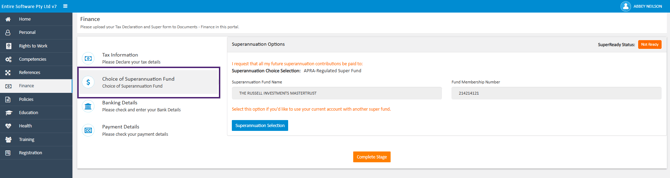
- Click the Finance tab.
- Select the Choice of Superannuation Fund (as shown in the figure below).
How Can I Submit My Tax Information?
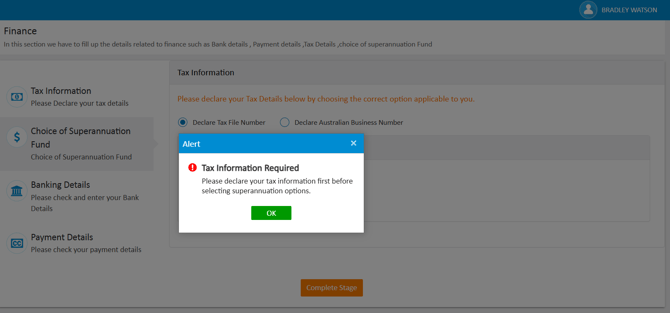
If tax information has not been completed, a system prompt will appear requesting you to declare your tax details. Click OK and provide and submit the required information in the Tax Information tab.
TFN Declarations can be submitted or updated via the Applicant Portal. To enable this, the ‘Declare TFN & Connect ATO (Super Selection & Stapled Fund)’ flag must be set to ON in the SuperReady Configuration Settings of the Staff Portal. This enables TFN declaration submission and connection to the ATO via the Flare integration. Tax information is submitted directly to the ATO. For more details, refer to the Super Compliance Services section of the SuperReady Setup & Authorisation.
When this flag is ON, tax information must be submitted before selecting the super fund; otherwise, a validation message will be displayed.
This process is required to establish the employer–employee relationship and enable the retrieval of the employee’s stapled fund during super selection. Submission of tax information (including TFN declaration) to the ATO allows the ATO to validate the relationship and return stapled fund details.
The Choice of Superannuation Fund option is available only after TFN Declaration or ABN Declaration (for subcontractors) details are submitted in the Tax Information section.
Worker Holiday Maker Validation
When the ‘Declare TFN & Connect ATO (Super Selection & Stapled Fund)’ flag is set to ON and Tax Scale is selected as Worker Holiday Maker for the applicant, selection of the Passport Country in the Visa Details section becomes mandatory (in the Staff portal); otherwise, a validation message is displayed.
What Does My SuperReady Status Mean?
The Choice of Super Fund section displays the SuperReady status for each applicant. This status is shown based on the SuperReady Effective Date.
This SuperReady Status indicates whether an applicant is ready for super contribution processing, based on the successful validation and registration of their super fund details. For detailed information, refer to the Super Status Update and System Behaviour.
For existing applicants, the default SuperReady Status is 'Not Ready'. For applicants without a super fund, the status will also appear as 'Not Ready'.
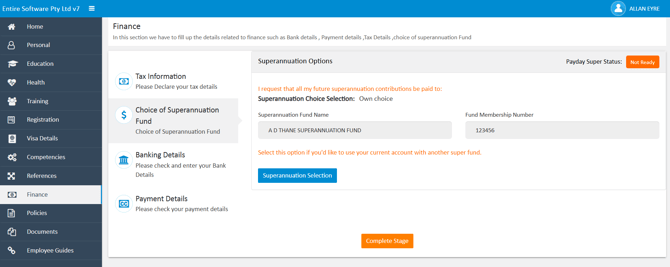
When you click the SuperReady Status button, you will be redirected to the Member Super Health page. The Member Super Health page shows the selected member’s overall Super Status, along with other related statuses such as Member Verification Request (MVR), Member Registration Response (MRR), and TFN Declaration Status.
Here, the applicants can view their own records and cannot perform any actions. Click to view the detailed Member Super Health article.
SuperReady Status – Compliance Checkpoint
The SuperReady Status is visible only when the SuperReady and MRR/MVR (Member Registration Request/Member Verification Request) flags are enabled, and the current date is on or after the SuperReady Effective Date. This SuperReady status is managed based on the compliance checks under the following conditions:
-
Fund Choice Updated from Blank/Own Choice to Default Fund.
- Fund Choice from Blank/Default to Own Choice or Updated Fund Membership Number of Own Choice/Default Fund.
-
Special Case: FVS Data Not Available.
-
Edge Case - System-Update Membership Number Only (Default Fund).
Click here to view the detailed information about SuperReady Status - Compliance Checks.
What Happens When You Access Superannuation?
How To Select New Super Fund?
When you access the Superannuation Choice Selection screen for the first time, the Superannuation option is not pre-selected.
You can select from the following fund types:
- Default Fund – Displays the employer’s default superannuation fund.
- Existing Fund (Ordinary Fund) – Displays an APRA-regulated superannuation fund.
- Self-Managed Fund (SMSF) – Displays a Self-Managed Superannuation Fund (SMSF).
- Stapled Fund – A stapled fund is an employee’s existing superannuation fund that stays with them when they change jobs. Under Australian Taxation Office (ATO) requirements, if a new employee does not choose a super fund, the employer must request the employee’s stapled fund details from the ATO and contribute to that fund instead of using a default fund.
The stapled fund is identified as either an APRA-regulated superannuation fund or a Self-Managed Superannuation Fund (SMSF), based on the type of stapled fund.
Stapled fund details cannot be retrieved for subcontractors, as TFN declarations are not submitted to the ATO for them.
To retrieve stapled fund details, the Declare TFN & Connect ATO (Super Selection & Stapled Fund) flag must be set to ON, SuperReady must be enabled, and Flare registration must be completed via Flare HR – TFN Declaration & Stapled Fund settings, along with the required Flare authorisation.
Authorising Stapled Fund Lookup Access via Flare - To enable stapled fund lookups during employee onboarding, you must authorise Flare to access the Australian Taxation Office (ATO) stapled fund lookup service on your behalf via the ATO Access Manager. Click here for more details. - When selected, the fund will be displayed with a label based on its type:
- APRA Stapled Fund: [Fund Name] (Stapled – APRA).
- SMSF Stapled Fund: [Fund Name] (Stapled – SMSF).
The selected fund is automatically displayed in the Superannuation Choice Selection screen. Once selected, the chosen fund will be used for all future superannuation contributions.
How Can I Update My Existing Super Fund?
In the Choice of Superannuation Fund screen, your currently selected superannuation fund is displayed in read-only mode.
If you wish to update your fund:
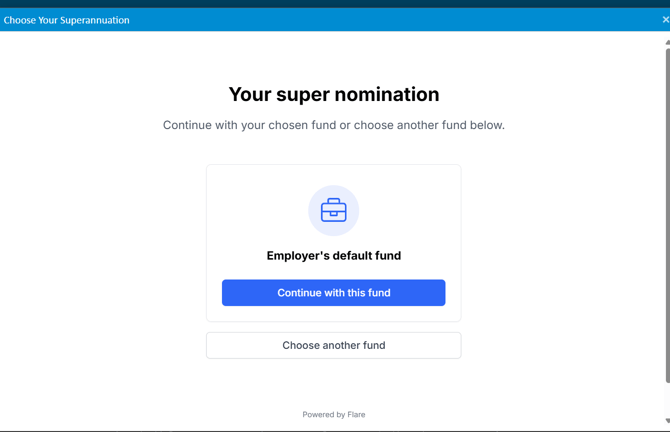
- Click Superannuation Selection to choose a different fund.
- The system validates whether the employer’s default superannuation fund details are current in Flare.
- If the details are not up to date, the system automatically updates and sends the information to Flare.
This ensures your business is correctly identified for interactions with the Australian Taxation Office (ATO), in line with Flare’s requirements.
Related articles:
- SuperReady
- SuperReady Activation Scenarios and System Behaviour
- Staff Portal - SuperReady Updates
- Finance Portal - SuperReady Updates
- Workforce App - SuperReady Updates
- Member Super Health
- Fund Validation Service
- SuperReady Auto - Contribution Payment Process (feature coming soon)