
Content
What are Qualifying Earnings (QE)?
Earnings Classification and QE Configuration for SuperReady
SuperReady Flag Indicators
Modifications in the Additions and Deductions Master
Modifications in the Allowances Master
Modifications in the Members Shifts Master
Super Cut-Off Rules Update
How are Super Contributions Processed?
SuperReady Badge in Payroll Processing Screen
SuperReady: Alerts and Validation Updates
Superannuation Reports
SuperReady Reports
Superannuation Clearing House Export File Utility
SAFF - SuperStream Alternative File Format
Superannuation Reconciliation Report
Super Contribution Summary Report
SuperReady Status in Member’s Superannuation
Super Calculation on Qualifying Earnings and STP Reporting
Salary Sacrifice to Super – Processing and Reporting Enhancements
Introduction of SSID for STP Submissions
SuperReady – Finance Updates
The SuperReady feature introduces important changes to how superannuation contributions are calculated, tracked, and paid within the Finance Portal.
These updates ensure that Superannuation Guarantee (SG) obligations are aligned with Australian Taxation Office (ATO) requirements, including payment timelines based on each pay run.
These enhancements provide greater accuracy, compliance, and visibility into super payment obligations, helping businesses manage their cash flow and reporting more effectively. The key highlights include:
- Qualifying Earnings (QE)
- Earnings Classification and QE Configuration for SuperReady
- Super Cut-Off Rules Update
- SuperReady: Alerts and Validation
- Superannuation Reports
- Super Calculation Based on Qualifying Earnings and STP Reporting
- Salary Sacrifice to Super – Processing and Reporting Enhancements
- Super Contribution Due Date Calculation During Payroll Processing
- SSID for STP Submissions
What are Qualifying Earnings (QE)?
The Qualifying Earnings (QE) amount is the total earnings used to calculate a member’s superannuation. It represents the final earnings amount on which super is calculated, after including eligible payments and excluding applicable amounts based on configuration.
Important - QE settings are your responsibility
Please review superannuation settings for all pay components -Additions and Deductions, Allowances, and Member Shifts masters, and ensure they are configured in line with ATO guidelines for Qualifying Earnings (QE) before 1 July 2026. From this date, Qualifying Earnings (QE) will form the basis for calculating Superannuation Guarantee (SG) contributions.
It is strongly recommended to review and update all superannuation settings carefully. The Xeople team is available to assist with system configuration however, advice is general in nature. Ensuring configuration and settings are accurate is your responsibility - contact support@xeople.com with any queries.
How is Qualifying Earnings (QE) calculated:
- Additions – All the additions marked as Super Payable in the Additions and Deductions master are included in the QE amount by default, unless marked as QE Exempt.
- Deductions marked as Super Payable – These amounts are excluded from QE, as they are deducted from the total amount on which super is calculated, thereby reducing the total QE.
- Deductions not marked as Super Payable – These amounts are already part of the payslip subtotal and are therefore included in QE by default.
- Allowances or Members Shift not marked as Super Exempt are included in QE by default, unless marked as QE Exempt.
- All Ordinary Time Earnings (OTE) (i.e., regular working hours pay) are included in QE.
To know in detail about Qualifying Earnings, click the links below:
To know how Qualifying Earnings (QE) are calculated and applied in Superannuation and STP reporting, refer to the following topics:
Earnings Classification and QE Configuration for SuperReady
This section provides the modification details to the Additions and Deductions master, Allowances master, and Member Shifts master to support SuperReady and the calculation of Qualifying Earnings (QE). It explains how earnings components are classified and their impact on:
-
Superannuation calculation.
-
Qualifying Earnings (QE) reporting.
-
STP submissions.
SuperReady Flag Indicators
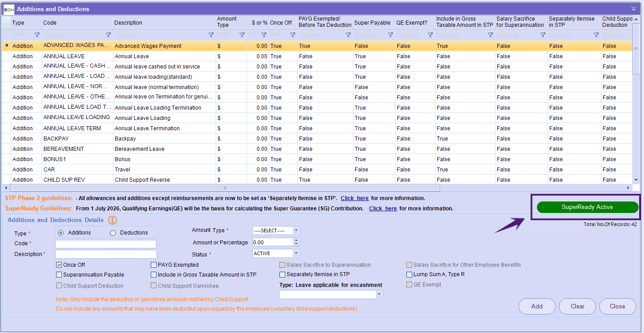
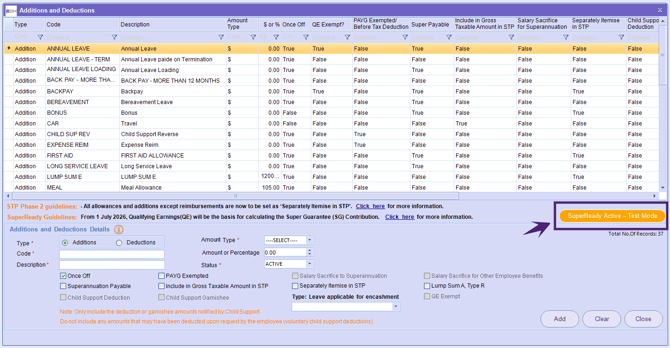
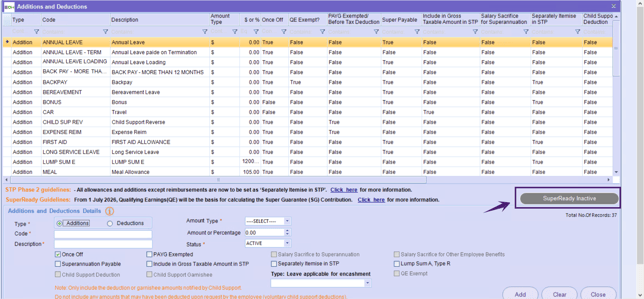
The SuperReady indicators show whether Super is set to Active, Inactive, or Test Mode. For detailed information, refer to the SuperReady Activation Scenarios and System Behaviour details.
The Super Status is shown when the Super feature is enabled and applicable based on the configured SuperReady Effective Date in the SuperReady Setup & Authorisation settings.- SuperReady Active – indicates that the Super is applicable.
- SuperReady Active – Test Mode – indicates that Super is applicable in Test Mode.
- SuperReady Inactive – indicates that the Super is not yet applicable.
SuperReady Guidelines
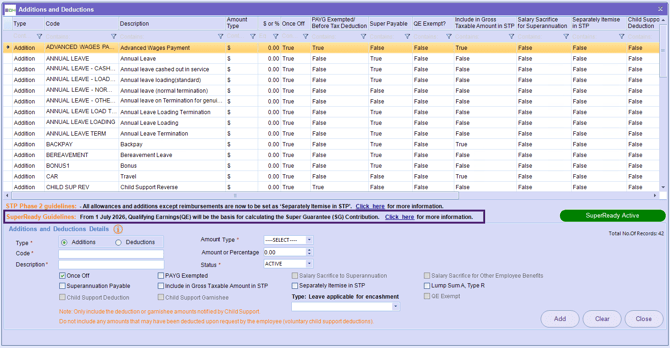
The SuperReady Guidelines display the key information about the Qualifying Earnings within the Additions and Deductions, Allowances, and Member Shifts masters.
It includes the message: ‘SuperReady Guidelines: From 1 July 2026, Qualifying Earnings (QE) will be the basis for calculating the Super Guarantee (SG) Contribution. Click here for more information.’ Click the link to open the SuperReady Knowledge Base article for detailed guidance.
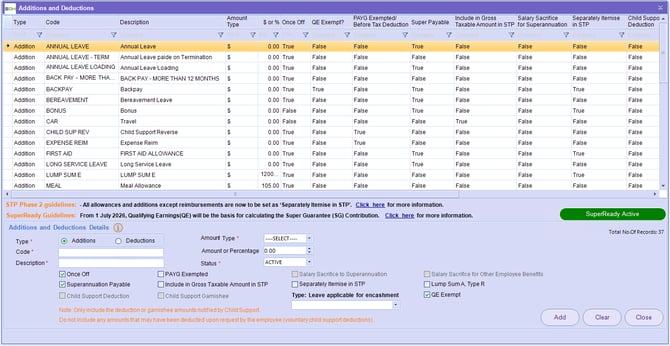
Modifications in the Additions and Deductions Master
A new field, QE Exempt, is introduced in the Additions and Deductions master to control whether an amount is included in Qualifying Earnings (QE).
The QE Exempt checkbox can be used in certain scenarios, such as when an employer has additional obligations to pay super under an industrial instrument (such as an award or agreement). In these cases, the amounts may not be part of Qualifying Earnings (QE) but can still be reported as superannuation liabilities in STP. Selecting the QE Exempt checkbox ensures the correct treatment of these amounts in QE calculations.
For more information, refer to Explaining qualifying earnings | Australian Taxation Office
- The QE Exempt checkbox is available for selection only when the Superannuation Payable flag is selected.
- When the QE Exempt checkbox is selected, superannuation is calculated based on the configured Super settings. However, the amount is excluded from the Qualifying Earnings (QE) total during payroll processing and when submitting STP.
- Deductions marked as Super Payable:
QE Exempt is selected by default and disabled. These amounts are excluded from QE, as they are deducted from the payslip subtotal before super calculation. - Deductions not marked as Super Payable:
QE Exempt is not available for selection. These amounts are already part of the payslip subtotals and are therefore included in QE by default.
- When you are updating the Superannuation flag settings, a confirmation message is displayed as ‘Changing Super settings may impact SuperReady calculations and STP reporting. Are you sure you want to proceed?".
- Click Yes to proceed with the changes.
Modifications in the Allowances Master
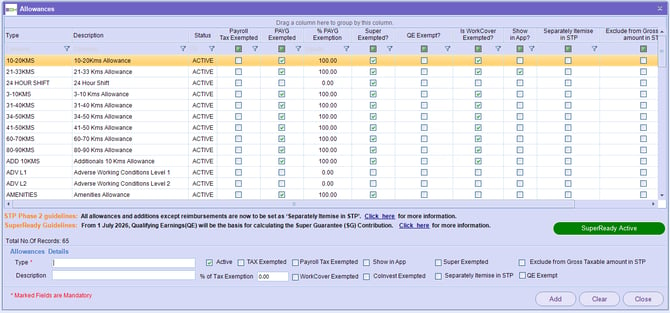
A new field, QE Exempt, is introduced in the Allowances master to control whether an amount is included in Qualifying Earnings (QE).
- The QE Exempt checkbox is available for selection only when the Super Exempted flag is not selected.
- When the QE Exempt checkbox is selected, superannuation is calculated based on the configured Super settings. However, the amount is excluded from the Qualifying Earnings (QE) total during payroll processing and when submitting STP.
Modifications in the Members Shifts Master
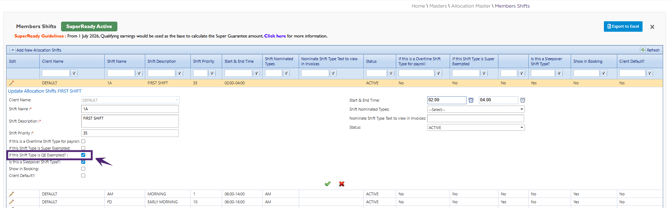
A new field, Is this Shift Type QE Exempted?, is introduced in the Members Shifts Master. This field allows you to control whether amounts associated with a shift type are included in Qualifying Earnings (QE).
- By default, all shift types where 'Is this Shift Type QE Exempted?' and 'If this Shift Type is Super Exempted' checkboxes are unticked are treated as QE, meaning the associated amounts are included in QE calculations.
- When this checkbox is selected, the shift type is marked as QE Exempted, and the associated amounts are excluded from QE.
Important Note
You may have additional superannuation obligations under an industrial instrument (such as an award or agreement) to pay super on amounts that are not part of Ordinary Time Earnings (OTE). For such payment types, it is recommended to tick the QE Exempt checkbox to ensure correct QE calculations where the payment types are super payable but QE Exempt under ATO guidelines.
For detailed guidance on qualifying earnings, refer to the Australian Taxation Office (ATO) resource below:
What payments are qualifying earnings | Australian Taxation Office
Super Cut-Off Rules Update
With the introduction of SuperReady, superannuation contributions are calculated, reported, and processed for each pay run, instead of following a monthly cut-off cycle.
This change replaces the previous monthly super cut-off process and ensures more accurate, timely, and compliant super processing.
When SuperReady is Applicable for the Client
When SuperReady is applicable as per the effective date, the following changes apply to super calculation and processing:
1. How are Super Contributions Processed?
- Super cut-off logic is no longer applicable.
- Super is calculated for each pay run based on Qualifying Earnings (QE).
- Super contributions are automatically calculated using eligible earnings within each pay run.
- QE is calculated and stored per member for each pay run.
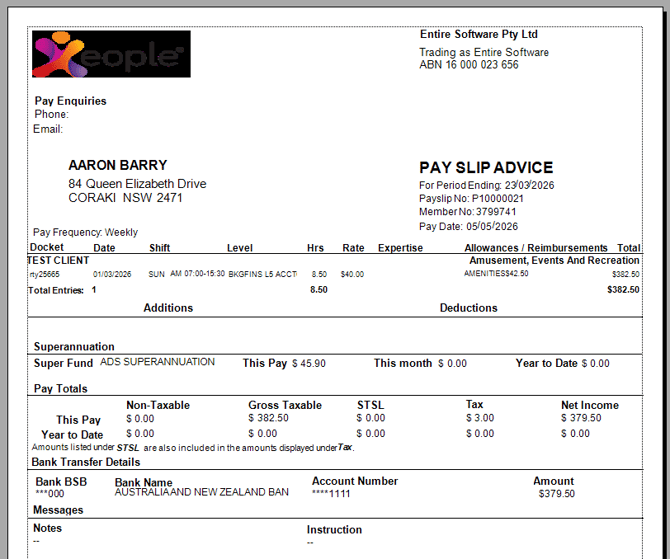
Payslip Changes
In the payslip:
- The Period to Date is renamed to This Month.
- It displays the member’s total super contribution for the month.
- Any pay runs processed within the same month are included in the same finalised month.
Financial Year-End Scenarios (Special Cases)
- Case 1:
If the Week Ending date falls on the financial year-end date, the super contribution is recorded in that month (i.e., existing Financial Year).
For example, if the financial year end date is 21 June 2026 and the Week-Ending Date is 21 June 2026, the super contribution is recorded in June 2026. - Case 2 (Edge Case):
If a pay run falls after the financial year-end date, it is treated as part of the next financial year, even if processed within the same calendar month.
Example 1: If the previous financial year ends on 21 June 2026 and the Week-Ending Date is 28 June 2026, the super contribution is recorded in July, as it belongs to the next financial year.
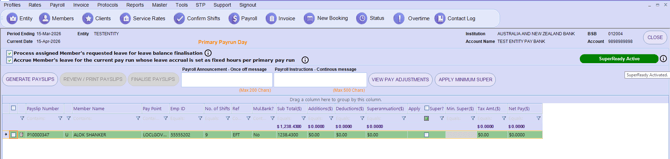
2. SuperReady Badge in Payroll Processing Screen
The Payroll Processing screen displays the SuperReady badge as ‘SuperReady Active’, ‘SuperReady Inactive’, or 'SuperReady Active – Test Mode'. When you hover over the information icon, a tooltip is displayed.
SuperReady: Alerts and Validation Updates
This section provides the updates to alerts and validations in the Finance portal introduced to support Payday Super requirements.
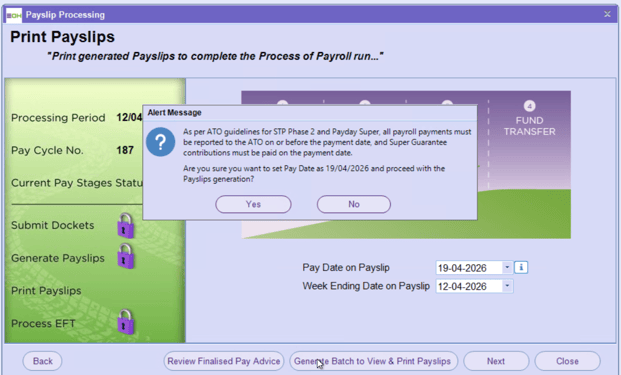
From 1 July 2026, superannuation contributions must be processed with each pay run. To support this, alerts and validations are enhanced to ensure required steps are completed and to reduce the risk of errors or rejected contributions, helping maintain compliance with ATO guidelines.
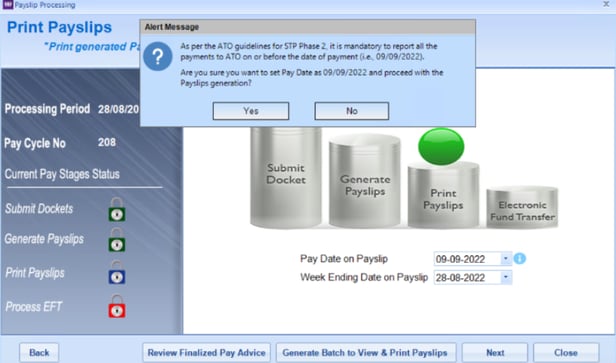
1. Alert Message When User Changes the Payment Date at the Generate Payslip Stage
- Before the introduction of SuperReady, the following alert message was displayed as shown in the figure below.
-
Updated Alert Message: The new alert message is displayed when the user tries to change the payment date at the Generate Payslip Stage while SuperReady is applicable.
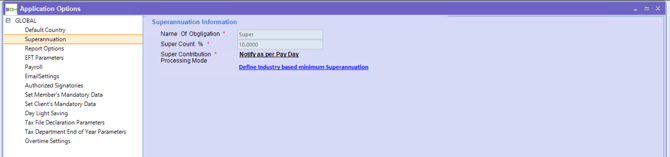
2. Superannuation Configuration Changes
The Superannuation configuration is updated to align with the new SuperReady requirements.
In the Tools → Application Options → Superannuation settings:
- The Super Cut-off dates section, including threshold eligible wages (per month), has been removed.
- The Super Contribution Processing Mode is set to Notify as Per Pay Day, which indicates:
- The Super contributions are processed and notified for each pay run.
- Monthly processing is no longer applicable.
Super Cut-off Validation Updates (When SuperReady is Applicable)
With the introduction of SuperReady, the super cut-off validations are updated or removed across key stages, including:
-
Submit Docket Stage
-
Application Options
-
Payroll Processing screens as follows:
1. Submit Docket Stage Update
a. Year-End Validation Updates
The system behaviour during the Submit Docket stage has been simplified for year-end processing.
What has Changed?
- The system previously performed FY's last month cut-off date checks and did not allow a pay run to proceed if the previous cut-off date had not been processed. This check has been removed.
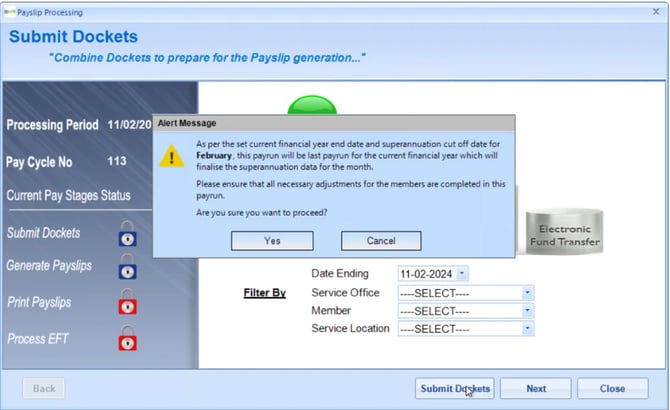
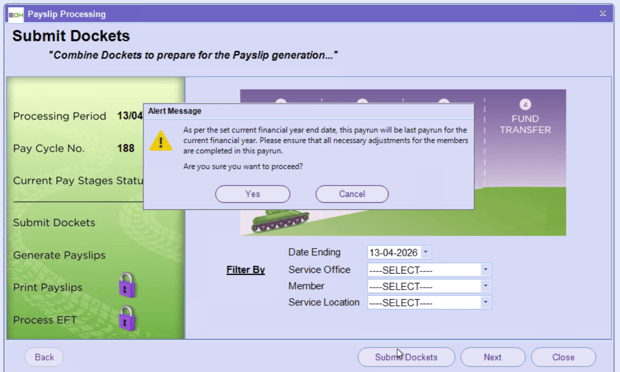
- A reminder message is now shown only when processing a pay run on the financial year-end date. This alert message helps users confirm that all required updates and adjustments are finalised before completing the last pay run of the financial year.
Companies with multiple ABNs must process the last pay run of the financial year on the FY end date for each company. Note that the financial year is common across all companies.
b. Updated Pay Run Validation for Multi-ABN Financial Year-End Processing
The previous validation that prevented users from performing a pay run when the pay run date was after the superannuation cut-off date for the financial year-end month and on or before the financial year-end date (for multi-ABN setups) is updated as shown in the figure below.
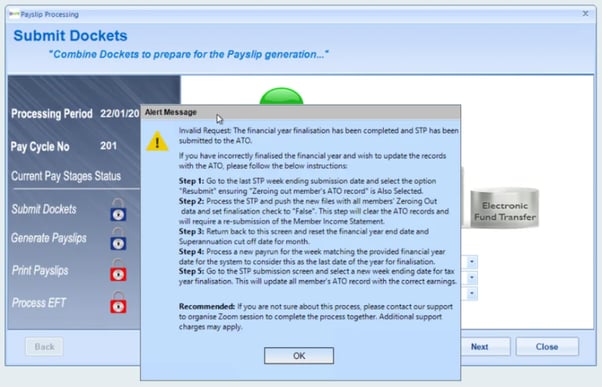
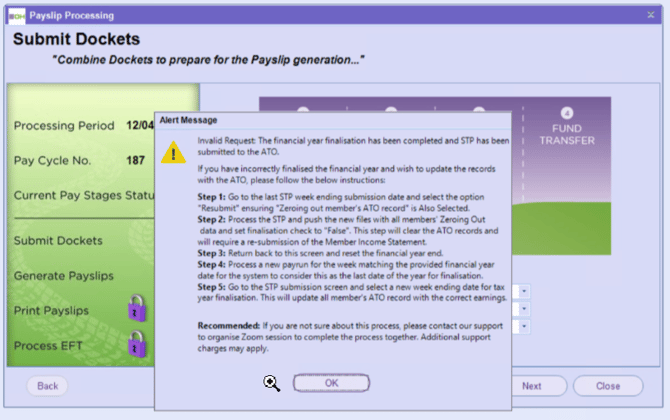
As part of the SuperReady changes:
- Users must complete a payroll run on the financial year-end date for each branch.
- This run is treated as the final payroll for that financial year for the respective branch.
- The Step 3 instructions in the Alert Message are also updated and now state: ‘Return back to this screen and reset the financial year end date’ as shown in the figure below.
2. Monthly Superannuation Cut-Off Day Tag Removed
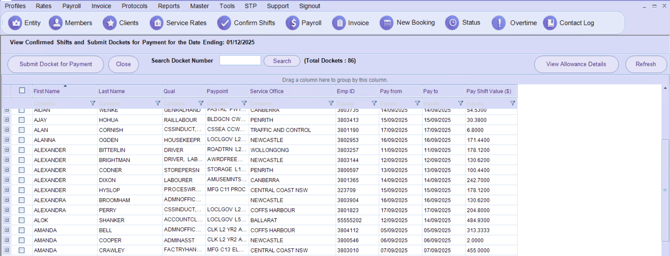
The Monthly Superannuation Cut-Off Day tag shown below has been removed from the Submit Docket screen.
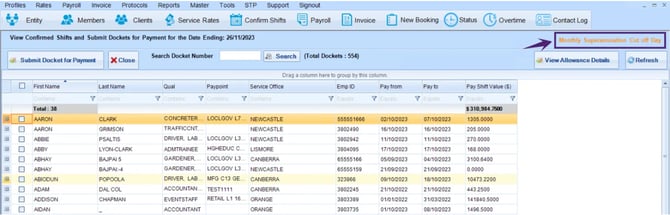
As a result, this tag is no longer displayed on the screen.
3. Update in Application Options Screen
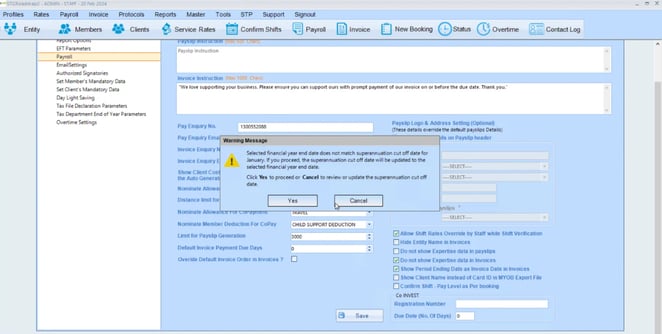
a. Payroll – Financial Year-End Date Warning Message Removed
Previously, a warning message was displayed when the financial year-end date did not match the monthly superannuation cut-off date as shown in the figure below.
This warning message has now been removed.
b. Payroll - Financial Year-End Date Validation Update
When the client resets the financial year-end date before submitting STP to the ATO for the last payroll run of the financial year, a warning message appears, as shown in the figure below. In such cases, STP data can be regenerated if STP files have already been generated for that pay run.
The validation check shown below has been removed.
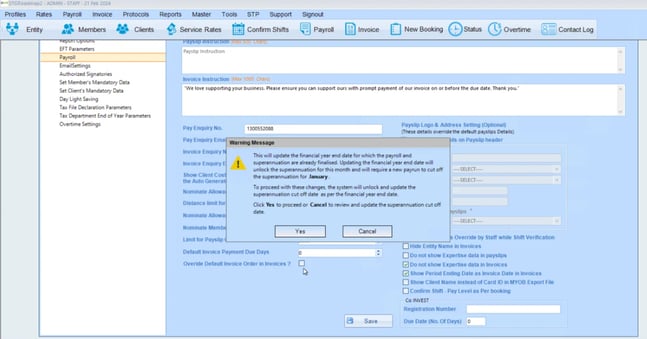
A new validation message is displayed when updating the financial year-end date and the STP is not submitted.
If STP files have already been generated for the processed payroll, the existing STP regeneration process remains unchanged.
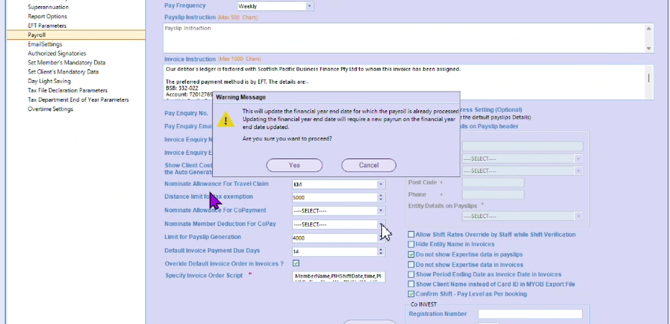
c. Payroll – Financial Year-End Date Reset Validation Update
-
The previous stopper message shown below, that prevented users from resetting the financial year-end date after submitting STP to the ATO for the last payroll run of the financial year, has been updated.
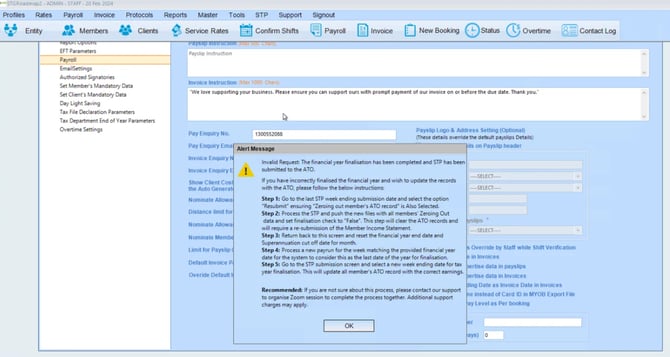
As part of the SuperReady changes:
-
The superannuation cut-off date check is no longer applicable and has been removed.
-
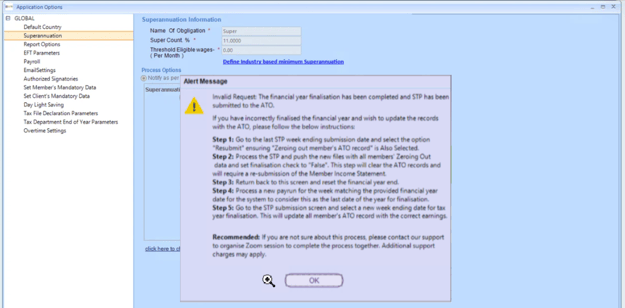
Now, the system ensures that the STP submission for the last payroll of the financial year is considered.
-
Updated Alert Message: The updated Step 3 instructions now state: ‘Return back to this screen and reset the financial year end date.’
d. Payroll – Financial Year Update Validation for Pending STP Submissions
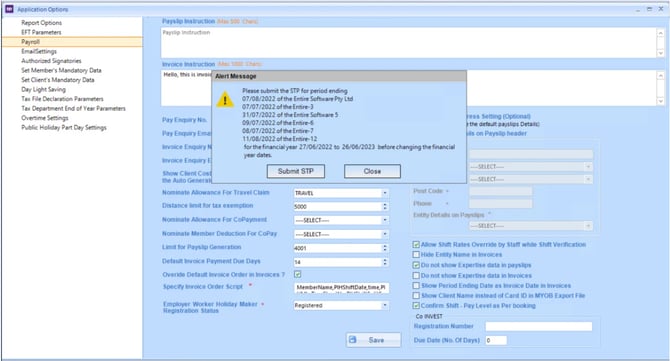
When a user updates financial year dates (start date and end date):
-
The system checks the last payrun for each branch.
-
If the STP has not been submitted for the last payrun of any branch:
-
An alert message is displayed.
-
This applies only if at least one STP submission has already been made in the current financial year.
-
- This process remains unchanged.
e. Payroll – Final Financial Year Payroll and STP Validation on Financial Year Date Update
When updating financial year dates (start date and end date), the system previously did not verify that the last pay run for the financial year had been completed for every branch (i.e., the payroll run processed on the financial year end date).
Now, when updating financial year dates, the system validates whether the final payroll run and its STP submission have been completed.
As part of the SuperReady changes:
- The system checks if STP has been submitted for the final payroll (pay run processed on the financial year-end date).
- If the payroll run or its corresponding STP submission is pending, a restriction message appears as shown in the figure below.
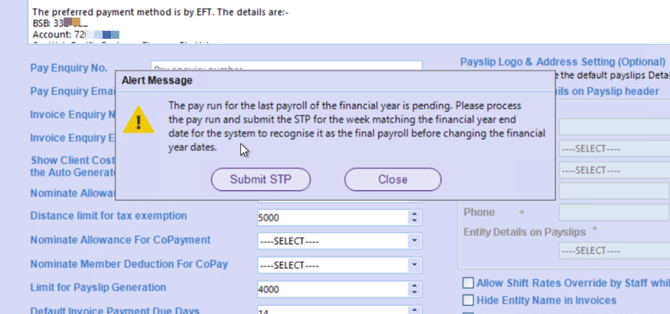
4. STP Processing Screen
Previously, during STP submission, the superannuation cut-off date determined whether the option ‘Is this week the Final Payroll Week for Financial Year’ was set to Yes, which resulted in reporting all financial year data in that STP submission.
With the updated process, when the selected Week Ending falls on the financial year-end payroll week:
- The system automatically treats it as the final payroll week of the financial year.
- The flag Is this week the Final Payroll Week for Financial Year? is automatically set to 'Yes'.
- All financial year data is reported in the STP submission (as per existing behaviour).
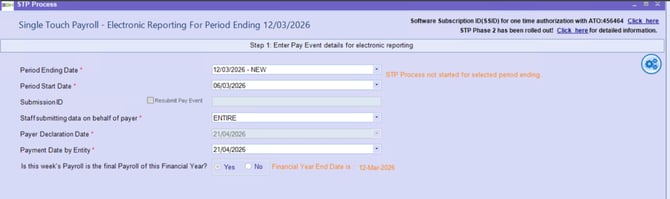
Superannuation Reports
The existing Superannuation Reports menu option is renamed to Superannuation Historic Report (Payroll → Superannuation Historic Report) when SuperReady is active as per SuperReady Effective Date. All reports continue to be generated as usual.
How are Super Cut-off Dates Processed in the Superannuation Reports?
The Cut-off dates in the Superannuation Reports are processed as follows:
- The Superannuation Historic Report displays historical data, including records processed based on previously configured cut-off dates.
- Once the SuperReady Effective Date is reached, weekly processed data is grouped using the month-end date as the cut-off for that month. The dropdown displays the month-end date, which consolidates all week-ending data falling within the selected month.
- To access data processed by individual week-ending periods, use the SuperReady Reports.
Historical data for week ending dates and cut-off dates will not be impacted, regardless of whether SuperReady is enabled. The data will continue to operate as it currently does in the application.
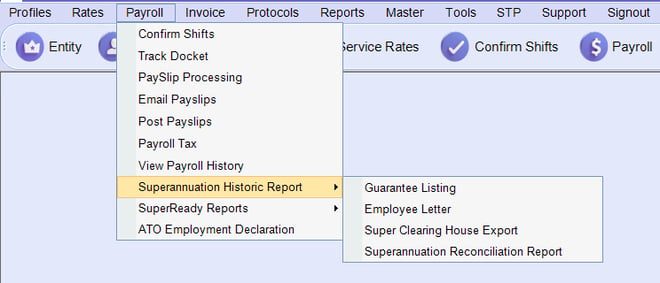
Guarantee Listing Report
To generate the report, navigate to Payroll → Superannuation Historic Report → Guarantee Listing.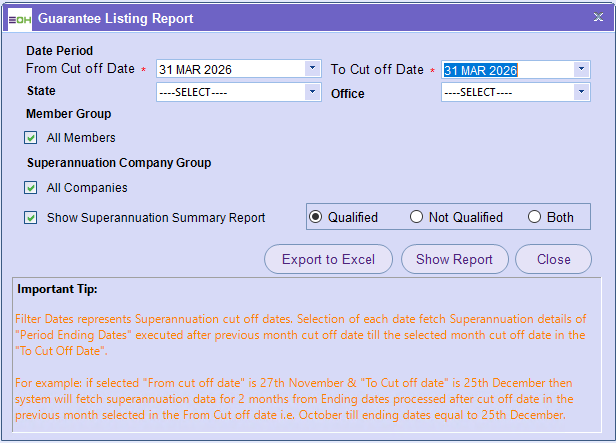
Superannuation Reconciliation Report
To generate the report, navigate to Payroll → Superannuation Historic Report → Superannuation Reconciliation Report.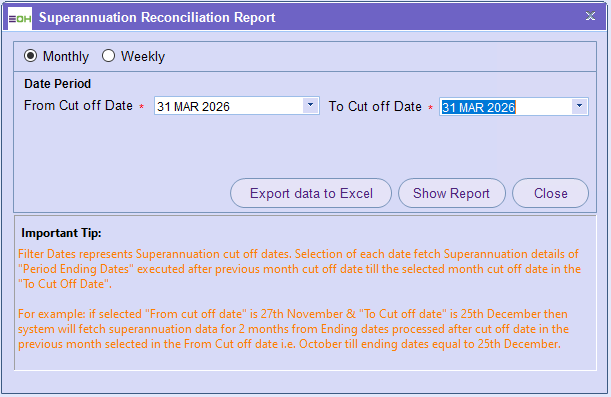
Superannuation Clearing House Export File Utility Report
To generate the report, navigate to Payroll → Superannuation → Super Clearing Housing Export.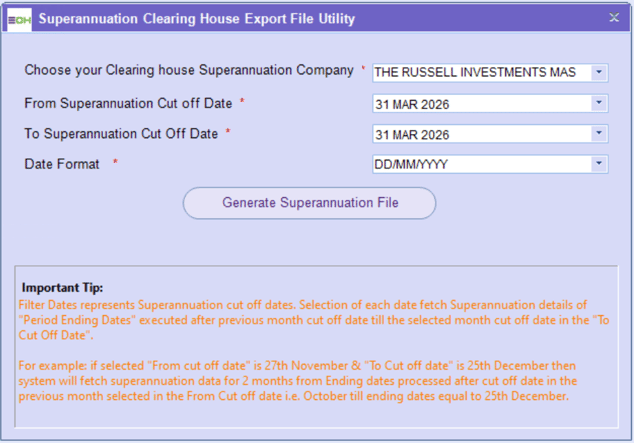
SuperReady Reports
New SuperReady Reports are introduced to provide visibility of data processed for each payday, once the SuperReady feature is applicable as per the effective date or enabled for beta clients in test mode. These reports are available under Payroll → SuperReady Reports and are designed to support SuperReady requirements.
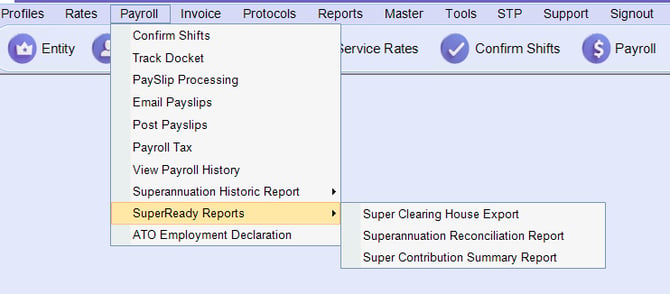
1. Superannuation Clearing House Export File Utility
This report is available when SuperReady is enabled as per the SuperReady Effective Date and displays processed Super data.
To generate the report, navigate to Payroll → SuperReady Reports → Super Clearing Housing Export.
- Select Choose Your Clearing House Superannuation Company from the drop-down.
- Select the Pay Period Start Date and Pay Period End Date.
All available payroll week ending dates are listed in the calendar date picker. Based on the date selected in this Pay Period Start and End Date, the Pay Week Ending Date(s) appear.
Note that the 'Pay Period End Date' must be on or after the 'Pay Period Start Date'. - Select the Pay Week Ending Date(s). All week-ending dates within the selected Start Date and End Date range are displayed. You can select multiple dates by ticking the checkbox next to each date. If no dates are selected, all week-ending dates for the current financial year are displayed.
-
- Select the required Date Format.
- Click Generate Superannuation File, and the report is saved and generated successfully.
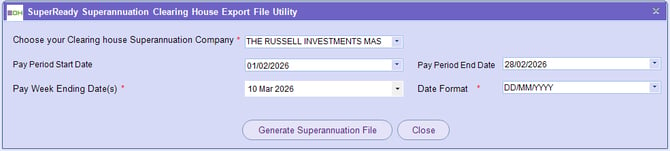
The Superannuation Clearing House report is saved and downloaded. From the Choose your Clearing Superannuation Company option, the 'HESTA' and new file template, SAFF (SuperStream Alternative File Format) formats are explained below for reference.
HESTA - Format
| Field Name | Description |
|
Your File Reference |
Shows the date on which the file is exported. Format shown: YYYYMMDD. |
|
Your File Date |
Shows the date on which the file is exported based on the date format selected. |
|
Contribution Period Start Date |
Shows the last Primary Payrun Week ending date processed from the earliest week ending date selected in the Pay Week Ending Date(s) dropdown plus 1 day as per the date format selected. |
|
Contribution Period End Date |
Shows the latest week ending date selected in the Pay Week Ending Date(s) dropdown as per the date format selected. |
|
Employer ID
|
Shows the employer identifier and is branch-specific. The Employer ID is sourced from the SuperReady Configuration settings (Employer Payroll Profile → Super Fund Identifier → Superannuation Fund Generated Employer Identifier Field) in both single-entity and multi-entity setups. |
|
Payroll ID |
Shows the member's employee ID. |
|
Name Title |
Shows the title of the member (e.g., Mr., Ms., Mrs). |
|
Family Name |
Shows the member’s last name/surname. |
|
Given Name |
Shows the member’s first name. |
|
Other Given Name |
Shows the additional or middle name (if any). |
|
Name Suffix |
Blank. |
|
Date Of Birth |
Shows the employee’s date of birth in the selected date format. |
|
Gender |
Shows the member's gender, such as Male or Female. |
|
Tax File Number |
Shows the employee’s Tax File Number used for ATO reporting. For subcontractor members, the subcontractor’s ABN is shown. |
|
Phone Number |
Shows the member's contact number. |
|
Mobile Number |
Shows the member's mobile number. |
|
Email Address |
Shows the member's email address. |
|
Address Line 1 |
Shows the member's address details. |
| Address Line 2 | Blank. |
| Address Line 3 | Blank. |
|
Address Line 4 |
Blank. |
|
Suburb |
Shows the member's Suburb. |
|
State |
Shows the member's State code. |
|
Post Code |
Shows the Postal/ZIP code. |
|
Country |
Shows the name of the Country. |
|
Employment Start Date |
Shows the hire date of employment in the selected date format. |
|
Employment End Date |
Shows the termination date of employment in the selected date format. |
|
Employment End Reason |
Blank. |
|
Fund ID |
Shows the member's Fund USI ID. |
|
Fund Name |
Shows the name of the member's superannuation fund. |
|
Fund Employer ID |
Blank. |
|
Member ID |
Shows the fund membership ID of the member. |
|
Employer Super Guarantee Amount |
Shows the Total Super Liability Amount. Note: This represents the total super amount calculated in payroll (super liability), not the minimum Super Guarantee (SG) amount. |
|
Employer Additional Amount |
Blank. |
|
Member Salary Sacrifice Amount |
Total Salary Sacrifice to Super amounts include deductions marked as both Before Tax and Salary Sacrifice to Super, or those with the code ‘salscr’. For more details, click here. |
|
Member Additional Super Amount |
Member Additional Super Amount refers to extra super contributions made by the employee from their own (after-tax) income, over and above the standard employer super, and is reported separately from employer-funded super. During the final payroll run:
|
|
Other Contributor Type |
Blank. |
|
Other Contributor Name |
Blank. |
|
Your Contribution Reference |
Blank. |
SAFF - SuperStream Alternative File Format
A new file template, SAFF (SuperStream Alternative File Format), is available in the Superannuation Clearing House Export File Utility report. This file is a SuperStream contribution and member data file used to securely send superannuation information between employers, super funds, and clearing systems. It combines all key information needed to:
- Process employee superannuation contributions
- Ensure compliance with superannuation regulations
Each record in the file represents a single employee transaction linked to a super fund.
How is the SAFF File Structured?
The SAFF file is organised into several sections that capture all information required to process superannuation contributions, member registrations, and defined benefit details. The file is divided into the following sections:
File Header
The first row of the SAFF file contains file-level information, and the following fields are included:
|
Field Name |
Description |
|
VERSION |
Mandatory field. Displays the SAFF file version. The default value is 1.0. |
|
NEGATIVES SUPPORTED |
Mandatory field. Indicates whether negative contribution values are supported. The default value is False. |
|
FILE ID |
Optional field. Blank by default. |
Header Section
The Header section contains information used to identify the source of the file transmission and includes:
|
Field Name |
Description |
|
ID |
Blank by default. |
|
SourceEntityID |
Blank by default. |
|
SourceEntityIDType |
Blank by default. |
|
SourceElectronicServiceAddress |
Blank by default. |
|
ElectronicErrorMessaging |
Blank by default. |
1. Sender Details
The Sender Details fields will be managed by the clearing house selected for processing superannuation payments, and the following fields are included:
|
Field Name |
Description |
|
ABN |
Blank by default. |
|
Organisation Name Text |
Blank by default. |
|
Family Name |
Blank by default. |
|
Given Name |
Blank by default. |
|
Other Given Name |
Blank by default. |
|
E-mail Address Text |
Blank by default. |
|
Telephone Minimal Number |
Blank by default. |
2. Payer Details
The Sender Details fields will be managed by the clearing house selected for processing superannuation payments, and the following fields are included:
|
Field Name |
Description |
|
ABN |
Blank by default. |
|
Organisation Name Text |
Blank by default. |
|
BSB No |
Blank by default. |
|
Account No |
Blank by default. |
|
Account Name Text |
Blank by default. |
3. Payee/ Receiver Details
The Payee/Receiver Details section contains information about the member's superannuation fund that will receive the contribution and includes:
|
Field Name |
Description |
|
ABN |
Australian Business Number (ABN) of the member's superannuation fund. |
|
USI |
Unique Superannuation Identifier (USI) of the member's superannuation fund. This field is displayed for APRA-regulated funds. |
|
Organisational Name Text |
Name of the member's superannuation fund. |
|
TargetElectronicServiceAddress |
Electronic Service Address (ESA) of the member's Self-Managed Super Fund (SMSF). This field is mandatory for contributions to SMSFs. |
|
Transaction Date |
Date on which the file is exported. |
|
Payment/Customer Reference Number |
Blank by default. |
|
BPAY Biller Code |
Blank by default. |
|
Payment Amount |
Blank by default. This will be the total contribution amount for all members associated with the same USI. The amount is calculated per USI, not per member. The field will be managed by the clearing house selected for processing superannuation payments. |
|
BSB Number |
BSB number of the member's SMSF. This field is blank for APRA-regulated funds. |
|
Account Number |
Account number of the member's SMSF. This field is blank for APRA-regulated funds. |
|
Account Name Text |
Account name of the member's SMSF. This field is blank for APRA-regulated funds. |
4. Employer Details
The Employer Details section contains information about the employer associated with the superannuation contributions. These details are sourced from the employer's SuperReady configuration settings and include:
|
Field Name |
Description |
|
ABN |
The Australian Business Number (ABN) of the employer. This value is sourced from Employer Payroll Profile → Organisation & Payroll in the SuperReady Configuration Settings. |
|
LocationID |
Blank by default. |
|
Organisational Name Text |
The name of the employer's organisation. This value is sourced from Employer Payroll Profile → Organisation & Payroll in the SuperReady Configuration Settings. |
|
Superannuation Fund Generated Employer Identifier |
The identifier created by the super fund for the purpose of uniquely identifying the employer in the superannuation fund's systems. This is an optional field. This value is sourced from Employer Payroll Profile → Super Fund Identifier in the SuperReady Configuration Settings. |
5. Super Fund Member Common
The Super Fund Member Common section contains personal and employment details of the member. These values are sourced from the member's profile and are used to identify the member for superannuation reporting purposes. The section includes:
|
Field Name |
Description |
|
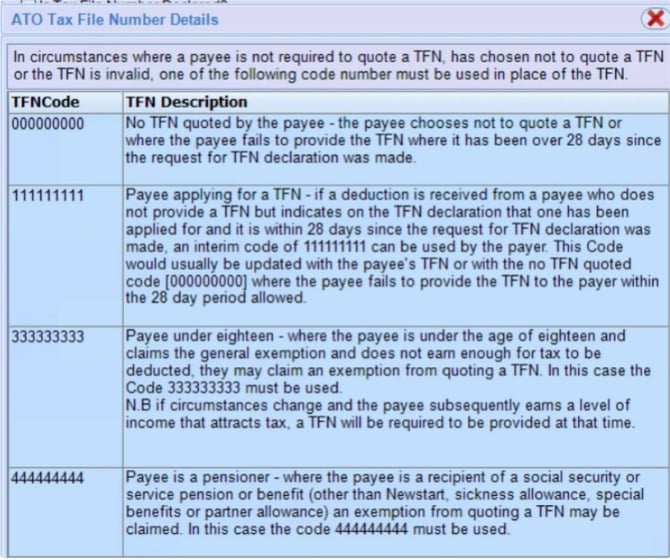
TFN (Tax File Number) or Employee ID
|
Tax File Number (TFN) or Employee ID of the personnel. Note that:
|
|
Person Name Title Text |
The title of the personnel (for example, Mr, Mrs, Ms, or Dr). |
|
Person Name Suffix text |
Blank by default. |
|
Family Name |
The Family Name (surname) of the personnel. If the same name is recorded in both the Family Name and Given Name fields, the value is repeated in this field. |
|
Given Name
|
Name of the personnel. If the personnel has the same name recorded in both the Family Name and Given Name fields, ‘Not Applicable’ is displayed. |
|
Other Given Name
|
Other Given Name of the personnel (where available). |
|
Sex Code
|
Gender of the personnel, recorded as Male, Female, or Other. |
|
Birth Date |
The personnel’s date of birth. This is a mandatory field. |
|
Address Usage Code
|
Displays the member's address usage code and is a mandatory field.
|
|
Address Details Line 1
|
The first line of the personnel's address. Address Details Line 2, Line 3, and Line 4 are blank. |
|
Locality Name Text
|
Suburb or locality of the personnel. |
|
Postcode Text
|
Postal code of the personnel. |
|
State Code or Territory Code
|
State code or territory code of the personnel's address. |
|
Country Code
|
Country code of the personnel's address. |
|
E-mail Address Text
|
E-mail address of the personnel. |
|
Telephone Minimal Number Landline
|
The landline telephone number of the personnel (where available). |
|
Telephone Minimal Number Mobile
|
The mobile number of the personnel (where available). |
|
Member Client Identifier |
The member’s superannuation client identifier is used by the super fund to uniquely identify the member. The value is sourced from the member’s Finance Details → Superannuation → Fund Membership Number in the Staff Portal. |
|
Payroll Number Identifier |
Payroll Number Identifier (or Employee ID) allocated by the payer's payroll system to identify a payee. This identifier will be quoted in any correspondence regarding the payee's declaration to support accurate identification of the payee. |
|
Employment End Date |
The employment termination date of the member (where applicable). |
|
Employment End Reason Text |
The reason for termination of the member's employment (where applicable). |
6. Super Fund Member Contribution
The Super Fund Member Contribution Details section contains information about the contribution amounts reported for the member during the selected pay period. These values are derived from payroll and superannuation data and include:
|
Field Name |
Description |
|
Pay Period Start Date |
The Last Primary Payrun Week Ending Day processed, starting from the earliest week-ending date selected in the Select Pay Week Ending Date(s) dropdown, plus one day, formatted according to the selected date format. |
|
Pay Period End Date |
The latest week-ending date selected in the Select Pay Week Ending Date(s) dropdown, formatted according to the selected date format. |
|
Superannuation Guarantee Amount |
This represents the contribution made by an employer for the benefit of an employee, as mandated under the Superannuation Guarantee provisions of Australian superannuation law. It excludes any superannuation amounts calculated on QE Exempt pay components that are otherwise super‑payable. |
|
Award or Productivity Amount |
Contribution made by an employer for the benefit of an employee under an award or other industrial agreement. This includes amounts for pay components on which super is calculated and that are classified as QE Exempt during payroll processing. |
|
Personal Contributions Amount |
This represents the member's additional superannuation amount. It is derived from member deductions where Salary Sacrifice to Superannuation is set to True and the Before Tax Deduction is set to false in Master, or from deductions with the code AT Super for the week ending selected in the super batch and processed during payroll. It is a contribution made by an individual for their own benefit. It includes arrangements where an employee instructs an employer to make after‑tax contributions on their behalf (for example, via payroll deduction). |
|
Salary Sacrificed Amount |
Member salary sacrifice to superannuation amount for the week ending selected in the super batch. Total Salary Sacrifice to Super amounts include deductions marked as both Before Tax and Salary Sacrifice to Super, or those with the code ‘salscr’ processed during payroll. For more details, click here. |
|
Voluntary Amount |
Blank by default. |
|
Spouse Contributions Amount |
Blank by default. |
|
Child Contributions Amount |
Blank by default. |
|
Other Third Party Contributions Amount |
Blank by default. |
Under the Super Fund Member Registration, Defined Benefits Contribution, and Defined Benefits Registration headings, the fields are displayed in the SAFF file; however, no data is currently provided for these fields.
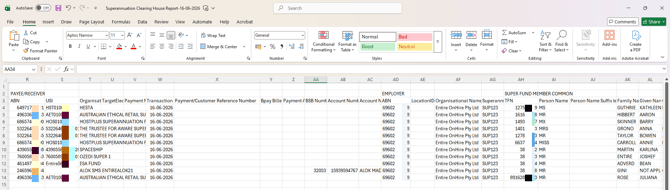
2. Superannuation Reconciliation Report
This report is available when SuperReady is enabled and shows processed SuperReady data.
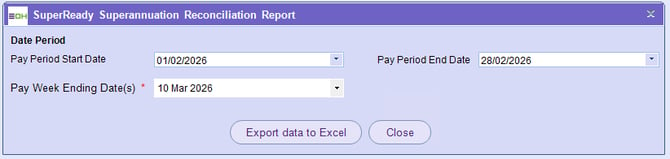
To generate the report:
- Select the Pay Period Start Date and Pay Period End Date.
All available payroll week ending dates are listed in the calendar date picker. Based on the date selected in this Pay Period Start and End Date, the Pay Week Ending Date(s) appear.
Note that the 'Pay Period End Date' must be on or after the 'Pay Period Start Date'. - Select the Pay Week Ending Date(s). All week-ending dates within the selected Start Date and End Date range are displayed. You can select multiple dates by ticking the checkbox next to each date. If no dates are selected, all week-ending dates for the current financial year are displayed.
- Click Export data to Excel.
| Field Name | Description |
|
Family Name |
Shows the member’s last name/surname. |
| Given Name | Shows the member’s first name. |
|
Payroll ID |
Shows the member's employee ID. |
| PaySubTotalAmt |
Shows the shift's base value, i.e., normal hours plus overtime hours. |
|
Super Included Allowances |
Shows the total amount of allowances on which super is calculated. |
| Normal Hours | Shows standard work hours for the selected period. |
|
Allowances |
Shows the allowance on which super is calculated for that week ending. |
|
Overtime Hours |
Shows the additional hours worked beyond standard hours. |
| Total Earnings |
Shows the gross amount of the pay slip. |
|
Qualifying Earning Amt |
Shows the total QE amount that is calculated as normal hours amount + Payment types (additions/ allowances members shifts) which are marked as super payable (not QE exempt). Deductions that are marked as super payable are excluded from the QE amount. |
| Gross For Super | Shows the total amount on which super liability is calculated. |
|
Super Exempted Deductions |
Shows the deduction amounts excluded from super calculation, where the Super Payable flag is set to ON. Total Super Exempted deduction amounts include deductions marked as super payable in the Deductions Master. These are treated as super-exempt because super is not calculated on these amounts during payroll. |
|
Deduction
|
Distinct deductions that were excluded from the super calculation. |
|
Salary Sacrifice to Super |
Total Salary Sacrifice to Super amounts include deductions marked as both Before Tax and Salary Sacrifice to Super, or those with the code ‘salscr’. For more details, click here. |
|
Deduction |
All deductions that constitute the Salary Sacrifice amount. |
|
Super Included Additions |
Super Included Additions amount includes additions marked as Super Payable. |
|
Additions |
All additions that constitute the super are included in the addition amount. |
|
Member Additional Super Amount |
Total amount includes additions that are not marked as Before Tax but are marked as Salary Sacrifice to Super, or have the code ‘AT Super’. |
|
Deduction
|
All deductions that constitute the member's additional super amount. |
|
Super Liability Amount |
Shows the total super liability amount. |
| Total Super Payable Amount |
Shows the total super payable, calculated as the total of super liability amount plus total salary sacrifice amount to super amount plus total member additional super amount. |
3. Super Contribution Summary Report
This report is available when SuperReady is enabled and displays processed SuperReady data.
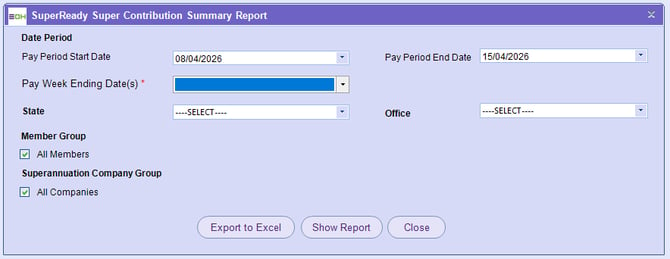
To generate the report:
- Select the Pay Period Start Date and Pay Period End Date.
All available payroll week ending dates are listed in the calendar date picker. Based on the date selected in this Pay Period Start and End Date, the Pay Week Ending Date(s) appear.
Note that the 'Pay Period End Date' must be on or after the 'Pay Period Start Date'. - Select the Pay Week Ending Date(s). All week-ending dates within the selected Start Date and End Date range are displayed. You can select multiple dates by ticking the checkbox next to each date. If no dates are selected, all week-ending dates for the current financial year are displayed.
- Select the filters State, Office, Member Group, Superannuation Company Group (as required).
- To export the report, click Export to Excel.
- To view the report, click Show Report.
This shows a structured Superannuation report with summary and detailed information. The first page is a summary page, which displays total contributions grouped by each super fund and unique USI. The following pages provide detailed breakdowns, showing individual member contribution details for each super fund and USI combination.
| Field Name | Description |
|
Member ID |
Shows the Member ID of the employee. |
| Emp ID |
Shows the member's employee ID. |
|
Family Name |
Shows the member’s last name/surname. |
| Given Name |
Shows the member’s first name. |
|
Other Given Name |
Shows the additional or middle name (if any). |
|
Address |
Shows the member's address details. |
| E-Mail Address |
Shows the member's email address. |
|
Mobile No. |
Shows the member's mobile number. |
| Date of Birth |
Shows the employee’s date of birth in the selected date format. |
|
Hire Date |
Shows the employee’s hire date. |
| TFN |
Shows the employee’s Tax File Number used for ATO reporting. For subcontractor members, the subcontractor’s ABN is shown. |
|
Status |
Shows the status of the member. |
|
Fund ABN |
Shows the Fund ABN. |
| Fund USI |
Shows the Fund USI. |
|
Fund Name |
Shows the name of the superannuation fund. |
| Fund Membership No. |
Shows the member’s superannuation fund number. |
|
Total Earnings |
Shows the gross amount of the pay slip. |
| Qualified Earning | Shows the Qualified Earnings amount. |
|
Gross for Super |
Shows the total amount on which super is calculated. |
| Super Liability | Shows the total super amount from payroll. |
|
Member Additional Super |
Shows the member's additional super amount. |
| Salary Sacrifice to Super |
Total Salary Sacrifice to Super amounts include deductions marked as both Before Tax and Salary Sacrifice to Super, or those with the code ‘salscr’. For more details, click here. |
|
Total Super Payable |
Shows the total super payable amount that is calculated as the Total of the Salary Sacrifice amount plus Super Liability amount plus member additional super amount. |
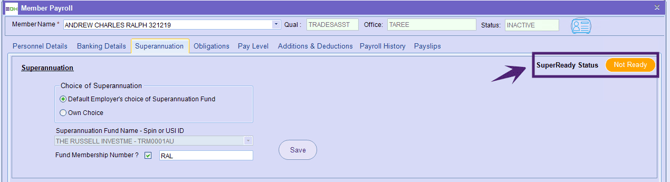
SuperReady Status in Member’s Superannuation
The SuperReady Status helps you track whether a member is ready for Super processing. This status is shown only when the SuperReady feature is effective or in Test Mode.
This SuperReady Status indicates whether a member is ready for super contribution processing, based on the compliance checks - MVR/ MRR. For detailed information, refer to Super Status Update and System Behaviour.
For existing members, the default SuperReady Status is Not Ready. This status also appears for members who do not have a super fund configured.
Super Calculation on Qualifying Earnings and STP Reporting
From 1 July 2026, superannuation will be calculated based on Qualifying Earnings (QE) in accordance with updated requirements from the Australian Taxation Office (ATO). The key changes include:
-
Change to superannuation calculation logic.
-
Introduction of Tuple Code ‘Q’ for QE reporting.
-
Update to STP Allowance Mapping.
These enhancements support accurate superannuation calculations and compliant STP reporting.
Super Calculation
Superannuation is calculated based on the Qualifying Earnings (QE) amount. From 1 July 2026, calculating superannuation on QE will be mandatory.
STP Reporting
Submit and Update Event
- The Super Liability Amount continues to be reported in Tuple Code ‘L’, as per existing functionality.
- A new Tuple Code ‘Q’ is introduced to report Qualifying Earnings (QE). This includes all year-to-date (YTD) Qualifying Earnings amounts used for super calculation. It will be included in STP submissions for payment dates starting from 1 July 2026.
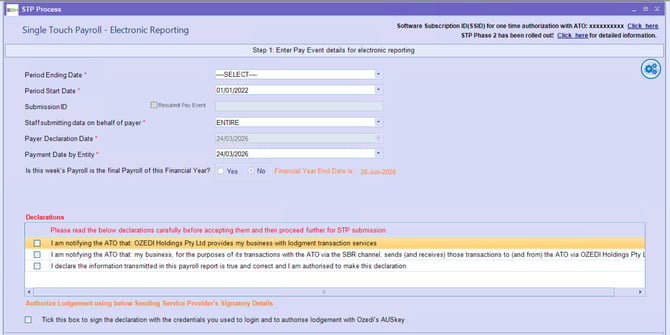
The reporting requirement for Tuple Code ‘Q’ is effective from 1 July 2026.
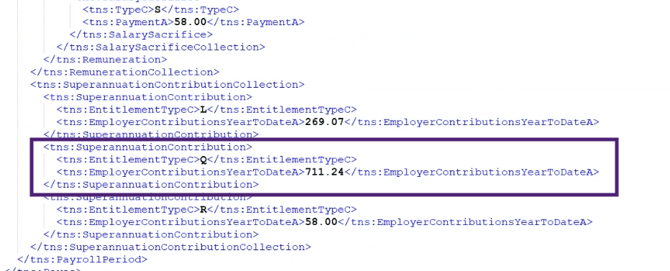
STP Allowances/ Addition/ Deduction Code Mapping
In the STP Allowances/ Addition/ Deduction Code Mapping screen, the allowance type ‘Bonus and Commission’ is renamed to ‘Bonus’ (Code: ‘BC’).
Effective 1 July 2026, when SuperReady is applicable, all commission payments, regardless of the type of hours worked, must be reported under this payment type and included as Qualifying Earnings (QE).
Before 1 July 2026, commissions paid wholly in respect of overtime were reported as Overtime. After 30 June 2026, all commissions, regardless of the type of hours worked, must be reported as this payment type and are included in the calculation of qualifying earnings.
To know in detail about Qualifying Earnings, click the links below:
- What are Qualifying Earnings?
- What payments are qualifying earnings | Australian Taxation Office
- Explaining qualifying earnings | Australian Taxation Office
Salary Sacrifice to Super – Processing and Reporting Enhancements
This enhancement updates how Salary Sacrifice to Super deductions are managed across Payroll Processing, STP Reporting, and Super Clearing House processing.
It ensures that both salary sacrifice and after-tax super contributions are correctly categorised and reported in line with ATO requirements.
Key Enhancements:
- Removed the dependency on the deduction code Salscr, making the system more flexible.
- Introduced a new flag-based approach to identify salary sacrifice contributions.
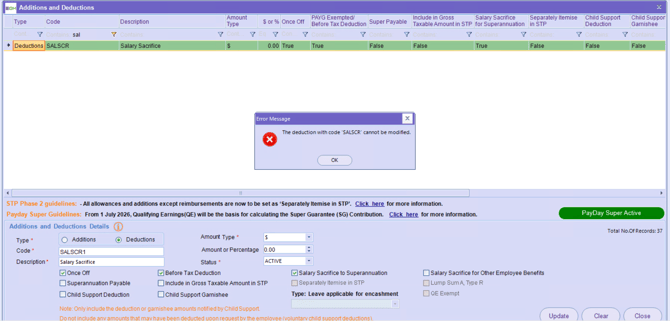
- The system-controlled Salscr deduction cannot be modified, ensuring data consistency.
- Contributions are now clearly separated into:
- Employer salary sacrifice before tax.
- Employee after-tax super contributions.
- Ensuring accurate reporting in both STP and SuperStream files.
- Existing reports and reconciliation processes continue to work without any impact.
These changes improve compliance, flexibility, and transparency in superannuation contribution processing.
Enhancements in the Additions and Deductions Master
The following enhancements are introduced in the Additions and Deductions Master:
- The deduction code ‘Salscr’ is system-controlled and cannot be edited.
- The status of the ‘Salscr’ deduction cannot be changed to Inactive.
- All other deductions (codes other than ‘Salscr’) can be updated or marked as Inactive (as required).
Introduction of SSID for STP Submissions
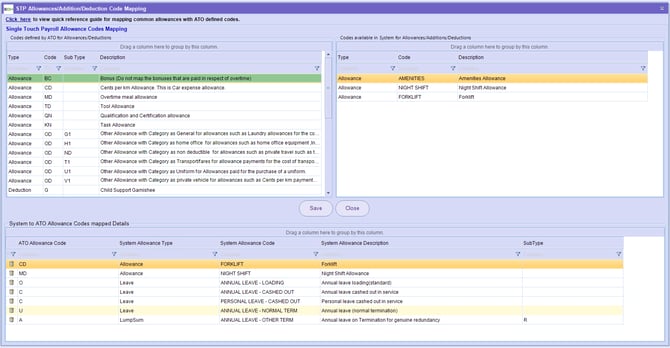
A new SSID (Sending Service Identifier) is introduced for STP submissions. As part of changes required by the Australian Taxation Office (ATO), STP submissions must be sent through an authorised Sending Service Provider (SSP). Entire OnHire utilises OZEDI as the sending provider, and each ABN will now be issued with a unique Software Service ID (SSID).
The SSID is a mandatory 10-digit unique identifier issued by the ATO to a Sending Service Provider (SSP), the system or provider that submits payroll data (such as STP reports) to the ATO on your behalf.
What this Means for Your Business?
- Each ABN will be assigned its own unique SSID.
- OZEDI will automatically generate SSIDs for all existing active ABNs. These will be available in the latest X.2 version of Entire OnHire.
The Xeople Support team will share your SSID via HubSpot email. You can also view your SSID on the STP Processing screen with the link to the knowledge article as shown in the figure below.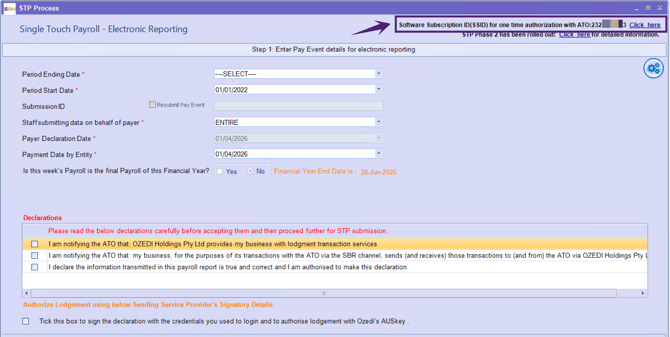
- Between March and 31 May 2026, businesses must authorise OZEDI as their Sending Service Provider (SSP) via the ATO Access Manager.
- New clients or ABNs must also complete this authorisation as part of their setup.
What You Need to Do?
To continue submitting STP without interruption before the ATO deadline of 1 July 2026, you must authorise Ozedi as your Sending Service Provider (SSP) with the ATO. This is a one-time authorisation completed via the ATO Access Manager.
Note that ATO Access Manager is an online tool provided by the Australian Taxation Office (ATO) that allows businesses to manage access to their tax and super services, including authorising software providers.
Steps to follow:
- Log in to ATO Access Manager using your business credentials.
- Nominate Ozedi as your Sending Service Provider (SSP) using the SSID.
- Once authorised, OZEDI (used by Entire OnHire) will be able to submit STP data to the ATO on your behalf.
For detailed guidance, refer to:
- Guidance for employers on notifying ATO of your Sending Service Provider Software ID (SSID).
- Access Manager help: Nominating a Software Provider in Access Manager.
If you need further assistance with ATO Access Manager or authorising a Sending Service Provider, please contact the ATO directly. You can contact ATO via the Contact Us and Help links from the Access Manager page.
Tips for Using Access Manager
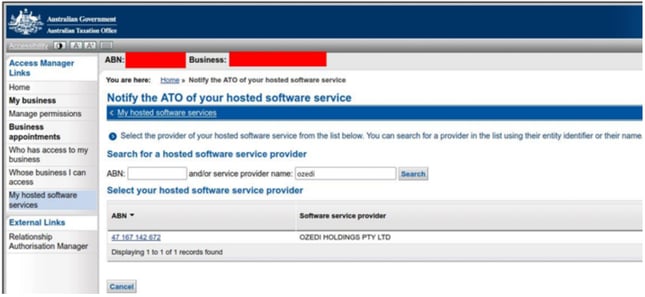
The screenshot below shows the section in Access Manager where you notify the ATO of your Software Service Provider.
- Use the Service provider name search field to find OZEDI.
-
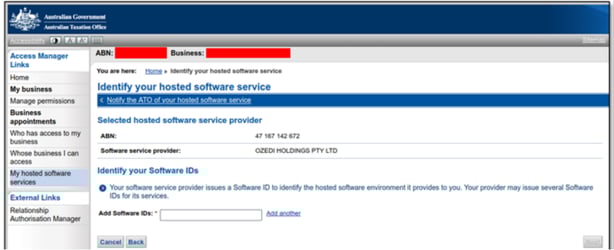
The screen to add your SSID will appear as shown below.
The ATO deadline for STP submissions via Sending Service Providers (such as OZEDI) is 1 July 2026.
To avoid disruptions during the financial year-end period, OZEDI will transition to SSID-based processing from June.
Related articles:
- SuperReady
- SuperReady Activation Scenarios and System Behaviour
- Staff Portal - SuperReady Updates
- Applicant Portal - SuperReady Updates
- Workforce App - SuperReady Updates
- Member Super Health
- Fund Validation Service
- SuperReady Auto - Contribution Payment Process (feature coming soon)