
Notes allow you to record important shift-related information for clarity, coordination, and audit purposes.
Each shift supports four note types:
- Shift Status Notes – Long-text updates that explain the shift’s current situation or any changes made. Click here to read more: How to Enter Shift Status Notes.
All notes added here are always visible to all Allocations staff and remain permanently attached to the shift for future reference.
- Booking Notes – Long-text details related to the booking process, instructions, or special requirements. Click here to read more: How to make a booking note for a shift.
- Finance Notes – Long-text entries covering rate clarifications, approvals, or finance-related remarks. How to add a finance note from the allocations screen and view: Finance Note, How to view finance notes, after the shift has been paid.
- Shift Documents – Uploads of any files relevant to the shift (e.g., confirmations, forms, attachments). Click here to read more: Difference Between Location and Shift Document. How you will come to know that a shift document is uploaded against a shift: Why is the Allocations Padlock Suddenly Orange?.
To configure notes button on the card view, follow the below steps:
- On the card view, you can see a default notes button. From the four notes you can choose any one to be seen on the screen via Options.
- Click on Options. If you have the filters opened, click on the (>) scroll bar on the top right next to shift mode button.
- From the Notes Category drop-down, you can select any notes type to be reflected on the shift card. Once selected all the shift card(s) will reflect the notes button for the specific category.
How you can add a note against shift(s):
- Select a shift and then click on the Note button on the shift card. Or you can select a different notes category from the action panel>Notes to add a note against shift(s).
- Once a note is added, it is highlighted in orange, making it easy to distinguish shifts with notes from those without.
- On hover, you can quickly preview the note contents through a tooltip.
- Click on the same button to edit it again.
- In case of Shift Document(s) button, if file is added (marked orange), on the tooltip, upon hovering, you will see the respective file(s) name. Upon clicking, opens the relevant notes pop-up based on your access permissions.
Any updates made in the calendar automatically sync back to the source system. For example, if you update a note here, the change will reflect in the client allocation for that specific shift.
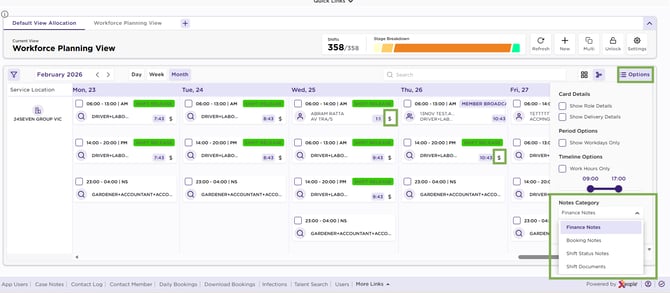
Card View – Notes