
The Shift Status Notes feature allows Allocations staff to record and maintain important information related to any shift. These notes remain attached to the shift permanently and are visible to all Allocations staff, ensuring continuity, clarity, and transparency at every stage of the shift’s lifecycle.
How to Enter Shift Status Notes:
- On the Allocations screen, select the shift you want to update.
- Lock the shift by clicking on it. In the Shift Status Notes text box, type your note.
- Click Note to save the entry.
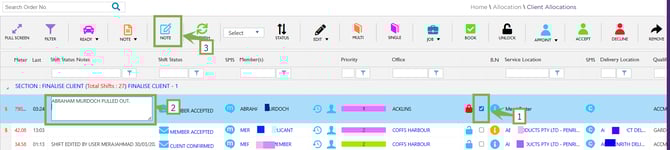
Select Shift - Shift Status Notes - Note
Recommend Reading: How to add shift status notes from the calendar view, click here: Shift Card – Notes.