
There are two ways to make a booking note, depending on how many shifts you need to add the note to.
Booking note for a single shift
- To make a booking note for a single shift, click the ‘i’ symbol as shown below.
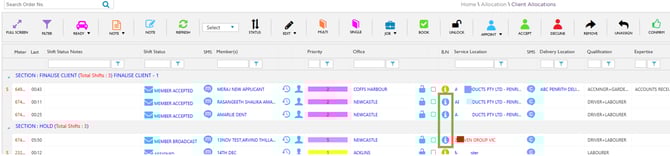
Allocations – Booking Note - i
- Click on the checkboxes to make the note visible to members, clients, or both.
- If this is an internal note, leave the checkboxes blank so neither members nor clients can see it.
- Click Save.
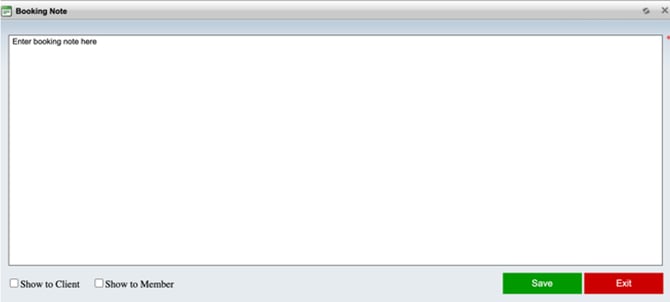
Booking Note - Enter - Save
Booking note for multiple shifts.
- Click on the ratio attached to a shift to make booking note for multiple shifts.
- You can choose the shifts that are in the same booking ratio (meaning that they were entered together).
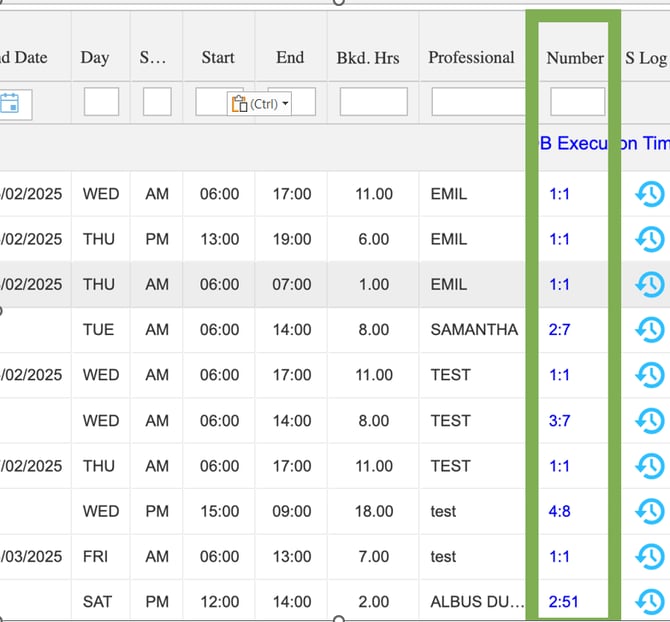
Shifts - Booking Ratio
- After you click the ratio, select the shifts you want to add the booking note to, or click the top checkbox to select all shifts linked to that ratio.
- Click on the booking note at the bottom of the screen to add in your note.
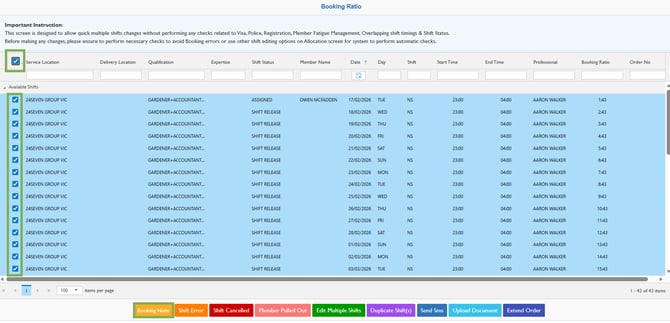
Booking Ratio – Select Shifts – Booking Note
- Click on the checkboxes to make the note visible to members, clients, or both.
- If this is an internal note, leave the checkboxes blank so neither members nor clients can see it.
- Click Save.
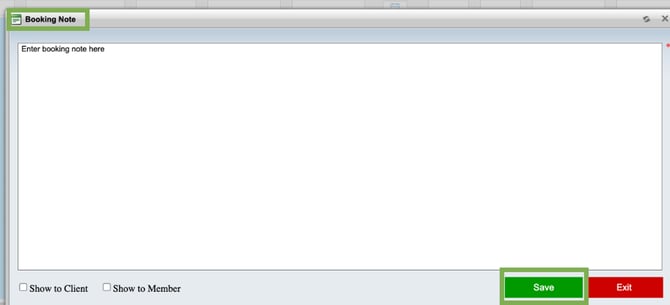
Booking Note - Enter - Save
If there are notes already in for some of these shifts, adding in another note this way will override any booking note that is already attached to a shift.
How to know if a booking note is already attached to a shift?
- The 'i' symbol will be orange. This colour change helps you quickly spot shifts that already have a booking note.
- You can click over the orange button anytime to review the existing note before updating it.
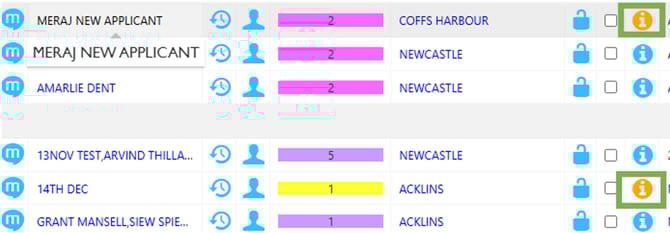
i Button – Review Existing Note
Recommend Reading: How you can add booking notes from the calendar view, click here: Shift Card – Notes.