
The Allocations Toolbar provides quick-access tools to manage shifts, members, and client details without opening each record individually.

- Full Screen: Expands the Allocations screen and hides the top navigation bar to maximise workspace.

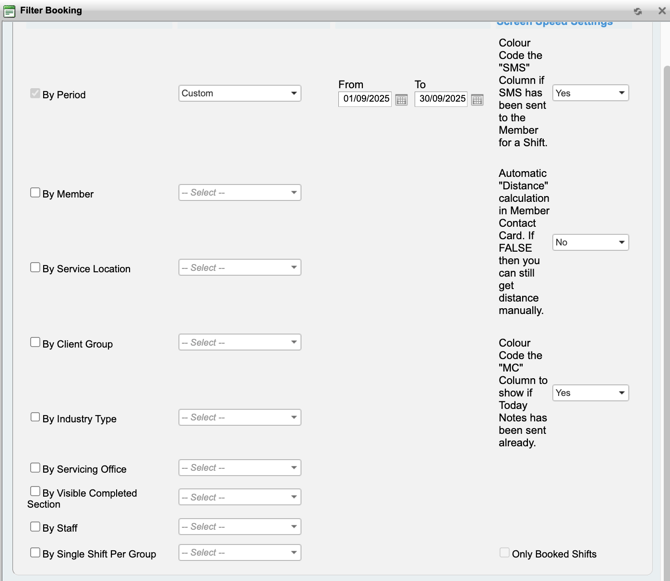
- Filter: Opens the main filters for Client and Member Allocations. Filters applied here are semi-permanentand stay active until removed or changed.
Use this when you need to narrow your view to a specific:- client
- office
- location
- shift status
- date range

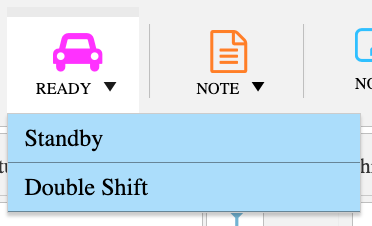
- Ready: Provides access to member availability tools:
- Standby: Shows members marked as on standbyfor the current day.
- Double Shift: Shows members who are available for two shifts that day.
If you are locked in a shift, both lists filter automatically to match:
- shift type
- office
- availability
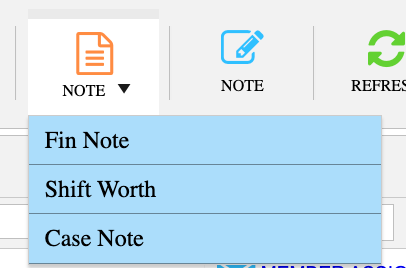
- Note Actions: There are multiple note tools available:
- Financial Note: Flags the shift for finance follow-up (for example, KM allowance).
- Shift Worth: Displays the total value of the shift.
- Case Notes: Opens client case notes to update, add, export or send.
- Refresh: Refreshes Allocations without refreshing the browser. Use when:
- a shift changes status
- someone else edits a record
- broadcast or appoint actions update the screen
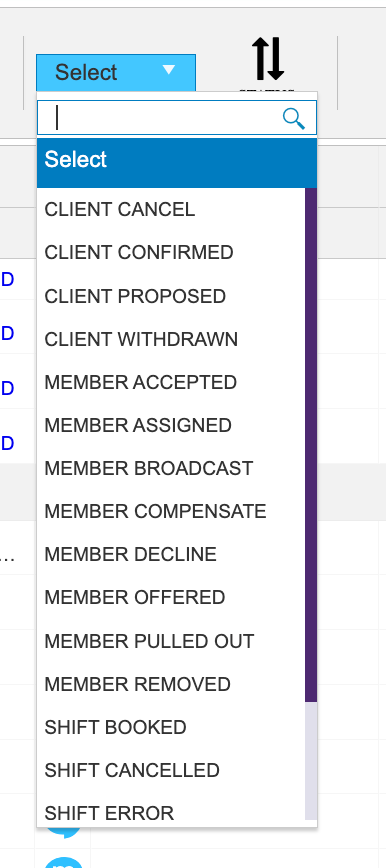
- Status: Allows you to change the status of selected shifts using the drop-down.
- Edit: Allows editing of one or multiple shifts.
- For multiple shifts, they must:
- be at the same service location
- have the same status
- Fields available include:
- delivery area
- qualification
- expertise
- shift type
- start / end times
- authorisation
- For multiple shifts, they must:
(Page 2 explains this clearly.)
-
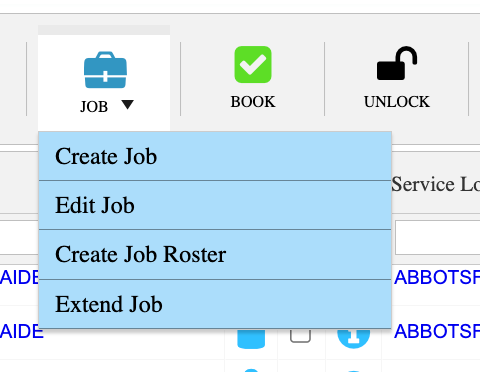
Job: Access to Unmanaged Jobs (Additional Feature).
-
Book: Books the shift once the client confirms the member.
-
Unlock: Unlocks your screen if you are locked into a shift.
-
Appoint: Manually appoint a member to one or more shifts.
⚠ Overrides several safety checks — use cautiously.
-
Accept / Decline: Accept or decline a shift on behalf of the member.

-
Remove: Removes a member who is not yet booked. Use when member:
-
-
can’t be contacted
-
accepted by mistake
-
withdraws before confirmation
-
- Unassign: Used for bulk removal of different shift status and members but same facilitate to do a bulk removal.

- Confirm: Used when the client confirms but member still needs to respond. If the member accepts, shift goes straight to Booked. Also used when time is changed.

-
Cancel: Cancels a booked shift (member must acknowledge).

-
Withdraw: Stops allocation — client no longer requires cover.
-
Unfill: Quick access tool for status “Shift Unfill”.
-
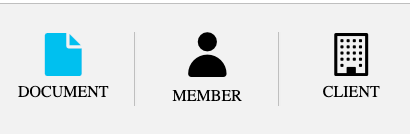
Document / Member / Client
-
Attach/view shift-specific documents
-
Quick access to member details
-
Quick access to client details
-
Right-Click Menu — Shift Drop-Down Function
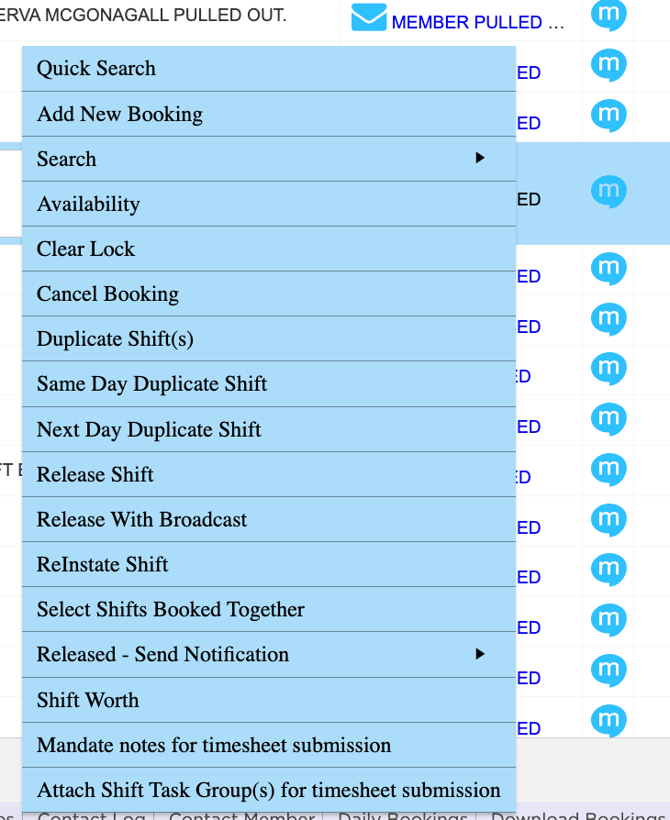
Right clicking a shift opens a context menu that lets you take actions quickly.
-
Quick Search: Search for suitable members immediately.
-
Add New Booking: Creates a new shift from this screen.
-
Search: Advanced search functions.
-
Availability: Review member availability for the shift.
-
Clear Lock: Unlocks the shift if it is locked.
-
Cancel Booking: Cancels the shift booking and logs the cancellation.
-
Duplicate Shift(s): Copies the selected shift.
-
Same Day Duplicate: Creates another shift for the same day.
-
Next Day Duplicate: Copies the shift to the following day.
-
-
Release Shift: Releases shift back for re-allocation.
-
Release with Broadcast: Notifies suitable members via broadcast when released.
-
Reinstate Shift: Brings back a cancelled/withdrawn shift.
-
Select Shifts Booked Together: Highlights all related shifts linked to the same booking.
-
Released – Send Notification: Sends communication regarding a released shift.
-
Shift Worth: Displays financial value of the shift.
- Mandate Notes for Timesheet Submission: Forces notes to be entered before timesheet is submitted.
-
Attach Shift Task Group(s): Connects tasks required for the shift.
Recommend Reading: How these actions appear in the calendar view, click here: Shift Action Bar.