
Content
Introduction
How to Access Member Super Health?
How to Access the Member/ Applicant Super Health Page from the Staff Portal?
How to Access the Member Super Health Page from the Applicant Portal?
How to Access the Member Super Health Page from the Workforce App?
What are Member Super Health Cards?
What Happens When You Click a Super Health Card?
How Member Super Health Filters Work?
How to Export the Member Super Health Data?
What is TFN Declaration to ATO via Flare?
Viewing TFN Declaration Details
What is MRR Status?
Viewing Member Registration Request (MRR) Details
How to Create a New MRR Request?
Action: How Do I Reprocess an MRR?
Export - MRR Processing Details
What is MVR Status?
Viewing Member Verification Request (MVR) Details
How to Create a New MVR Request?
Action: How Do I Reprocess an MVR?
Export - MVR Processing Details
What Does Payrolled Indicate?
What Does SuperReady Status Indicate?
Viewing Super Status Update
How Do I Update the SuperReady Status for a Single Member or Applicant?
How Do I Bulk Update the SuperReady Status for Multiple Members or Applicants?
Export - Super Status Update History
Introduction
The Member Super Health page provides a central view of superannuation readiness for members and applicants, helping organisations manage Payday Super obligations and monitor SuperReady compliance.
It provides a comprehensive overview of personnel superannuation status and compliance, allowing you to track Member Verification Requests (MVRs), Member Registration Requests (MRRs), and TFN declarations to ATO (via the Applicant Portal and Workforce App) to ensure that appropriate superannuation arrangements are in place.
The Member Super Health displays:
-
SuperReady Status: This metric indicates whether members and applicants are Ready or Not Ready for Payday Super processing.
Action Required:
All existing members will initially appear with a Super Status of 'Not Ready'. You should set members to 'Ready' manually where you know their super details are correct based on previous payment history. Click here for Bulk Members/ Applicants SuperReady Status Update.
- From 1 July, the SuperReady Status is automatically updated when a member's or applicant's super fund details are saved or updated in the application, provided you have opted for MVR and/or MRR compliance services.
The status is determined by the outcomes of Member Verification Requests (MVRs) and Member Registration Requests (MRRs). Authorised staff can also manually update the status when required. - Interactive SuperReady Cards: This filters the list by Member/Applicant with Ready/Not Ready status. The selected card is highlighted and displays matching records.
- Global and Card-level Filtering: To quickly locate records across all personnel or within a specific category.
- Reprocess MRR and Reprocess MVR Actions: Allow authorised staff to resubmit failed or stalled registration and verification requests manually.
- Excel Export functionality: To support reporting, reconciliation, and audit requirements.
- TFN Declaration to ATO via Flare Status: To display the latest outcome of a Tax File Number (TFN) declaration submitted through Flare via the Applicant Portal and Workforce App. Select the status to view declaration details and history.
- MRR Status: To display the outcome of the most recent Member Registration Request (MRR) submitted to a member's superannuation fund. You can select the status to view processing details. Click here to know about the Member Registration Request.
- MVR Status: To display the outcome of the most recent Member Verification Request (MVR) submitted to a member's superannuation fund. You can select the status to view processing details. Click here to know about the Member Verification Request.
- Payrolled: Indicates whether payroll has previously been processed for the member's selected superannuation fund. The values displayed are 'Yes' and 'No'.
The Member Super Health page is mobile-friendly, allowing you to access Member Super Health information from your mobile devices securely.
How to Access Member Super Health?
To access the Member Super Health page in the Staff Portal:
- Navigate to the Finance menu → SuperReady.
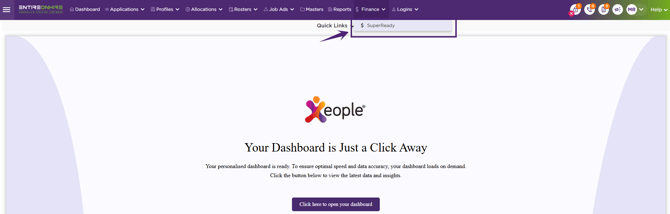
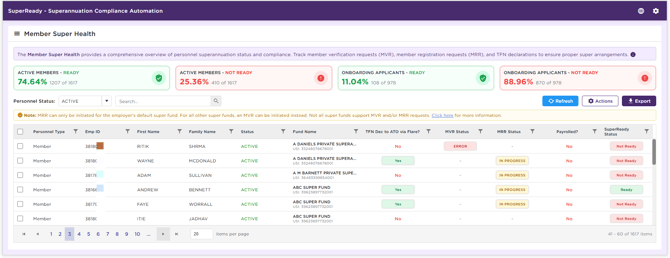
- The Member Super Health page is displayed, showing members and applicants along with their current SuperReady Status and related superannuation processing information.
How to Access the Member/ Applicant Super Health Page from the Staff Portal?
From 1 July 2026, you can access the Member Super Health page for a specific member or applicant directly from their Personnel Details page in the Staff Portal.
To access the Member Super Health page:
- Navigate to Personnel Card → Superannuation for the required member or applicant.
- In the SuperReady Status field, select Ready or Not Ready, as shown in the figure below.
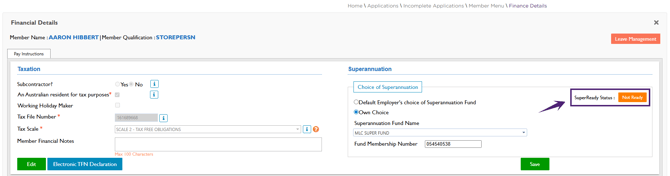
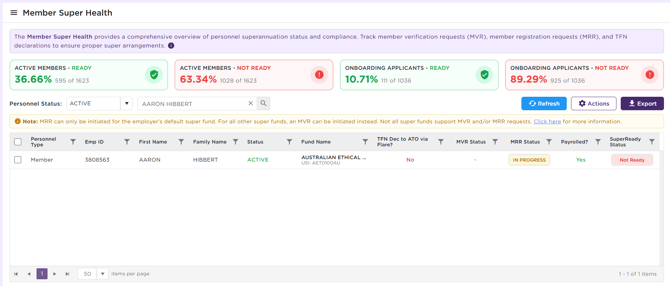
When you select the SuperReady Status value for an applicant or member, the Member Super Health page opens and automatically filters the results to show only the selected applicant or member.
The Personnel Status filter is also automatically adjusted to match the current status of the selected applicant or member.
This page displays the Personnel Type, Emp ID, First Name, Family Name, Status, Fund Name, TFN Dec to ATO via Flare, MVR Status, MRR Status, Payrolled, and SuperReady Status details.
You can perform the following actions from this screen:
- Click 'MVR Status' to view the MVR Processing Details for the member/ applicant.
- Click 'MRR Status' to view the MRR Processing Details for the member/ applicant.
- Click 'SuperReady Status' to view the Update Super Status window and SuperReady Status History.
- Click 'TFN Dec to ATO via Flare' to view the TFN Dec to ATO Details log and submission history.
How to Access the Member Super Health Page from the Applicant Portal?
From 1 July 2026, applicants can access their Member Super Health page from the Applicant Portal to view their SuperReady Status and related superannuation processing information.
To access the Member Super Health Page:
- Navigate to Finance → Choice Superannuation Fund.
- In the SuperReady Status field, select Ready or Not Ready, as shown in the figure below.
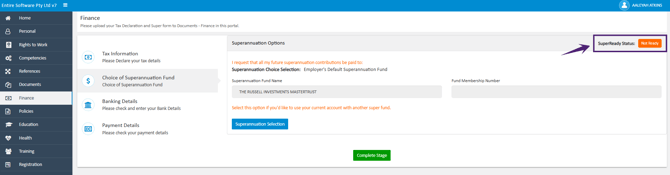
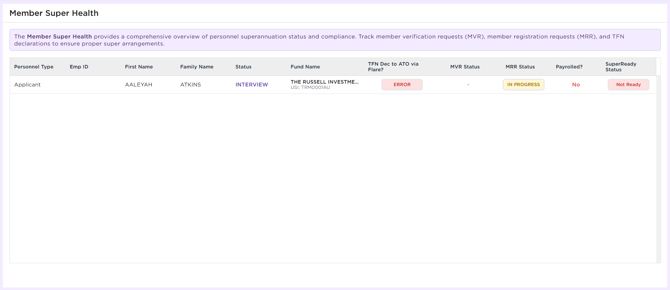
The Member Super Health screen opens and displays the applicant's superannuation information, including Personnel Type, Emp ID, First Name, Family Name, Status, Fund Name, TFN Dec to ATO via Flare, MVR Status, MRR Status, Payrolled, and SuperReady Status.
The Applicant Portal provides a restricted, read-only view of Member Super Health information. Applicants can view only their own records and related status information and cannot perform administrative actions such as updating statuses, reprocessing requests, or modifying superannuation details.
How to Access the Member Super Health Page from the Workforce App?
From 1 July 2026, member can access their Member Super Health page from the Workforce app to view their SuperReady Status and related superannuation processing information.
To access the Member Super Health page:
-
Go to the Finance → Choice of Super Fund of the member.
-
Click Ready or Not Ready in the SuperReady Status field, as shown in the figure below.
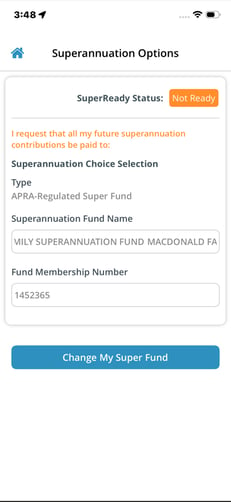
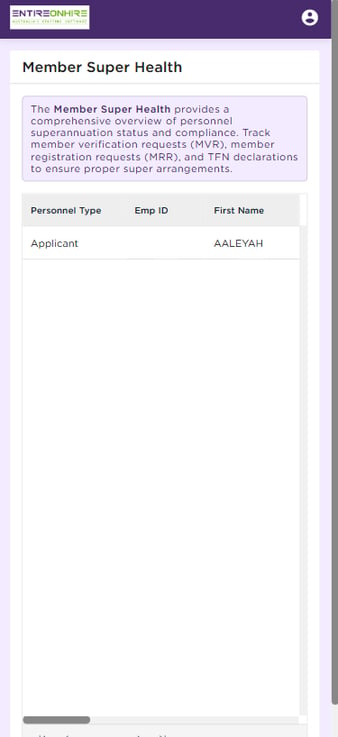
The Member Super Health screen opens and displays the member's superannuation information, including Personnel Type, Emp ID, First Name, Family Name, Status, Fund Name, TFN Dec to ATO via Flare, MVR Status, MRR Status, Payrolled, and SuperReady Status.
The Workforce App provides a restricted, read-only view of Member Super Health information. Members can view only their own records and related status information and cannot perform administrative actions such as updating statuses, reprocessing requests, or modifying superannuation details.
What are Member Super Health Cards?
The Member Super Health Cards provide a summary of active members and onboarding applicants based on their SuperReady Status. Applicants with access to the Applicant Portal can view their own SuperReady Status information. The following cards are displayed:
- Active Members – Ready
- Active Members – Not Ready
- Onboarding Applicants – Ready
- Onboarding Applicants – Not Ready
Each card displays key metrics to help monitor SuperReady status and identify records that may require attention.
Active Members – Ready
This card shows the proportion of active members whose status is Ready and displays:- The percentage of active members who are super ready.
- The number of super ready members compared to the total number of active members. For example, '1214 of 1613' indicates that 1214 out of 1613 active members are currently super ready.

Active Members – Not Ready
This card shows the proportion of active members whose status is Not Ready and displays:
- The percentage of active members who are not super ready.
- The number of not super ready members compared to the total number of active members. For example, '399 of 1613' indicates that 399 out of 1613 active members are currently not super ready.

Onboarding Applicants – Ready
This card shows the proportion of onboarding applicants whose status is Ready and displays:
- The percentage of onboarding applicants who are super ready.
- The number of super ready applicants out of the total onboarding applicants. For example, '108 of 971' indicates that 108 out of 971 onboarding applicants are currently super ready.

Onboarding Applicants – Not Ready
This card shows the proportion of onboarding applicants whose status is Not Ready and displays:
- The percentage of onboarding applicants who are not super ready.
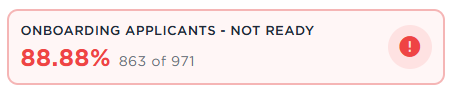
- The number of not super ready applicants out of the total onboarding applicants. For example, '863 of 971' indicates that 863 out of 971 onboarding applicants are currently not super ready.
What Happens When You Click a Super Health Card?
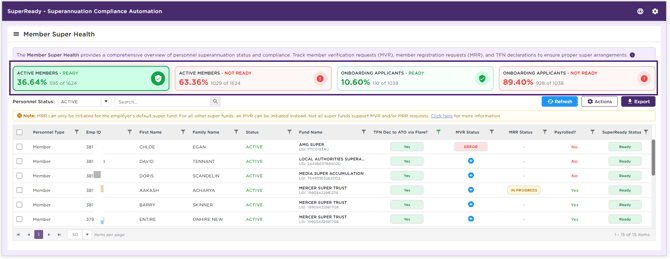
When you select a Member Super Health card, the Member Super Health list is automatically filtered based on the selected Personnel Type (Member or Applicant) with SuperReady Status (Ready or Not Ready). The selected card is highlighted, and the list displays records that match the selected criteria and any applied Personnel Status filters.
The filtered results display the Personnel Type, Emp ID, First Name, Family Name, Status, Fund Name, TFN Dec to ATO via Flare, MVR Status, MRR Status, Payrolled, and SuperReady Status.
|
Field Name |
Description |
|
Personnel Type |
Indicates whether the personnel is a member or an applicant. |
|
Emp ID |
Displays the Employee Identification Number assigned to the personnel. |
|
First Name |
Displays the First Name of the personnel. |
|
Family Name |
Displays the Family Name of the personnel. |
|
Status |
Indicates the status of the member or applicant. The Status for members and applicants is displayed as Active, Inactive, Suspended, Terminated, and Interview. |
|
Fund Name |
Displays the superannuation fund name and the associated identifier for the member or applicant. For APRA-regulated funds, the Unique Superannuation Identifier (USI) is displayed, and for Self-Managed Super Funds (SMSFs), the Australian Business Number (ABN) is displayed. |
|
Indicates whether the TFN Declaration has been submitted to the ATO via Flare. The values are shown as 'Yes', ' No', or 'Error'. |
|
|
Displays the Member Verification Request (MVR) status for the member or applicant, such as Success, Error, Blank, or In Progress. |
|
|
Displays the Member Registration Request (MRR) status for the member or applicant, such as Success, Error, Blank, or In Progress. |
|
|
Indicates whether the payroll has previously been processed for the member's selected superannuation fund. The values are shown as 'Yes' or 'No'. |
|
|
Displays the superannuation status as 'Ready' or 'Not Ready'. |
How do Member Super Health Filters Work?
The Member Super Health page allows you to filter records using a range of criteria to locate specific members or applicants quickly. You can filter records based on details such as Personnel Type, Emp ID, First Name, Family Name, Status, Fund Name, TFN Dec to ATO via Flare, MVR Status, MRR Status, Payrolled, and SuperReady Status.
Filters can be used individually or in combination to refine the results and display only records that match the selected criteria.
Global and Specific Card Filtering
The Member Super Health page provides both global and card-level filtering to help you quickly locate and analyse member and applicant records.
- Global filtering allows you to search across all members and applicants, including both Super Ready and Not Super Ready records. When filter criteria are applied, the list automatically updates to display all matching records across the entire dataset.
- Card-level filtering allows you to view records within a specific Member Super Health card category. When you select a card, the list is automatically filtered to display records that match the corresponding Personnel Type (Member or Applicant) and SuperReady Status (Ready or Not Ready).
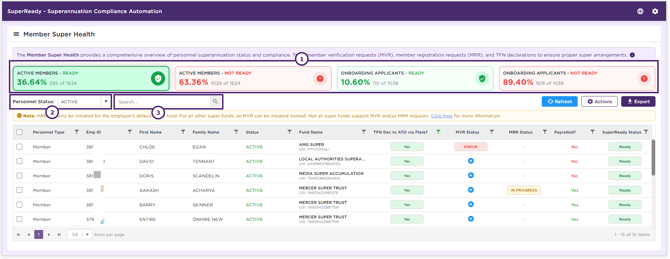
- Personnel Status filtering is available on the Member Super Health page. By default, Active is selected when the page loads. Only one status can be selected at a time from the following options: Active, Inactive, Suspended, Terminated, and Interview.
- Search filter allows you to locate records using any information displayed on the page. Search can be used independently or in combination with the Personnel Status filter and card selections to further refine the results.
Applied filters are reflected in exported Excel reports. Only records that match the currently selected filter criteria are included in the exported file.
How to Export the Member Super Health Data?
You can export Member Super Health information in Excel format for reporting, review, reconciliation, and audit purposes. The exported report includes the records and data that match the currently applied filters, making it easier to analyse, share, and retain information as required.
To export the report in Excel Format:
- Click Export → Excel.
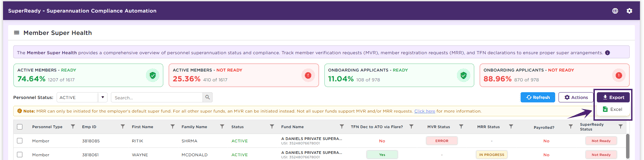
- The Member Super Health report is downloaded and exported into Excel format as shown in the figure below.
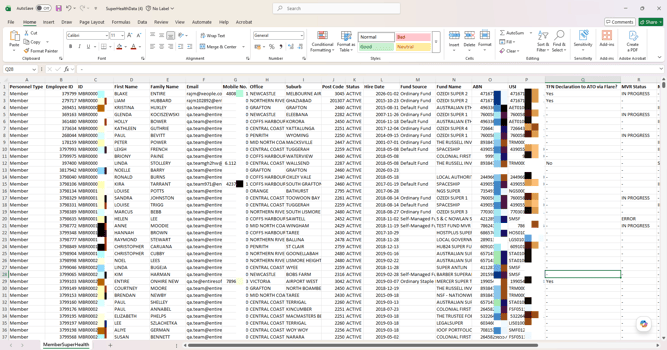
The following fields are included in the exported report:
| Field Name | Description |
|
Personnel Type |
Indicates whether the personnel is a member or an applicant. |
|
Employee ID |
A unique identifier to identify the member/ applicant record. |
|
ID |
A unique employee identifier assigned to the employee/ member within the organisation. |
|
First Name |
First Name of the personnel. |
|
Family Name |
Family Name of the personnel. |
| Email address of the personnel. | |
| Mobile No. | Mobile number of the personnel. |
| Office | Office associated with the personnel. |
| Suburb | Suburb associated with the personnel. |
| Post Code | Post Code associated with the personnel. |
| Status | Status of the personnel, such as Active or Inactive. |
| Hire Date | Hire date of the personnel. |
| Fund Source |
Source of the superannuation fund used for the TFN declaration, such as an Ordinary Staple Fund, Ordinary Fund, or Default Fund. |
| Fund Name |
Name of the superannuation fund associated with the TFN declaration. |
| ABN |
The Australian Business Number of the personnel. |
| USI |
The Unique Superannuation Identifier of the member's or applicant's selected superannuation fund. |
| TFN Declaration to ATO via Flare? |
Latest outcome of a Tax File Number (TFN) declaration submitted to the ATO through Flare. The values shown are Yes, No, or Error. |
| MVR Status |
Outcome of the Member Verification Request (MVR), indicating whether the member's details have been successfully verified with the selected superannuation fund. The values shown are Success, In Progress, Blank, or Error. |
| MRR Status |
Outcome of the Member Registration Request (MRR), indicating whether the member has been successfully registered with the selected superannuation fund. The values shown are Success, In Progress, Blank, or Error. |
| TFN Declaration Source |
Displays the application or channel through which the TFN declaration was submitted, such as the Workforce App or Staff Portal. |
| Payrolled? |
Indicates whether the payroll has previously been processed for the member's selected superannuation fund. The values shown as 'Yes' or 'No'. |
| Super Status |
Whether the member's superannuation fund details are 'Ready' or 'Not Ready' for superannuation processing. |
What is TFN Declaration to ATO via Flare?
The TFN Declaration to ATO via Flare status indicates whether a Tax File Number (TFN) declaration has been submitted to the ATO through Flare (via the Applicant Portal and Workforce App) for the member or applicant and displays the outcome of the most recent submission.
The status (Yes, No, or Error) is automatically updated whenever a response is received for a TFN declaration submitted to the ATO through Flare.
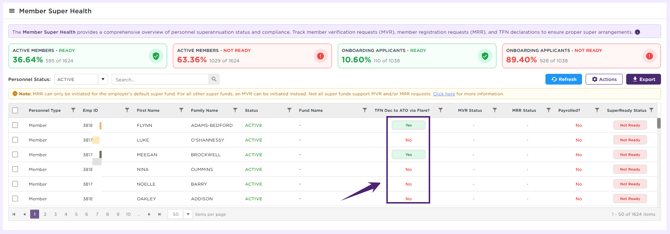
Status Values
| Status | Description |
|---|---|
| Yes |
The TFN declaration or re-declaration was successfully created or submitted to the ATO via Flare (from the Applicant Portal or Workforce App). Select the status to view the submission history and response details. |
| No |
The TFN declaration has not been submitted to the ATO via Flare. This may occur if the 'TFN Declaration to ATO via Flare' option is not enabled in the SuperReady Configuration Settings, or if the TFN declaration has not yet been submitted via Flare. No submission log is available for this status. |
| Error |
An issue occurred while processing the TFN declaration. Select the status to review the response log for further information. |
Viewing TFN Declaration Details
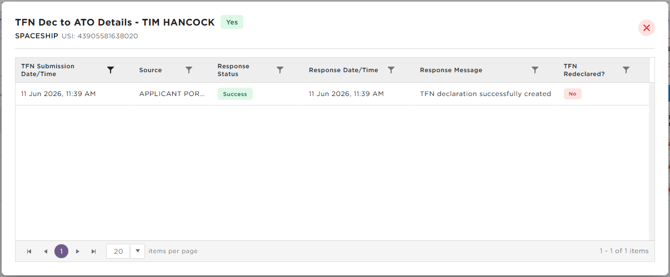
To view TFN declaration details, select the TFN Declaration to ATO Details via Flare Status. This opens the TFN Declaration Log, which provides a history of TFN declarations submitted through Flare. The most recent entry is displayed at the top of the log.
The log includes the following information:
- TFN Submission Date/Time – Displays the date and time when the TFN declaration was submitted to the ATO via Flare. If the TFN has been re-declared, the date and time of the most recent re-declaration are displayed.
- Source - Displays the process or action that triggered the TFN declaration submission, such as a superannuation fund update from Applicant Portal, or Member App, or an automated submission through Flare.
- Response Status - Displays the outcome of the TFN declaration submission to the ATO. Examples include Success, Failed, and Error, indicating whether the submission was processed successfully or encountered an issue.
- Response Date/ Time - Displays the date and time the latest response was received from Flare or the ATO for the TFN declaration submission.
- Response Message – Displays the detailed response received for the TFN declaration submission. Examples include 'TFN Declaration to ATO Submitted Successfully' and 'TFN Re-declaration to ATO Submitted Successfully', indicating whether the submission was an initial declaration or a re-declaration.
- TFN Redeclared - Indicates whether the TFN has been submitted to the ATO more than once. A value of 'Yes' means the TFN was re-declared following a previous submission, while 'No' indicates only the original declaration has been submitted.
What is MRR Status?
The MRR Status indicates the outcome of the most recent Member Registration Request (MRR) submitted to the member's superannuation fund. The available status values are Success, In Progress, Blank, or Error.
From 1 July 2026, the status is automatically updated whenever:
- Superannuation fund details for a member or applicant are added or updated, resulting in a Member Registration Request (MRR) being submitted to the selected superannuation fund.
- A response is received from Ozedi or the superannuation fund for an existing MRR.
- An MRR can also be manually initiated from the Member Super Health page.
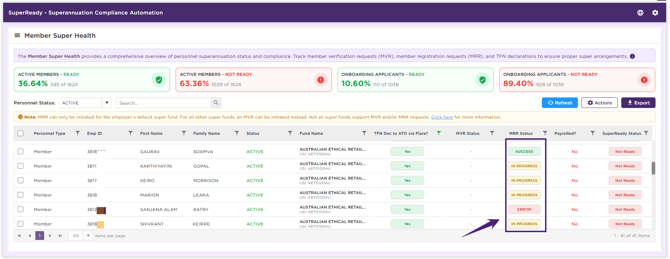
Click here for detailed information on:
Status Values
| Status | Description |
|---|---|
| Success |
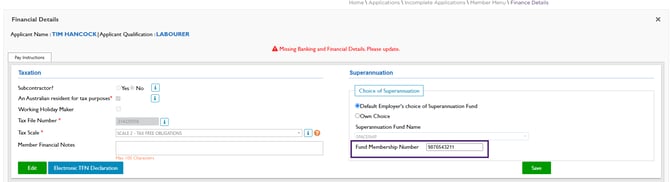
The Member Registration Request (MRR) was successfully processed, and the member has been registered with the selected superannuation fund. The Fund Membership Number returned by the superannuation fund is automatically updated in the member's Superannuation details in the Financial Details page, as shown in the figure below.
|
| In Progress |
The Member Registration Request (MRR) has been submitted and is currently being processed by the superannuation fund. |
| Blank |
MRR cannot be initiated for the selected superannuation fund because it is not the employer's default fund. |
| Error | An issue occurred while processing the Member Registration Request (MRR). Review the registration details or the request log for further information, then reprocess the MRR. |
Viewing Member Registration Request (MRR) Details
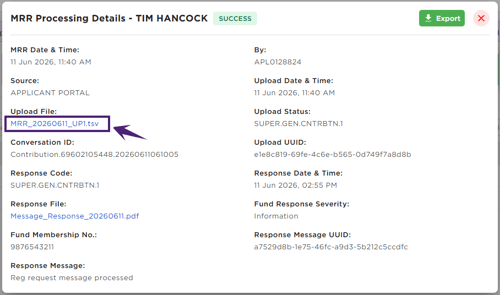
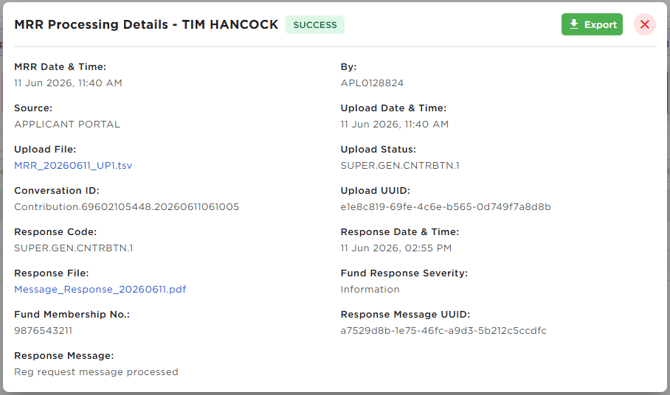
The Member Registration Request (MRR) log displays details of the most recent registration request submitted for the selected member and superannuation fund, including submission details, file processing information, and responses received from Ozedi and the superannuation fund.
The log includes the following information:
| Field | Description |
|---|---|
| MRR Date & Time | Displays the date and time the Member Registration Request (MRR) was submitted. |
| By |
Displays the user information who initiated the registration request. |
| Source | Displays the application or channel from where the registration request was submitted, such as the Applicant Portal, Workforce App, Finance Application, Member Super Health page, or Staff Portal. |
| Upload Date & Time | Displays the date and time the registration file was uploaded to Ozedi for processing. |
| Upload File |
Displays the registration (.tsv) file submitted to the superannuation fund. Select the file name to download the file.
|
| Upload Status | Displays the current status of the file upload and processing request (provided by Ozedi). |
| Conversation ID |
Displays the unique reference number associated with the registration (.tsv) file upload transaction. |
| Upload UUID | Displays the unique identifier assigned to the file upload transaction (provided by Ozedi). |
| Response Code | Displays the response code returned by the superannuation fund. |
| Response Date & Time | Displays the date and time the response was received from the superannuation fund. |
| Response File |
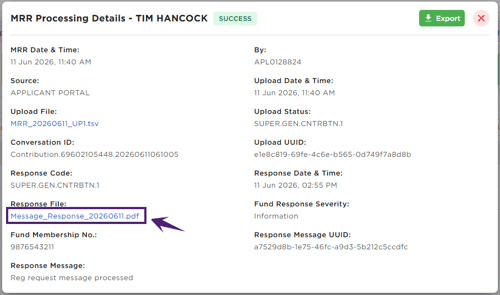
Provides access to the response file received from the superannuation fund, including any error reports where applicable. Select the file name to download it.
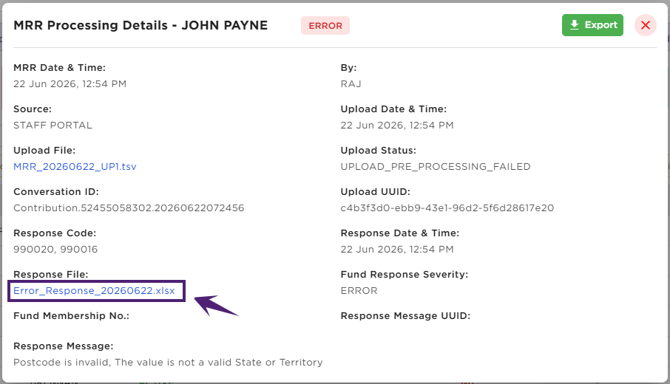
When you select the Response File link (.pdf or .xls), the file is downloaded, allowing you to review the response details.
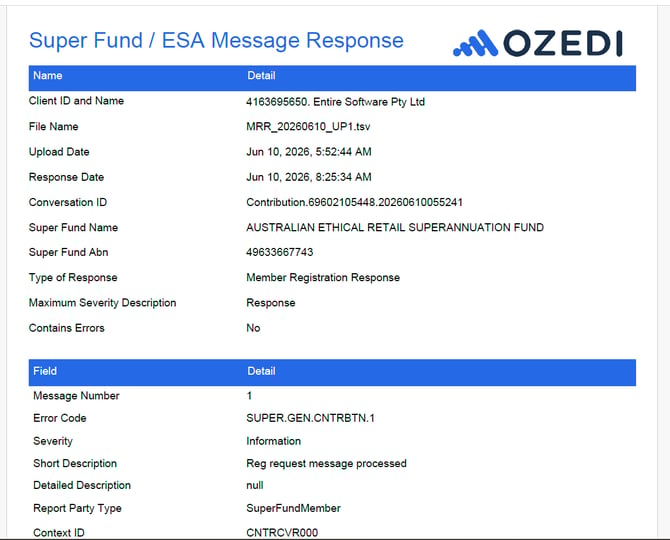
In the downloaded response file (.xls or .pdf), you can view the response description and related details as shown in the figures below. If the response file contains errors, review the error description, update the relevant information as required, and then reprocess the Member Verification Request (MVR).
PDF Response File:
|
| Fund Response Severity | Displays the response severity returned by the superannuation fund, such as Information, Warning, or Error. |
| Fund Membership No. |
The Member Registration Request (MRR) was successfully processed, and the member has been registered with the selected superannuation fund. The Fund Membership Number returned by the superannuation fund is automatically updated in the member's Superannuation details on the Financial Details page, as shown in the figure below.
|
| Response Message UUID | Displays the unique identifier associated with the response message received from the superannuation fund. |
| Response Message |
Displays the latest message received for the registration request. This may include a response from the superannuation fund or a processing status such as Upload Successful, Upload In Progress, or Upload Error. For staff users, the message can be selected to access the related response file, where available. |

How to Create a New MRR Request?
From 1 July 2026, the Add (+) icon for creating a new Member Registration Request (MRR) is available when both the MRR and SuperReady services are enabled in the SuperReady Setup & Authorisation settings, and the selected superannuation fund is the employer's default fund. For more information, refer to the SuperReady Setup & Authorisation.
When superannuation details are saved for a member or applicant, MRR is automatically initiated if you have opted to use the MRR service. If an MRR has not been initiated, the '+' icon is displayed, allowing authorised users to initiate and submit MRR request manually.
An MRR can be initiated only when:
- The selected superannuation fund is the employer's default fund.
- The fund has a valid CONT3.0-X or CONT1.0-X certification in FVS.
- The certification is currently effective and has not expired, based on the latest Fund Validation Service (FVS) data.
To create a new MRR request:
- Click the Add (+) icon in the MRR Status column.
- The system validates all mandatory superannuation fund details required to create the registration request for the selected member or applicant.
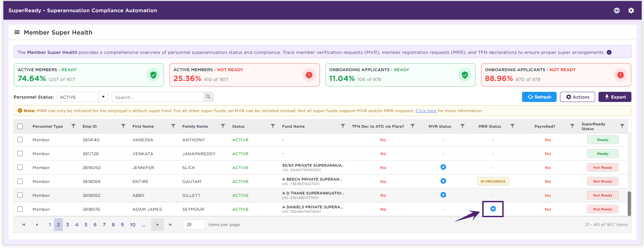
- If all required information is available, the system validates the selected superannuation fund and automatically generates and submits the registration file (.tsv) for processing to Ozedi.
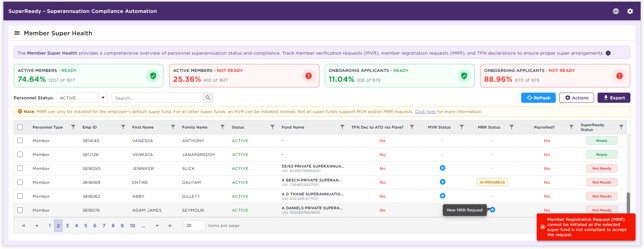
- If the selected superannuation fund is not eligible to accept Member Registration Requests (MRRs) according to the Fund Validation Service (FVS) data, the request is not submitted, and the following message is displayed: 'Member Registration Request (MRR) cannot be initiated as the selected super fund is not compliant to accept the request' as shown in the figure below.
Action: How Do I Reprocess an MRR?
The Reprocess MRR action allows authorised staff to resubmit a Member Registration Request (MRR) for a selected member or applicant when:- The MRR Status is Error, or
- The MRR Status is Upload Pre-Processing and has remained in that status for more than one day.
Before reprocessing the request, the system validates all mandatory information required for the MRR. If any required information is missing or invalid, a validation report is displayed. The identified issues must be resolved before the MRR can be reprocessed.
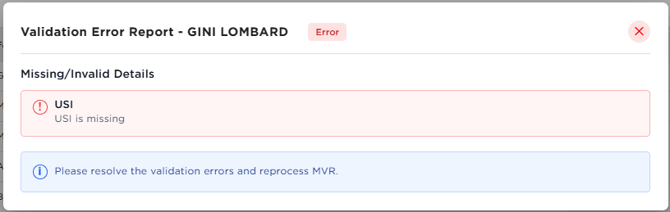
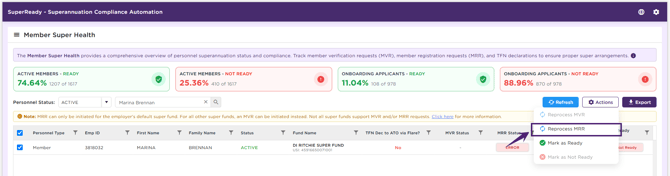
To reprocess the MRR request
- Select the member or applicant record(s) that require MRR reprocessing.
- Click Actions.
- Select Reprocess MRR.
If validation is successful, a new MRR is generated and submitted for processing.
Processing Behaviour
The processing behaviour depends on the current MRR Status:
- For an MRR Error status, the system generates a new registration file and resubmits the request for processing.
- For an Upload Pre-Processing status, the system cancels the pending upload, generates a new registration file, and resubmits the request for processing.
Export - MRR Processing Details
The Export option allows you to download the MRR Processing Details log, including registration request information, upload details, processing status, and superannuation fund responses, for reporting, review, reconciliation, and audit purposes.
To export the MRR Processing Details log:
- Select the MRR Status for the required member or applicant to open the MRR Processing Details Log.
- Click Export.
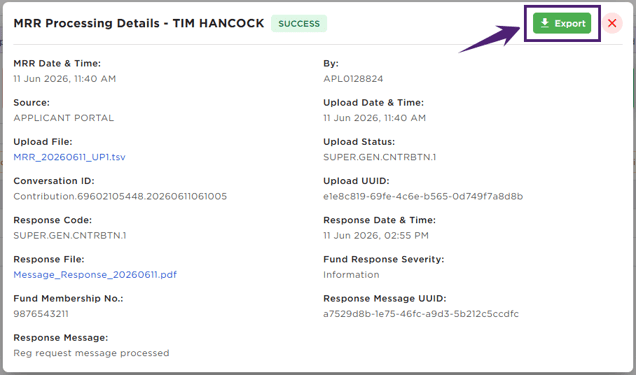
- The MRR Processing Details log is downloaded as an Excel file and includes all information displayed within the MRR Processing Details Log.

What is MVR Status?
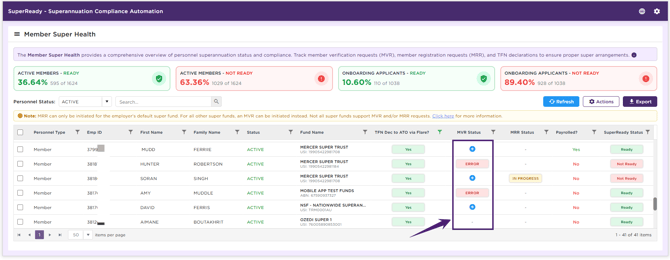
The MVR Status indicates the outcome of the most recent Member Verification Request (MVR) submitted to the member's superannuation fund. The available status values are Success, In Progress, Blank, or Error.
From 1 July 2026, the status is automatically updated whenever:
- Superannuation fund details for a member or applicant are added or updated, resulting in an MVR being submitted to the selected superannuation fund.
- A response has been received from Ozedi or the superannuation fund regarding an existing MVR request.
- An MVR can also be manually triggered from the Member Super Health page.
Click here for detailed information on:
Status Values
| Status | Description |
|---|---|
| Success |
The Member Verification Request (MVR) was successfully processed, and the member has been verified with the selected superannuation fund. |
| In Progress |
The Member Verification Request (MVR) has been submitted and is currently being processed by the superannuation fund. |
| Blank |
MVR cannot be initiated for the selected superannuation fund because the fund may be the employer's default fund, MVR services are not enabled, or MVR cannot be initiated before 1 July 2026. |
| Error | An issue occurred while processing the Member Verification Request (MVR) fund. Review the verification details or the request log for further information, then reprocess the MVR. |
Viewing Member Verification Request (MVR) Details
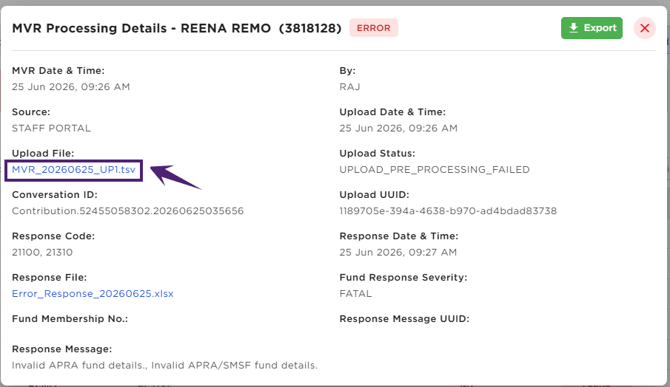
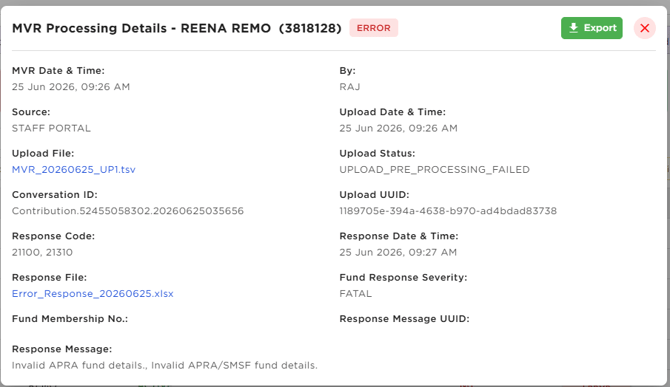
The Member Verification Request (MVR) log displays details of the most recent verification request submitted for the selected member and superannuation fund, including submission details, file processing information, and responses received from Ozedi and the superannuation fund.
The log includes the following information:
| Field | Description |
|---|---|
| MVR Date & Time | Displays the date and time the Member Verification Request (MVR) was submitted. |
| By |
Displays the user information who initiated the verification request. |
| Source | Displays the application or channel from where the verification request was submitted, such as the Applicant Portal, Workforce App, Finance Application, Member Super Health page, or Staff Portal. |
| Upload Date & Time | Displays the date and time the verification file was uploaded to Ozedi for processing. |
| Upload File |
Displays the verification (.tsv) file submitted to the superannuation fund. Select the file name to download it.
|
| Upload Status | Displays the current status of the file upload and processing request (provided by Ozedi). |
| Conversation ID |
Displays the unique reference number associated with the verification (.tsv) file upload transaction. |
| Upload UUID | Displays the unique identifier assigned to the file upload transaction (provided by Ozedi). |
| Response Code | Displays the response code returned by the superannuation fund. |
| Response Date & Time | Displays the date and time the response was received from the superannuation fund. |
| Response File |
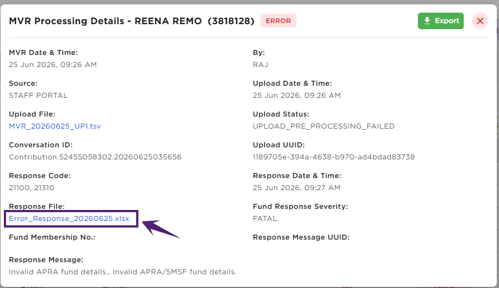
Provides access to the response file received from the superannuation fund, including any error reports where applicable. Select the file name to download it. Click the Response File link (.pdf or .xls), and the file is downloaded for viewing the response details.
|
| Fund Response Severity | Displays the response severity returned by the superannuation fund, such as Information, Warning, or Error. |
| Fund Membership No. |
The field remains blank for MVR requests. |
| Response Message UUID | Displays the unique identifier associated with the response message received from the superannuation fund. |
| Response Message |
Displays the latest message received for the verification request. This may include a response from the superannuation fund or a processing status such as Upload Successful, Upload In Progress, Invalid Fund details, or Upload Error. For staff users, the message can be selected to access the related response file, where available. |
How to Create a New MVR Request?
From 1 July 2026, the Add (+) icon for creating a new Member Verification Request (MVR) is available when both the MVR and SuperReady services are enabled in the SuperReady Setup & Authorisation settings, and the selected superannuation fund is an APRA-regulated fund. For more information, refer to the SuperReady Setup & Authorisation.
When superannuation details are saved for a member or applicant, MVR is automatically initiated if you have opted to use the MVR service. If an MVR has not been initiated, a '+' icon is displayed, allowing authorised users to initiate and submit MVR request manually.
An MVR can be initiated only when:
- The selected superannuation fund is an APRA-regulated fund.
- The fund has a valid CONT3.0-X certification in FVS.
- The certification is currently effective and has not expired, based on the latest Fund Validation Service (FVS) data.
Note that the Add icon is displayed only when no MVR has previously been initiated for the selected member or applicant with that superannuation fund.
To create a new MVR request:
- Click the Add icon in the MVR Status column.
- The system validates all mandatory superannuation fund details required to create the verification request.
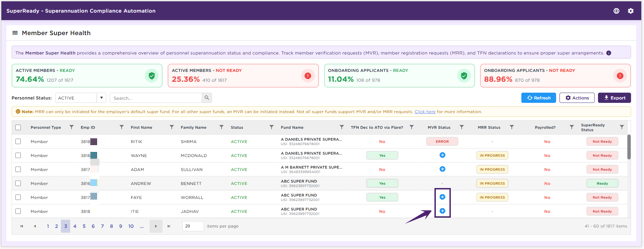
- If all required information is available, the system validates the selected superannuation fund and automatically generates and submits the verification file (.tsv) for processing to Ozedi.
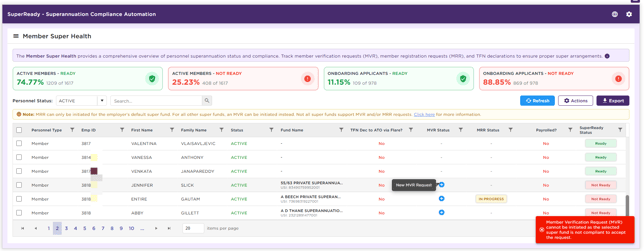
- If the selected superannuation fund is not eligible to receive Member Verification Requests (MVRs) according to the Fund Validation Service (FVS) data, the request is not submitted, and the following message is displayed: 'Member Verification Request (MVR) cannot be initiated as the selected super fund is not compliant to accept the request 'as shown in the figure below.
Action: How Do I Reprocess an MVR?
The Reprocess MRR action allows authorised staff to resubmit a Member Verification Request (MVR) for a selected member or applicant when:
- The MVR Status is Error, or
- The MVR Status is Upload Pre-Processing and has remained in that status for more than one day.
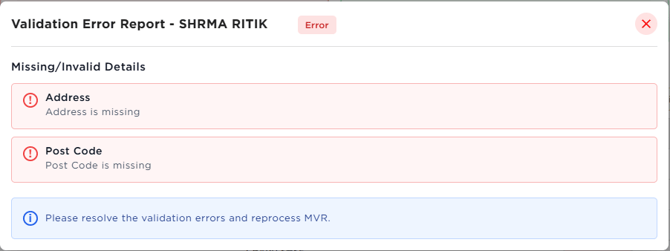
Before reprocessing the request, the system validates all mandatory information required for the MVR. If any required information is missing or invalid, a validation report is displayed. The identified issues must be resolved before the MVR can be reprocessed.
To reprocess the MVR request
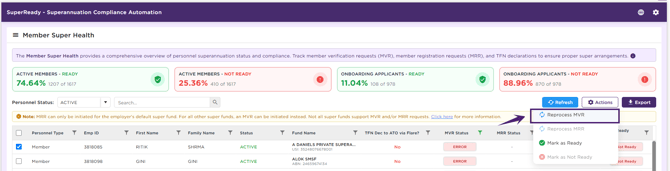
- Select the member or applicant record(s) that require MVR reprocessing.
- Click Actions.
- Select Reprocess MVR.
If validation is successful, a new MVR is generated and submitted for processing.
Processing Behaviour
The processing behaviour depends on the current MVR Status:
- For an MVR Error status, the system generates a new verification file and resubmits the request for processing.
- For an Upload Pre-Processing status, the system cancels the pending upload, generates a new verification file, and resubmits the request for processing.
Export - MVR Processing Details
The Export option allows you to download the MVR Processing Details log, including verification request information, upload details, processing status, and superannuation fund responses, for reporting, review, reconciliation, and audit purposes.
To export the MVR Processing Details log:
- Select the MVR Status for the required member or applicant to open the MVR Processing Details Log.
- Click Export.
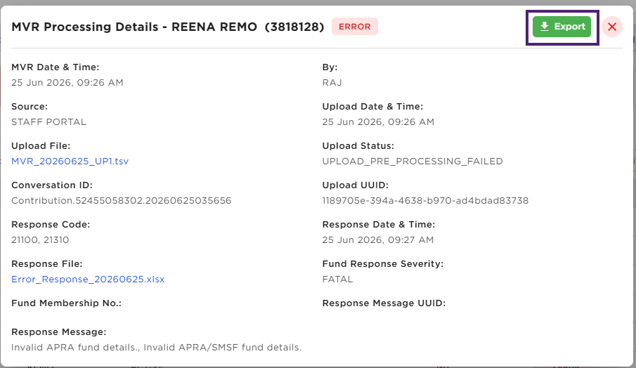
- The MVR Processing Details log is downloaded as an Excel file and includes all information displayed within the MVR Processing Details Log.

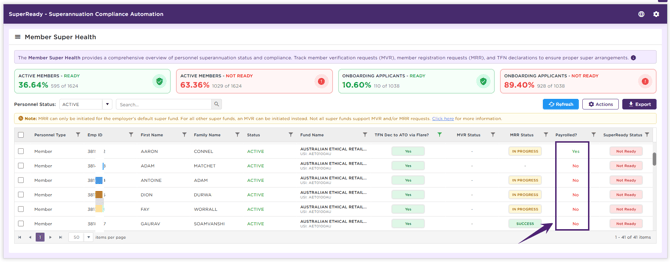
What Does Payrolled Indicate?
Payrolled indicates whether payroll has previously been processed for the member's selected superannuation fund. The available status values are 'Yes' and 'No'.
Status Values
| Status | Description |
|---|---|
| Yes |
Payroll has previously been processed for the member's selected superannuation fund. |
| No |
Payroll has not yet been processed for the member's selected superannuation fund. |
For applicants, the status will always display 'No', as payroll can only be processed after the applicant becomes a member and is included in a payroll run.
What does SuperReady Status Indicate?
The SuperReady Status indicates whether a member or applicant is ready for Payday Super processing. The available status values are Ready or Not Ready. By default, the status is set to Not Ready for all existing members and applicants.
All existing members will initially appear with a Super Status of Not Ready. If you know a member's superannuation details are correct based on previous payment history, you can manually update their status to Ready.
Click here to learn how to perform a Bulk Members/ Applicants SuperReady Status Update.
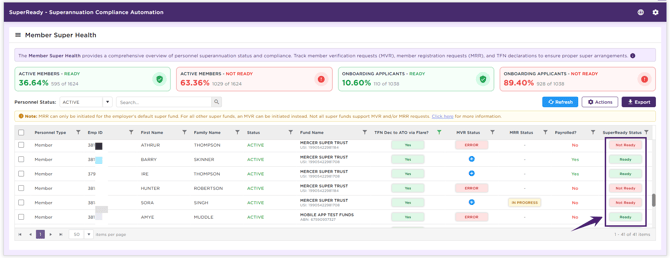
From 1 July, the SuperReady Status is automatically updated when a member's or applicant's super fund details are saved or updated in the application, provided you have opted for MVR and/or MRR compliance services.
The status is automatically updated based on the outcomes of Member Verification Requests (MVRs) and Member Registration Requests (MRRs) received from the member's superannuation fund. Authorised staff can also manually update the status from the Member Super Health page when required.
Status Values
| Status | Description |
|---|---|
| Ready | The member or applicant has met the requirements for Payday Super processing. |
| Not Ready | The member or applicant has not yet met the requirements for Payday Super processing. |
Whenever the SuperReady Status is updated manually, the system automatically records the date and time of the change and maintains an audit history for tracking and compliance purposes.
Viewing Super Status Update
Select the SuperReady Status value to view the Super Status Update details. This displays the current SuperReady Status together with the related MVR and MRR status information.
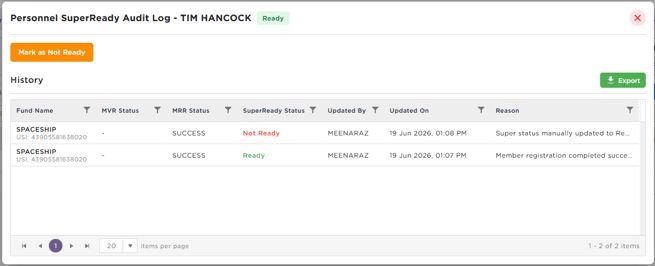
A Super Status History log is available, providing a complete record of manual status changes. The history includes manual updates made by authorised staff, supporting audit, compliance, and traceability requirements.
The history log includes the following information:
|
Field |
Description |
|
Fund Name |
Displays the superannuation fund associated with the status update. |
|
MVR Status |
Displays the Member Verification Request (MVR) status at the time the SuperReady Status was updated. |
|
MRR Status |
Displays the Member Registration Request (MRR) status at the time the SuperReady Status was updated. |
|
SuperReady Status |
Displays the updated SuperReady Status value. |
|
Updated By |
Displays the name of the user who updated the SuperReady Status. |
|
Updated On |
Displays the date and time the SuperReady Status was updated. |
|
Reason |
Displays the reason provided by the user when manually updating the status. |
Action: How Do I Mark a Member or Applicant as Ready or Not Ready?
The Mark as Ready and Mark as Not Ready actions allow authorised staff to manually update the Super Status of a member or applicant from the Member Super Health page.
Manual status updates may be required when a member or applicant meets the business requirements for Payday Super processing, or when a status override is required pending further verification or investigation.
How Do I Update the SuperReady Status for a Single Member or Applicant?
To update the SuperReady Status for a single member/ applicant record:
- Select the SuperReady Status value (Ready or Not Ready) for the required member or applicant.
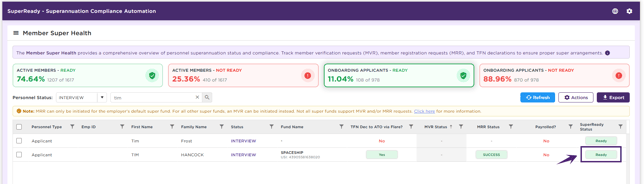
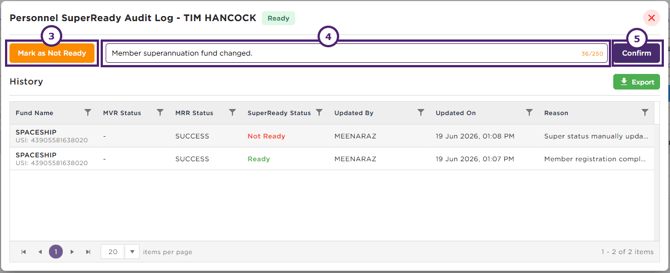
- The Personnel SuperReady Audit Log window for the selected member/ applicant is displayed.
- Select the existing status option (Mark as Ready or Mark as Not Ready).
- Enter a reason for the status change. The reason is mandatory and is recorded along with the user name, date, and time of the update to maintain a complete audit trail.
- Click Confirm.
-
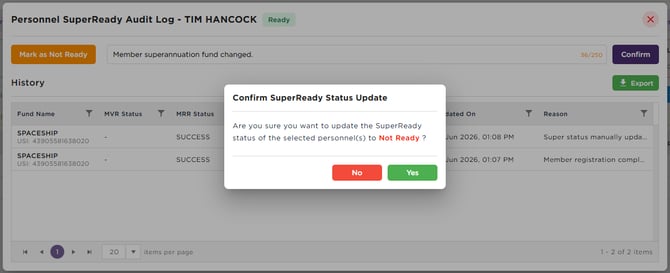
The Confirm SuperReady Status Update pop-up opens, prompting you to confirm whether you want to update the SuperReady status for the selected member/ applicant.
Click Yes to proceed or No to cancel. When confirmed, the SuperReady Status is updated, and the change is recorded in the history log.
How Do I Bulk Update the SuperReady Status for Multiple Members or Applicants?
To update the Super Status for multiple member/ applicant records:
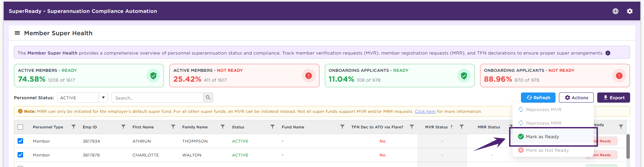
- Select the member or applicant records that you want to update.
- Ensure all selected personnel require the same Super Status update (Mark as Ready or Mark as Not Ready).
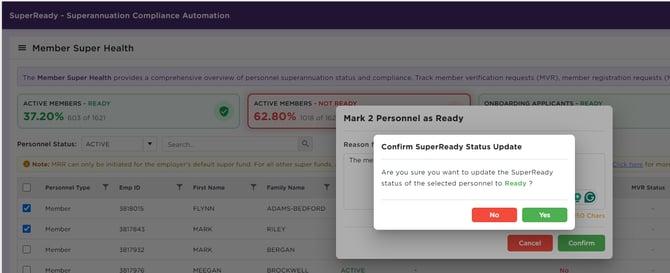
- Click Actions and select Mark as Ready or Mark as Not Ready.
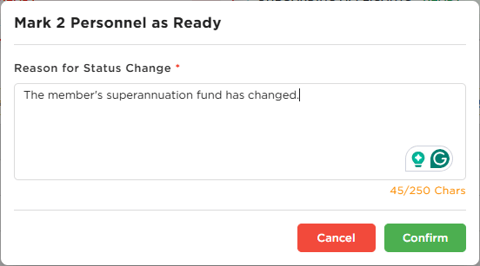
- Enter a mandatory Reason for Status Change. The reason is mandatory and is recorded together with the user name, date, and time of the update to maintain a complete audit trail.
- Click Confirm.
-
The Confirm SuperReady Status Update pop-up opens, prompting you to confirm whether you want to update the SuperReady status for the selected personnel.
Click Yes to proceed or No to cancel. When confirmed, the SuperReady Status is updated for all the selected records, and the change is recorded in the history log for each member or applicant.
Export - Super Status Update History
The Export option in the Update Super Status window allows you to download the Super Status Update history and related status information in Excel format for reporting and review purposes.
To export the Super Status Update History:
- Open the Update Super Status window by selecting a SuperReady Status value.
- Click Export.
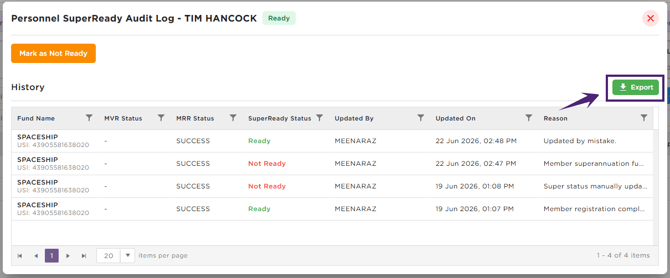
- The Updated Super Status Details are generated and downloaded as an Excel file.

Related articles: