
Two-Factor Authentication (2FA) is a security feature that adds an extra layer of protection when signing in to the Staff Portal. In addition to your Login ID & Password submission, the system requires a second verification method such as an Authenticator App, Email OTP, SMS OTP, or Security Questions. This helps prevent unauthorised access and ensures secure login across the platform.
Step 1. Admin Configuration – Two-Factor Authentication: Administrators can enable or configure Two-Factor Authentication (2FA) from Main Masters – Two-Factor Authentication. This allows organisations to define authentication policies, default verification methods, security questions, and device authentication duration for users.
Step 2. 2FA Overview and Navigation: When your administrator enables 2FA, you will be prompted to begin the authentication setup the first time you sign in to the Staff Portal.
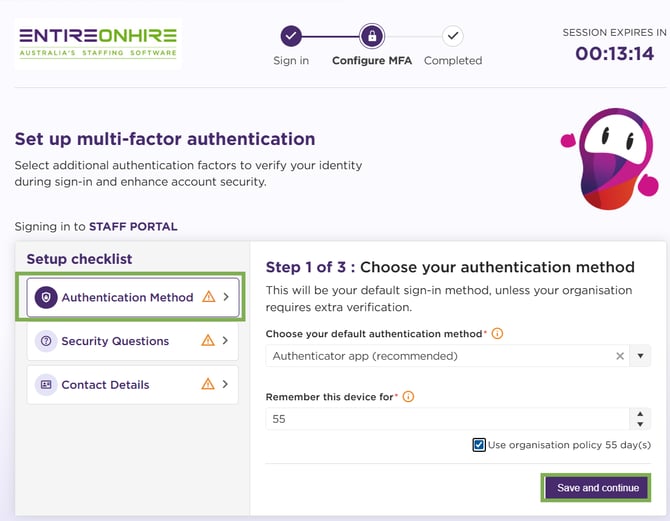
Step 3. Setting 2FA (First-Time Login): During the setup process, you select your preferred verification method and configure the required security details to complete your 2FA configuration.
Step 4. Two-Factor Authentication (2FA) - Users Level Settings: You can enable or disable Two-Factor Authentication (2FA) from your account’s security settings by opening the 2FA section, updating the toggle, and saving the change.
Step 5. Signing In the Next Time (Regular Login) - 2FA: After completing the initial setup, you will only need to complete the verification step when signing in. The system will ask for your configured verification method before granting access to the Staff Portal.
Step 6. Revoke Authenticator Access: Your administrator can revoke your authenticator access if the authentication setup needs to be reset. When this happens, you will be asked to set up the authenticator again during your next sign-in.
Step 7. Supported 2FA Methods: You can verify your identity using any of the supported authentication methods, depending on your organisation’s policy. Supported methods include:
2FA Authentication Methods
Back to Release Note