
Email OTP Login Process
The 2FA setting steps are common for all methods. For Email OTP, only the authentication method selected will be Email. Refer to: Setting 2FA for initial authentication setting steps.
Select Authentication Method
- Navigate to 2FA Settings.
- Select Email as the authentication method from the drop-down list.
- Click Save and Continue.
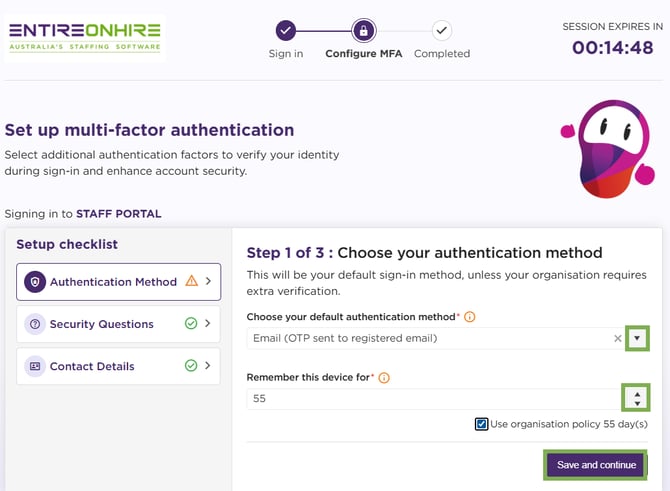
Authentication Method - Email
Verify Your Identity (Email OTP Screen)
- After selecting Email as your authentication method and completing all the three 2FA setting steps:
-
- You will be redirected to the Verify Your Identity screen.
- A 6-digit OTP will be sent to your registered email address.
- Enter the OTP in the provided field.
- Click Verify to continue.
The OTP remains valid for 5 minutes and will expire after that.
- If required:
- Click Resend to receive a new OTP.
- Select Remember this device to skip 2FA on this device for the configured duration.
- Click Use a different method to switch to another available authentication option.
- This does not change your default setup (which is Email). It only allows you to use another configured method for this login session.
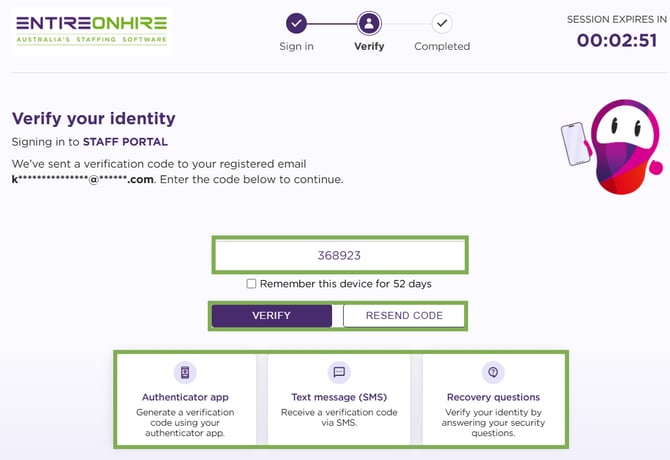
Verify Your Identity – Email – OTP – Verify
- Once the OTP is verified successfully, access to the Staff Portal will be granted.
SMS OTP Login Process
The 2FA setting steps are common for all methods. For SMS OTP, only the authentication method selected will be SMS. Refer to: Setting 2FA for initial authentication setting steps.
Select Authentication Method
- Navigate to 2FA Settings.
- Select SMS as the authentication method from the drop-down list.
- Click Save and Continue.
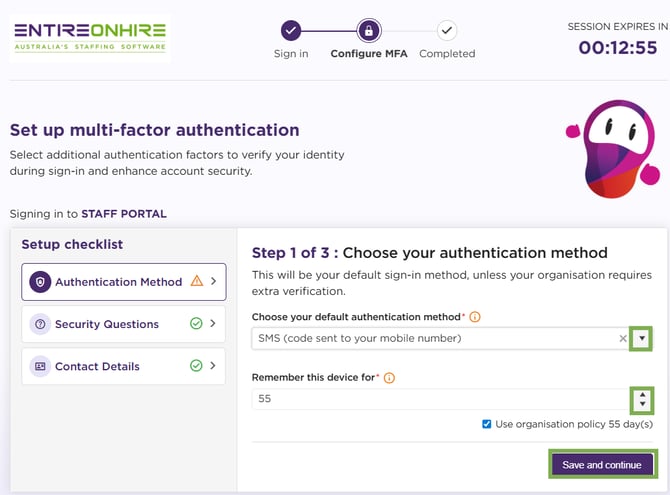
Authentication Method – SMS
Verify Your Identity (SMS OTP Screen)
- After selecting SMS as your authentication method and completing all the three 2FA setting steps:
- You will be redirected to the Verify Your Identity screen.
- A 6-digit OTP will be sent to your registered mobile number.
- Enter the OTP in the provided field.
- Click Verify to continue.
The OTP remains valid for 5 minutes and will expire after that.
- If required:
- Click Resend to receive a new OTP.
- Select Remember this device to skip 2FA on this device for the configured duration.
- Click Use a different method to switch to another available authentication option.
- This does not change your default setup (which is SMS). It only allows you to use another configured method for this login session.
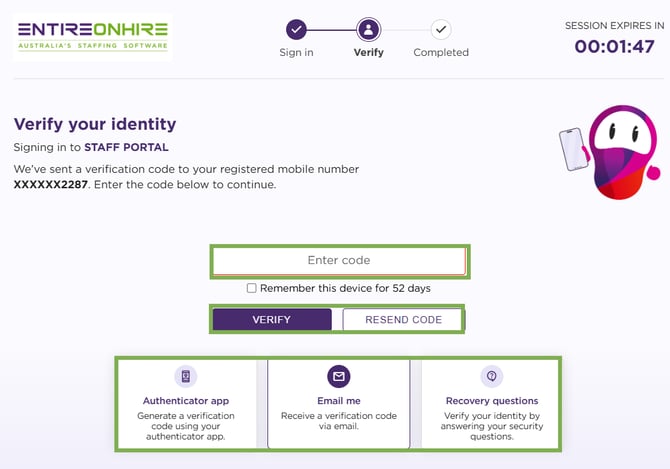
Verify Your Identity – SMS – OTP – Verify
- Once the OTP is verified successfully, access to the Staff Portal will be granted.
Security Questions Login Process
The 2FA setting steps are common for all methods. For Security Questions, only the authentication method selected will be Security Questions. Refer to: Setting 2FA for initial authentication setting steps.
Select Authentication Method
- Navigate to 2FA Settings.
- Select Security Questions as the authentication method from the drop-down list.
- Click Save and Continue.
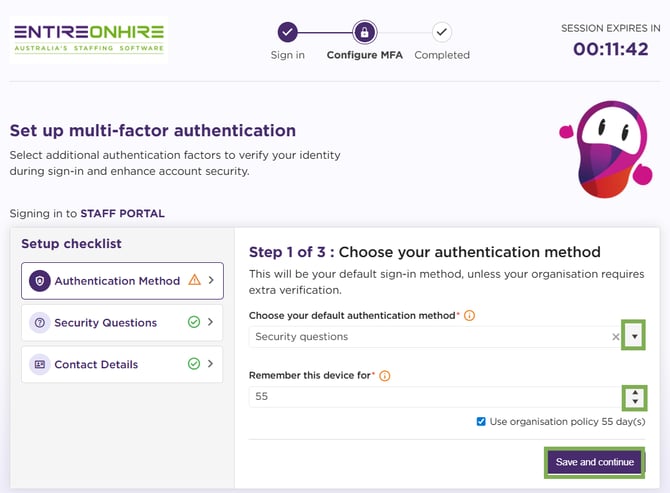
Authentication Method – Security Questions
Verify Your Identity (Security Questions Screen)
- After selecting Security Questions as your authentication method and completing all the three 2FA setting steps:
- You will be redirected to the Verify Your Identity screen.
- Your configured security questions will be displayed.
- Enter the correct answers in the provided fields.
- Click Verify to continue.
Answers must match exactly as configured during setup.
- If required:
- Select Remember this device to skip 2FA on this device for the configured duration.
- Click Use a different method to switch to another available authentication option.
- This does not change your default setup (which is Security Questions). It only allows you to use another configured method for this login session.
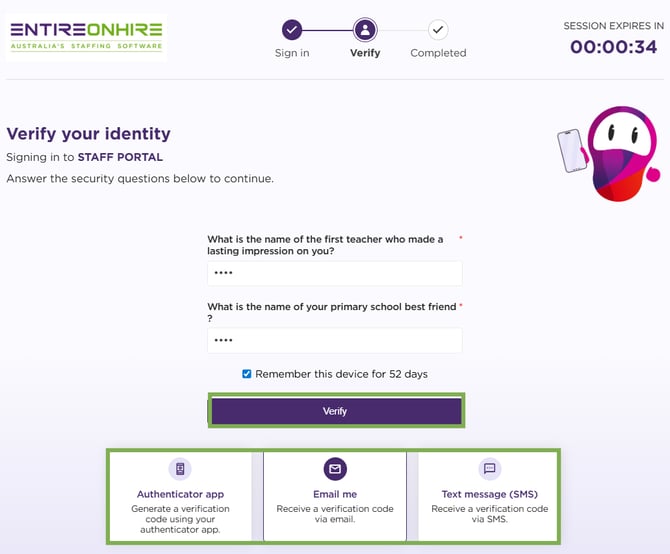
Verify Your Identity – Security Questions – Verify
- Once the answers are verified successfully, access to the Staff Portal will be granted.