
2FA Selection Screen (Verification Method)
- The Session Expires In timer shows how long your 2FA setup session remains active. This is a system‑generated timer (set for 15 minutes) that defines the time you have to complete the 2FA setup. If the timer expires or you refresh the screen, you must log in again and continue the setup from where you left off.
- You will see a three‑step 2FA setup screen. The Authenticator app is selected by default and is the recommended option.
- Select an authentication method from the drop-down as per your needs.
- You can set the “Remember this device” duration up to the maximum allowed by your organisation policy (up to 99 days). This value must align with the admin-configured limit. During this period, you will not be asked to complete 2FA again when logging in from the same device/browser. Refer Change Default 2FA Configuration - User Level Settings.
- Select the checkbox Use organisation policy (99 days) to automatically set Remember this device to 99 days. This value is predefined by the system. Refer
The Remember this device duration will follow the value set in the organisation policy. For example, if the policy is set to 30 days (maximum 99 days), it will default to 30 days.
- Click Save and Continue to proceed to the next setup which is Security Questions.
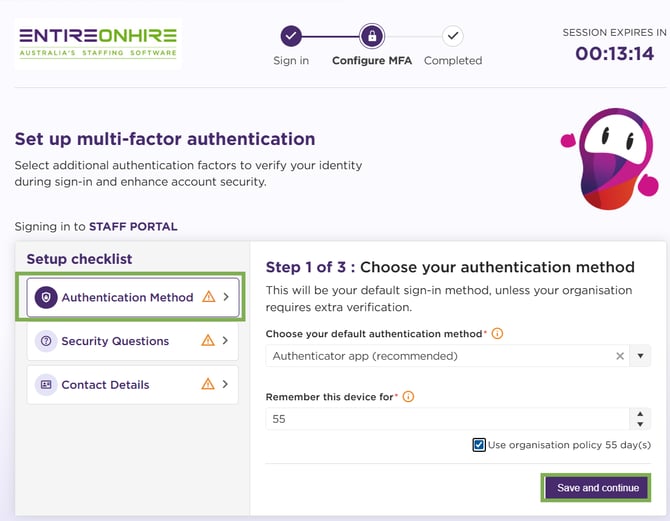
2FA Setup – Authentication Method – Save and Continue
Security Questions Setup
- After you click Save and Continue, the system redirects you to the Security Questions setup screen.
- Security questions are required in 2FA mainly as a backup verification method. They are used when:
-
- Used as a backup method when the user cannot access any OTP channel (no phone, no email, no authenticator app).
- Provides a fallback option for login or account recovery.
- Ensures verification when advanced 2FA methods cannot be used and an additional knowledge‑based check is required.
- Select a question from the drop‑down list and enter its answer.
- Click Save and Continue.
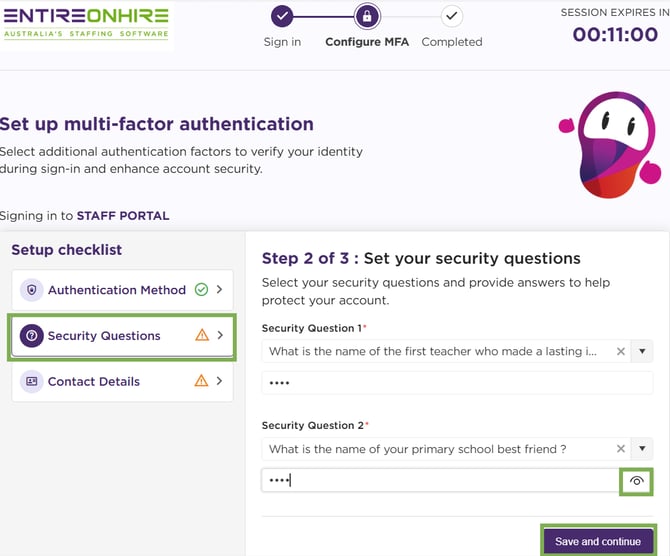
2FA Setup – Security Questions – Save and Continue
Contact Details Setup
- After you click Save and Continue, the system redirects you to the Contact Details setup screen.
- The Contact Details screen ensures that the correct information is available to send verification codes.
- Registered Email Address
- The email address is automatically displayed in a masked format. It is retrieved from the user details stored in Main Masters – Entire OnHire Users.
- You can edit the email address if required. If no email is available in the user master, you must enter it manually. Any edits or new entries made here are saved to Main Masters – Entire OnHire Users. Likewise, if the email is updated in the master record, the updated value will appear on this screen.
- Country Code
- The default country code is set to Australia (+61). This is preselected automatically. You can change that as per your needs.
- Registered Email Address
- The Contact Details screen ensures that the correct information is available to send verification codes.
-
-
- Mobile Number
- Enter your active mobile number.
- Verification codes (if SMS is used) will be sent to this number.
- Mobile Number
- Finish Setup
- Click Finish setup to save the contact details. If the email is incorrect, it must be updated in the main user record.
-
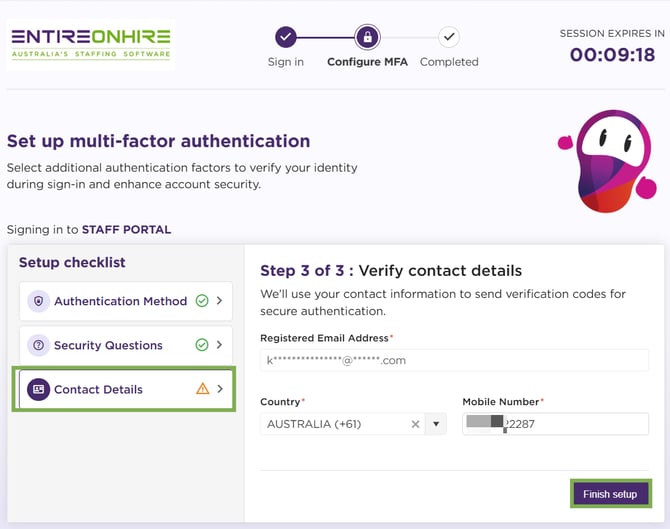
Contact Details – Finish Setup
- After clicking Finish setup, the system will display the Verify Your Email Address screen. A 6‑digit code will be sent to your registered email address. Enter this code to verify your identity and confirm that the setup request is authorised.
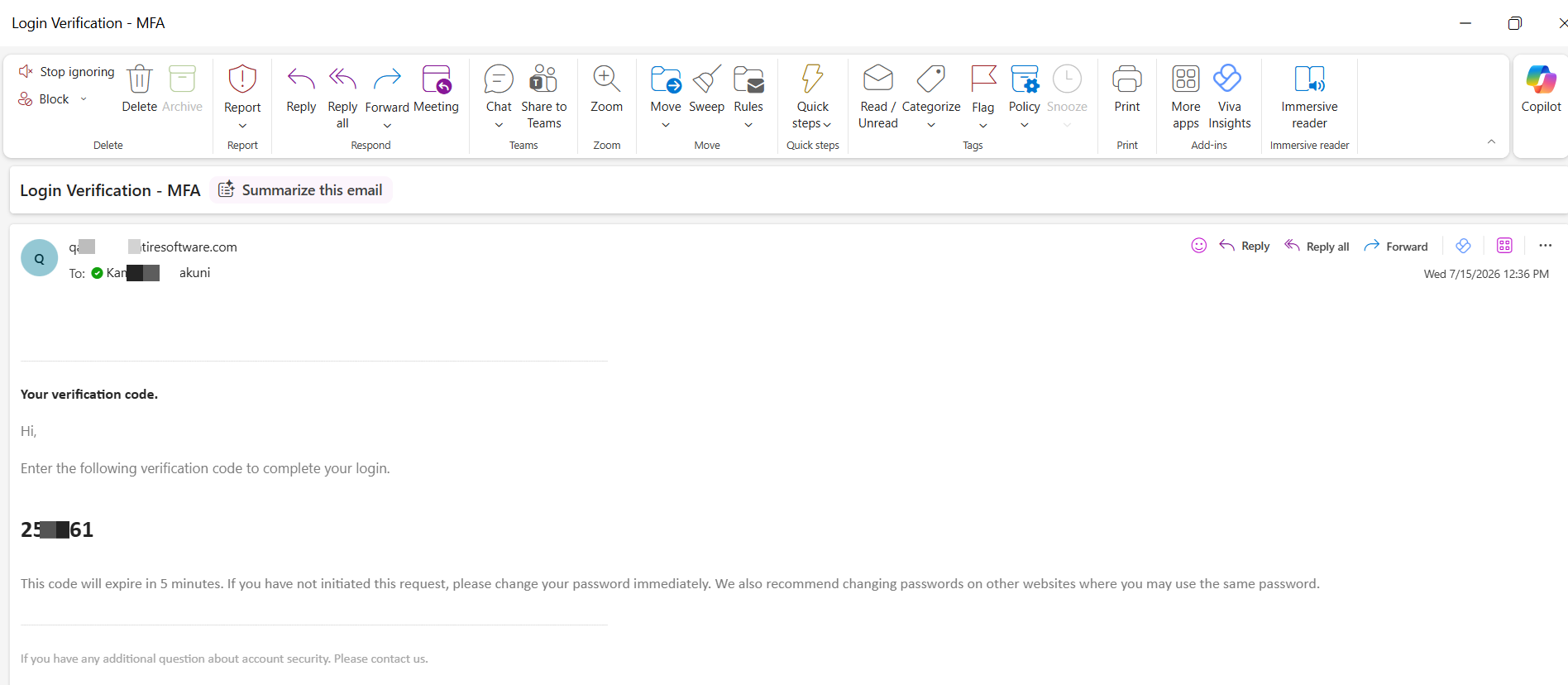
Email Received - Registered Email ID
- Click Verify.
-
Click Resend Code if you were unable to enter the code in time.
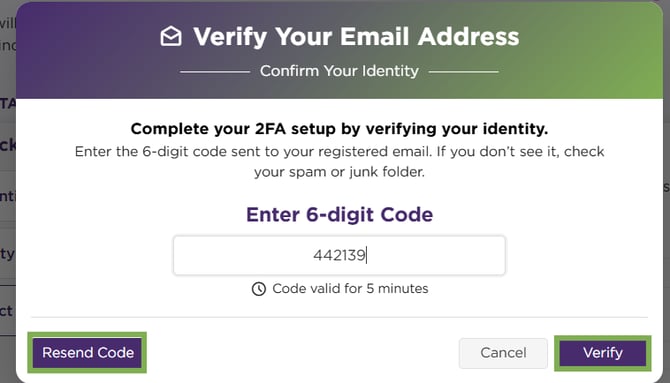
2FA Settings – Verify Email Address
If your session expires after you’ve finished setting up all three authentication method steps, you’ll be asked to set up your authenticator app again the next time you log in. Since you had previously chosen the authenticator app as your authentication method, the system will prompt you to configure it again. Simply click Start Setup, and you’ll be taken to the Verify Your Email Address screen and then to continue the process.
Setting Authenticator App
Authenticator App (TOTP – Time-Based One-Time Password (TOTP)) is Selected
- If the Authenticator App method is selected as the verification method, the setup is not complete yet.
- After clicking Finish setup, the system will show you the setup authenticator app screen with setup to complete.
- If you prefer to use a different authentication method instead of the authenticator app, choose any options under Use a different method. This does not change your default setup (which is the authenticator app or any other selected). It only allows you to use another configured method for this login session.
- Click Start Setup.
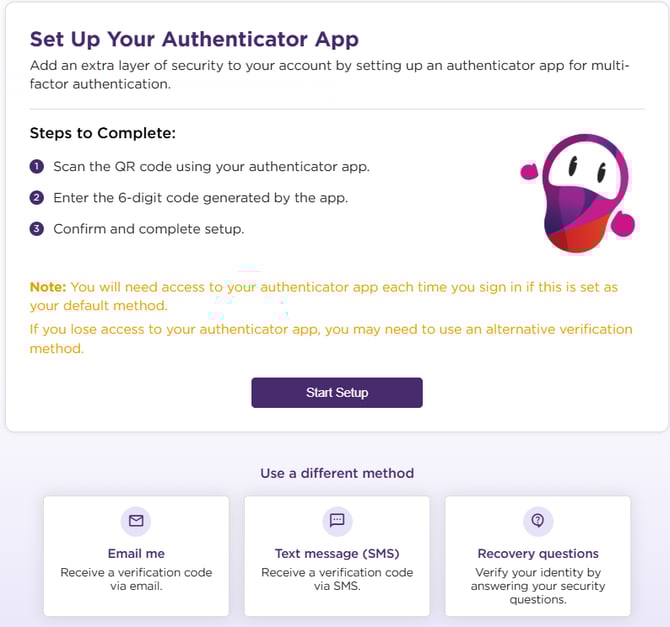
Set Up – Authenticator App – Get Started
- Display a QR code.
- To scan the QR code, download and install a mobile authenticator app (such as Google Authenticator or Microsoft Authenticator) on your smartphone. Open the app and go to Verified IDs (at the bottom the second tab) and scan the QR code displayed on the screen.
- After scanning, an account entry for this application will be created in your mobile authenticator app under the Authenticator tab (first tab). Click the account entry to generate your 6‑digit code. The app will begin generating a 6-digit verification code that refreshes every 30 seconds.
- The Setup Key displayed is unique to your account. If your session expires or an error occurs, the system generates a new key, and you will need to sign in again to continue the setup.
- If you are unable to scan the QR code, you can manually enter the setup key into your mobile authenticator app to complete the configuration. When you choose Scan a QR code in the app and the scanner opens, you’ll see an Enter code manually option just below it. Tap this option and enter the setup key to complete the setup.
- Troubleshooting: If you encounter an OTP validation error or your session times out, sign in again. We recommend removing your existing authenticator app account entry from your mobile and completing the setup once more by scanning the QR code. To remove the account entry, open the Authenticator app, go to Authenticator → Select the account → Settings (top right) → Remove account.
- If you prefer to use a different authentication method instead of the authenticator app, choose any options under Use a different method.
- Click Next.
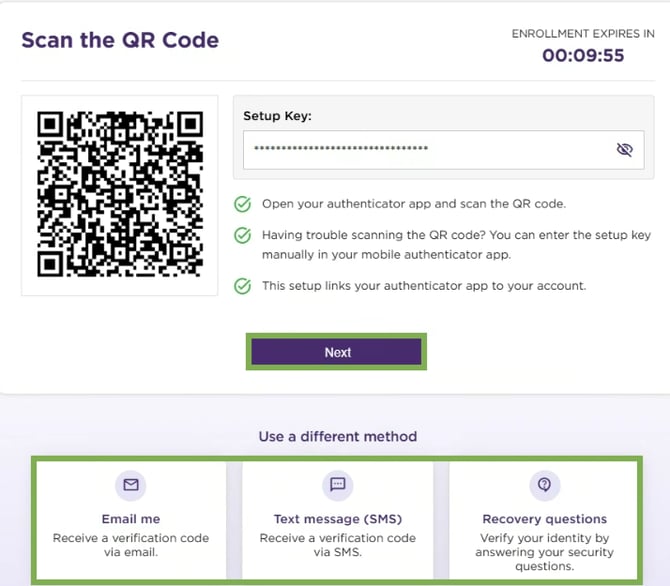
Authenticator App – Scan QR Code
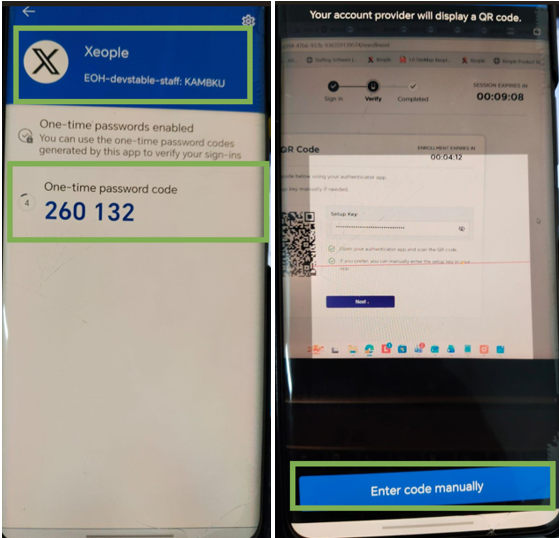
Mobile – Authenticator App – Account Entry – TOTP
- Upon clicking Next, you will see the verification code screen. Enter the 6-digit code shown in your authenticator app.
- Click Verify to confirm your authenticator app setup.
- If you prefer to use a different authentication method instead of the authenticator app, choose any options under Use a different method.
- Click Back if you wish to go back to the previous screen.
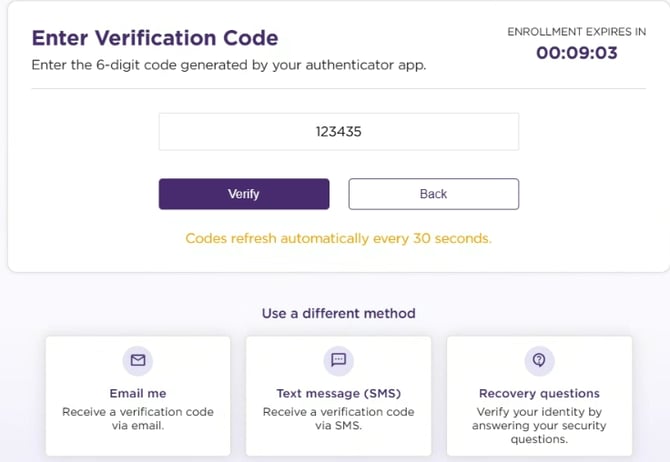
Verification Code - Verify
- Your authenticator app setup is now completed, and you will be automatically signed in to the Staff Portal.
Change Default 2FA Configuration - User Level Settings
- To update your default Two-Factor Authentication (2FA) method, follow the steps below:
- Click on Profile.
- Select 2FA Settings. This will open the 2FA configuration page.
- You can enable/disable 2FA from your profile settings.
- If you cannot click the Enable 2FA checkbox, it means 2FA is enforced by the administrator, and you cannot disable it for your account. However, you can still update the required fields and click Save to set a different authentication method and rules for your account.
- If the checkbox is ticked by you (it means 2FA is disabled by the admin), 2FA is enabled, and you will be prompted to configure your 2FA settings regardless of the admin configuration. Read on how admin can enable/disable 2FA, click here: Main Masters - Two-Factor Authentication.
- If the checkbox is unticked by you (it means 2FA is disabled by the admin), 2FA is not mandatory from your side unless enforced by the admin, but you can still enable it from your profile settings with your preferred method.
- If 2FA is enabled at both the admin level and your profile settings, you will be prompted to complete the 2FA setup.
- If 2FA is enabled at either the admin level or your profile settings, you will be required to set up MFA during login.
- If both the admin setting and your profile setting are disabled, 2FA will not be required.
-
- Select your preferred authentication method from the drop-down list: Authenticator App, SMS, Email, or Security Questions.
- The email ID is retrieved and verified from the Main Masters - Entire OnHire Users.
- Valid days can be update to a max of 99 days.
- Enter your mobile number to receive SMS verification codes.
- Choose any two security questions and enter your answers.
- Click Save. The saved 2FA settings apply from the next time you sign in.
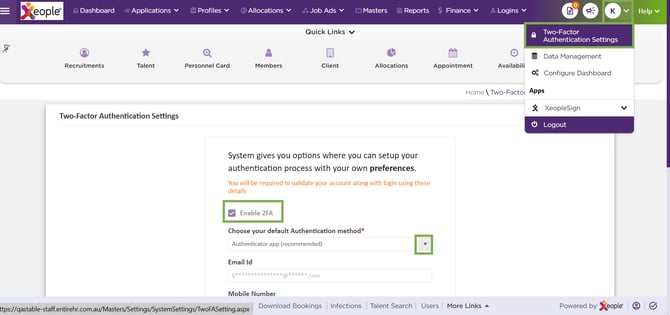
Profile – 2FA Settings - Save