
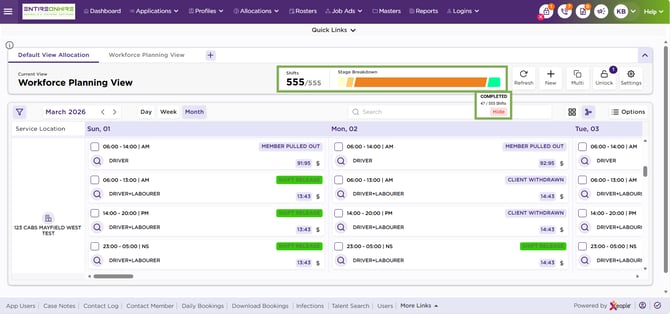
The Shift Summary Panel provides a dynamic, high-level view of all shifts displayed on the calendar, grouped by their statuses and aligned to Shift Stages (which correspond to Shift Sections on the Allocation screen). It organises shifts into colour-coded stages—Open (Yellow), Pending (Orange), Booked (Green), and Cancelled (Red)—so you can quickly understand the current distribution of shifts and identify where action is needed.
Example:
If the Allocation Section is Process, it includes statuses such as Shift Entered, Released, and Member Declined. All shifts under these statuses are grouped together, helping you easily identify shifts that are still in progress and may require attention.
Recommend Reading: How shift stage/shift section is configured, click here: Allocation Master - Allocation Section.
This panel includes two key components:
- Shift Total: Displays a fraction that compares filtered shifts to the total available shifts (extracted via EOH source). This element is read-only.
- Filtered Shifts (bold): Shows the number of shifts visible on screen after applying filters. This equals the number of rendered shifts or the number returned from the source with filter conditions applied.
- Total Shifts (regular text): Shows the total number of shifts available before applying filters. This matches the number of shifts defined by the selected View. Example: 240 / 680 → 240 shifts match the applied filters; 680 total shifts exist for the selected View.
- Stage Breakdown: Represents all configured Shift Stages/Sections for the selected View. Each stage is displayed as a colour-coded block and includes interactive controls.
- Block Display: Each block corresponds to a Shift Stage (Allocation Master – Allocation Section).
- Colour: Defined by Shift Stage - Colour.
- Order: Determined by Shift Stage - Display Order.
- Tooltip (On Hover): Hovering over a block displays shift counts in this format:
- Shifts in this stage / Total filtered shifts (this aligns with the same filtered total shown in the Shift Total section).
- Hide / Display Stage: You can click a stage block to Hide or Display that stage.
- When hidden, the block remains on screen but displays with reduced visibility for awareness.
- Hiding a stage adds a corresponding filter behind the scenes.
- When you adjust status-based filters (via Calendar Filters), the stage block automatically updates its state.
- This interaction fully aligns with Calendar Filter behaviour.
- Interaction With Calendar Filters: This panel integrates directly with the filter logic described in Calendar - Apply Filters.
- When you hide a stage, the system applies a status-based filter automatically.
- When you modify or clear filters, the stage blocks update to reflect the new filtered dataset.
- Stage visibility and filter state always remain synchronised.
- Block Display: Each block corresponds to a Shift Stage (Allocation Master – Allocation Section).
Shifts – Stage Breakdown - Filters