
The Shift Log provides a complete, time‑stamped record of every interaction that occurs during a shift.
To navigate to the Shift Log, follow the below steps:
- On the Allocation screen, select the shift for which you want to view the log.
- Scroll to the right and click on the blue Watch button located next to the booking ratio.
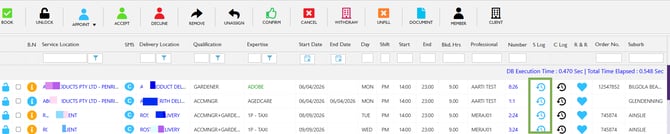
Allocations - Shift Log
- The Shift Log captures a complete, time‑stamped history of all actions and interactions associated with a shift.
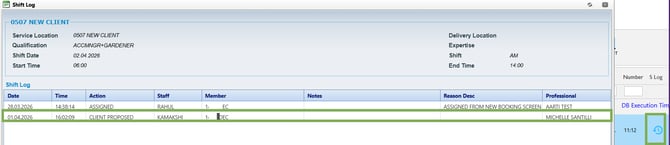
Shift Log - Details
The information shown in the Shift Log includes:
- Who entered the shift
- Who ordered the shift
- Who edited the shift
- Notes attached to the shift
- Total Status history of that shift
- SMS history of that shift
- Every member who was offered that shift
- Description of why certain interactions happened in that shift
- Time taken to fill shift
- Time log of each interaction within that shift
Recommend Reading: How you can view the shift log from the calendar view, click here: Card View - Shift Status and Shift Log.