
The Calendar provides flexible grouping controls that organise shift data in meaningful ways displaying only essential information on the card. Grouping helps you quickly understand shift distribution without crowding individual shift cards.
The available grouping options are:
- Service Location (single-level grouping)
- Member (single-level grouping)
- Shift Type (single-level grouping)
- Delivery Location (secondary grouping) (multi-level grouping)
These grouping options are based on the fields available in the shift source.
How Grouping Works
Default Grouping: When you open a calendar view, the system automatically applies the Default Grouping configured for that view for example Service Location.
Grouping Logic
Each grouping option acts as a resource that the calendar uses to cluster shifts. Grouping affects how shifts are rendered and which details are removed or simplified on individual shift cards.
Below is how each grouping type affects the screen:
Grouping Types
- Service Location (Primary Grouping)
- Groups shift by the assigned Service Location.
- The Service Location is removed from each shift card.
- Member information appears on the shift card depending on the display rules defined in Shift Cards > Member / Broadcast / Search.
- To display selected preferences on the shift card—such as the delivery location with a location pin—go to Options, enable the required settings, and click Confirm. The shift card updates immediately based on your selected preferences. To read more on Options, click here: Calendar – Additional Options & Timing.
- Delivery Location (Secondary Grouping) (Location pin (indicating a sub-location)
- Creates two grouping levels:
- First level - Service Location
- Second level - Delivery Location. Shifts will populate based on the delivery location grouping showing the service location grouping.
- Client details are not shown in grouped shift cards.
- Member information appears on the shift card depending on the display rules defined in Shift Cards > Member / Broadcast / Search.
- To display selected preferences on the shift card, go to Options, enable the required settings, and click Confirm. The shift card updates based on your selected preferences.
- Click on the Remove Secondary option to remove Delivery Location level grouping.
- Creates two grouping levels:
- Member (Primary Grouping)
- Groups shift by Member.
- The full Member/Broadcast/Search section is removed from the shift card.
- The Service Location appears on every shift card with a building button, and if a Delivery Location exists for the shift, it is also displayed on the card without any button.
- To display selected preferences on the shift card, go to Options, enable the required settings, and click Confirm. The shift card updates based on your selected preferences.
- Shift Type (system-defined: AM, PM, NS, etc.) (Primary Grouping)
- Groups shift by Shift Type.
- The AM, PM, NS is not visible in the shift card.
- The Service Location appears on every shift card, and if a Delivery Location exists for the shift, it is also displayed on the card.
- Member information appears on the shift card depending on the display rules defined in Shift Cards > Member / Broadcast / Search.
- To display selected preferences on the shift card, go to Options, enable the required settings, and click Confirm. The shift card updates based on your selected preferences.
Configuration Pop-Up
When you click the grouping control, a configuration pop-up opens, allowing you to choose your grouping levels.
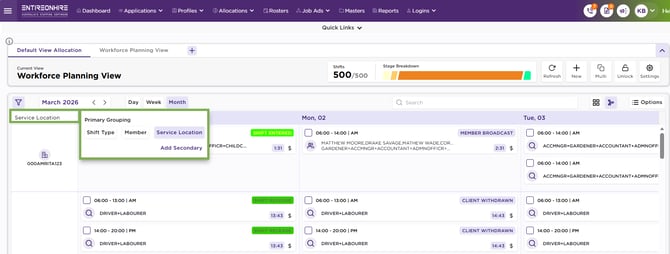
Calendar – Grouping Types