
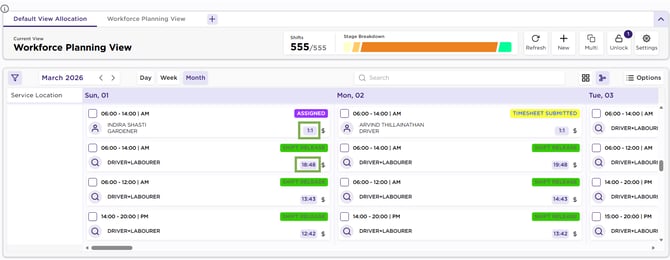
The shift card displays a Booking Ratio based on how the shift was created. It helps you identify whether the shift is part of a multi‑shift booking and allows quick bulk updates through the Booking Ratio screen. Useful for fast changes when system validation isn’t required.
To navigate to the booking ratio, follow the steps below:
- On the Calendar view, locate the Booking Ratio displayed on each shift card (e.g., 1:1, 12:20).
- Single Shift Booking (1:1): 1:1 means one shift is created in one booking action, and this is the first and only shift in that booking.
- Multi Shift Booking (12:20): 12:20 means 20 shifts were created in one booking action, and this shift is the 12 out of the three.
-
- Single Shift Booking (Different Clients)
- When you create shifts for different clients, each shift is treated as a separate booking. This is why the ratio appears as 1:1, 1:1, 1:1 — each shift is the first and only shift in its own booking.
- Multi Shift Booking (Same Client)
- When you create multiple shifts for the same client in one action, they are grouped together. This is why the ratio appears as 1:3, 2:3, 3:3 — showing the position of each shift within the total number created.
- Multi Shift Booking (Different Clients)
- When multiple shifts are created for different clients in a single action, they are treated as separate bookings. This is why the ratio appears as 1:1, 1:1, 1:1, even though the shifts are created together.
- Single Shift Booking (Different Clients)
- Clicking it opens the Booking Ratio screen in a new tab.
Recommend Reading: How booking ratio works and what are the actions you can perform via the booking ratio screen, click here: Shift Ratios.
The Booking Ratio screen does not run system checks (Visa, Police, Registration, overlaps, status, etc.). Ensure compliance manually or use standard Allocation editing where checks are enforced.
Card – Shift Booking Ratio