
Shift ratios let you bulk edit or action multiple shifts that were created together through Multi‑Shifts.
- Booking Ratio displayed on each shift column (e.g., 1:1, 12:20).
- Single Shift Booking (1:1): 1:1 means one shift is created in one booking action, and this is the first and only shift in that booking.
- Multi Shift Booking (12:20): 12:20 means 20 shifts were created in one booking action, and this shift is the 12 out of the 20.
This screen helps you update many shifts quickly because it does not run system checks such as Visa validity, Police and Registration requirements, overlapping shift times, or shift status validation.
Before making any changes, verify all required checks yourself to avoid booking errors. If you want the system to perform automatic validations, use the shift‑editing options on the Allocation screen instead.
To access the shift ratios, follow the steps below:
- In the allocation screen, scroll to the right.
- You will see the ratio numbers displayed in order.
- Click the Booking Ratio number to open the Booking Ratios screen.
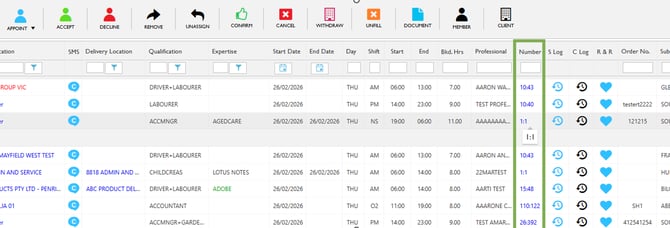
Allocations – Booking Ratio
- This opens the Booking Ratio screen.
- Select the specific shifts to perform actions like Booking Notes, Shift Error, Shift Cancelled, Member Pulled Out, Edit Multiple Shifts, Duplicate Shift(s), Send SMS, Upload Document and Extend Order.
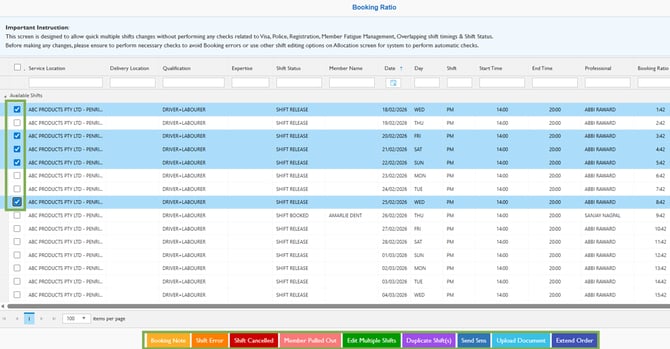
Select Shifts – Actions to Perform
Booking Ratio: Booking Notes

- This allows you to Bulk Edit your Booking Notes.
- Enter the booking notes and select the checkboxes to show them to the member or client if needed.
- Save.
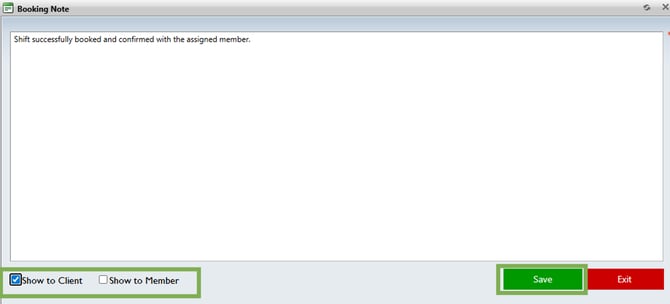
Booking Ratio - Booking Note
Booking Ratio: Shift Error
Please note, this does not inform the member if they are in the shift.
- Click Shift Error.
- Enter the Reason for shift error.
- Click Yes.
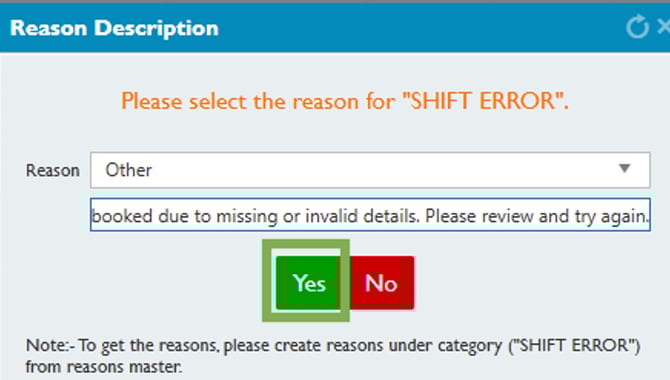
Booking Ratio - Shift Error
Booking Ratio: Shift Cancelled
Please note, this does not inform the member of the cancellation automatically.
We recommend sending an SMS or calling the member before cancelling the shift to inform them about the cancellation. The member does not need to acknowledge it.
- Click Shift Cancelled.
- Enter the Reason for shift cancellation.
- Click Yes.
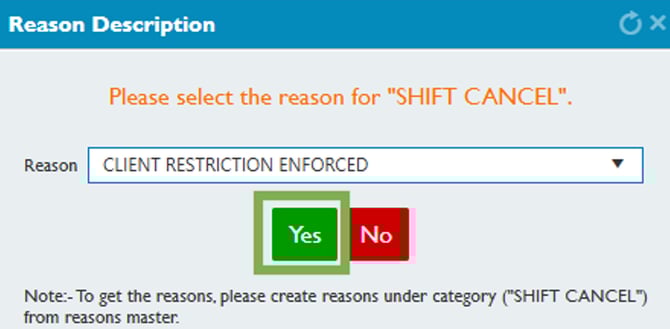
Booking Ratio - Shift Cancel
Booking Ratio: Member Pulled Out
Please note, this does not notify the Member automatically.
- Click Member Pulled Out.
- Enter the Reason for the Member pull out.
- Click Yes.
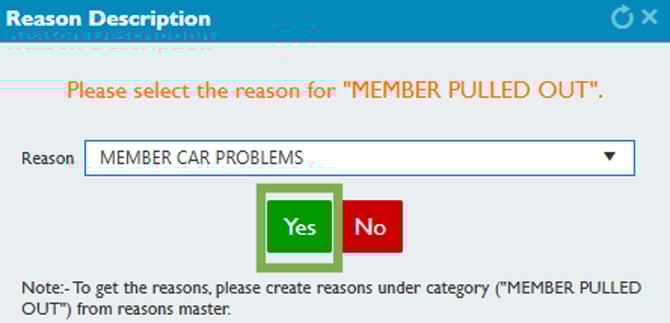
Booking Ratio – Member Pull Out
Booking Ratio: Edit Multiple Shifts
Please note, this does not notify the staff regarding the changes automatically.
- Click Edit Multiple Shift.
- Edit the shifts as required.
- Enter the Reason for editing multiple shifts.
- Confirm.
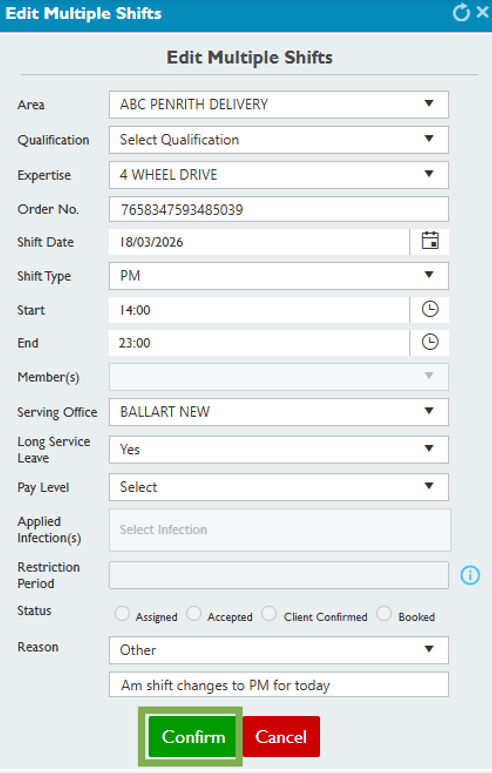
Booking Ratio – Edit Multiple Shifts
Booking Ratio: Duplicate Shifts

- Click Duplicate Shifts, this will open a new table with the Multi-bookings.
- Under Re Occurrence, select Duplicate Shift(s).
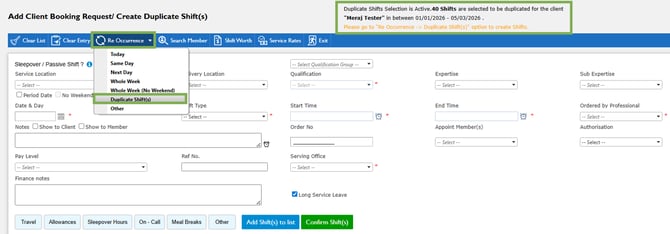
Booking Ratio - Re Occurrence - Duplicate Shifts(s)
- Create duplicate shift(s) pop-up appears.
- Enter the details in the respective fields.
- Select the date you would like the shifts to start from again.
- Optional - Decide to keep the same members in or no members
- Optional - Update Booking Notes
- Mandatory - Shift Status
- Confirm.
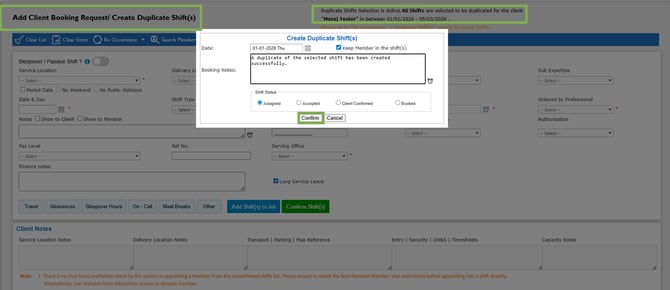
Create Duplicate Shift(s) – Confirm
- The system loads the new shifts into your Unconfirmed Shifts list on the same page with a new ratio. These shifts are exact duplicates of your original ones.
- Now just confirm the shifts—choose Confirm or Confirm and Release—and continue with your usual allocating steps.
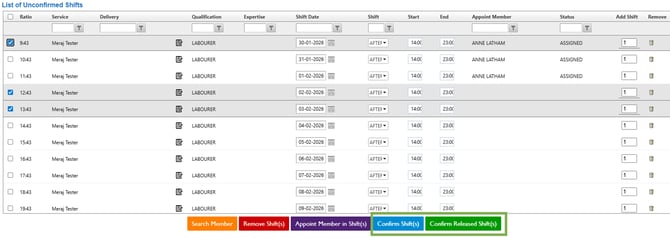
Unconfirmed Shifts – Confirm/Release Shifts
Booking Ratio: Send SMS
- Click Send SMS.
- Then Select a Template or write your own message.
- Select SMS or Push Notification.
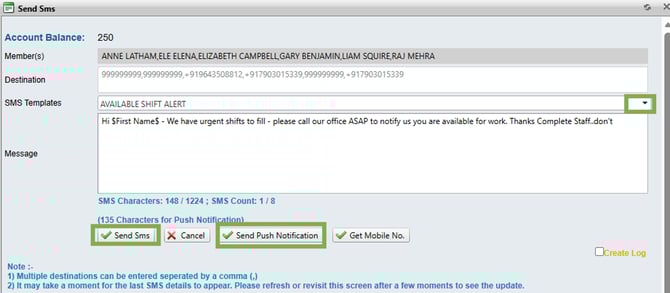
Booking Ratio - Send SMS – Send Push Notification
Booking Ratio: Upload Document

- Click Upload Document.
- Update File Name and then upload the file.
- Confirm Upload.
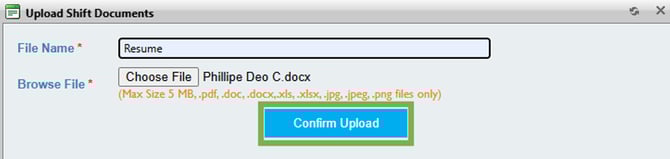
Booking Ratio – Upload Document – Confirm Upload
Booking Ratio: Extend Order
- Select one shift only.
- Click Extend Order.
- Enter the additional Single shift you wish to add to this ratio.
- Confirm Shifts.
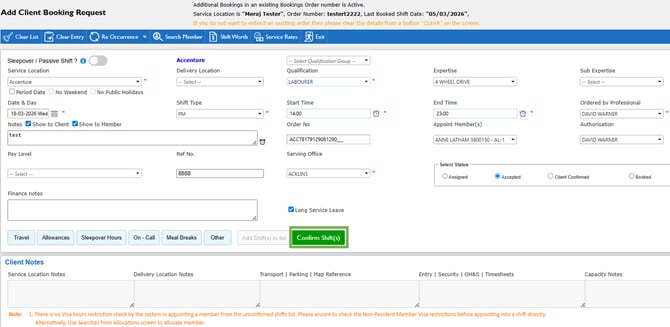
Booking Ratio – Extend Order – Confirm Shift
Recommend Reading: How booking ratio is shown on the calendar view, click here: Shift Card – Booking Ratio.