
The Screen Action Panel provides access to actions that are not tied to any specific shift. These actions always remain available, and support commonly used, system-wide operations.
To navigate to the screen actions, follow the steps below:
- Upon clicking the Rosters, you will see the calendar view.
- On the top right-hand side you will see options like Refresh, New, Multi, Unlock and Settings.
Actions
- Refresh: Re-fetches and updates all data currently displayed on the screen.
- New: Opens the Single Booking pop-up, allowing you to enter details and create an individual shift. To learn more about creating a single shift from the allocations screen, click here: How to Enter a Single Shift.
- Multi: Opens the Multi Booking screen in a new page and performs the same multi-shift booking functionality. To learn more about creating a multiple shift at a time, click here: How to Enter Bookings for Multiple Shifts/Dates.
- Unlock: When shifts are locked, the Unlock button displays the total count of locked shifts.
- Click Unlock to unlock all previously locked shift(s).
- If no shifts are locked, the Unlock count will not appear, ensuring a clean interface.
- Settings: Clicking it opens the Xeople login page.
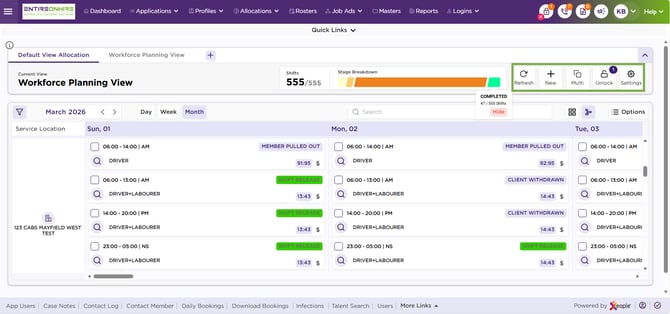
Calendar View - Screen Actions