
The Single Shift function lets you quickly create and manage an individual shift directly from the Allocations screen.
To navigate to this option, follow the steps below.
- In the Allocations screen, navigate to the quick access toolbar and select SINGLE to enter a single shift.
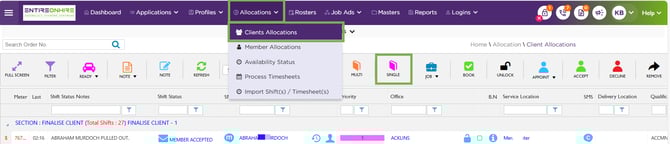
Allocation Screen – Single Shift
- The shift entry screen will then appear.
- To complete the shift entry, enter all the mandatory (*) details, in the highlighted fields below.
- Enter the Service Location* (this is the location of the shift).
You can start typing the name of the location and then auto-select.
- If the service is delivered at a different site, select the relevant delivery location from the drop-down.
- Select the required Qualification* from the drop-down, you can select multiple qualifications (e.g. RN & EEN) if you tick the Dual Qualification box.
- Select Expertise from the drop-down. Additional skills or specialisations requested by the client.
- Enter the Date* of the shift, the Day* will automatically populate.
This field is dynamic and allows you to type in the date (e.g.: 25) and TAB. System will autofill the 25th of the current month’s detail.
- Enter the Shift Type* (AM, PM or NS).
- Enter the Start* and End* times of the shift.
- Enter the name of the Professional* (person requesting the shift).
- Order Number – For client-provided order references (to be included on the invoice).
- Booking Notes – You can add notes that are specific to the shift. You can choose to have these as internal notes, or client/member facing.
-
- Use this section to capture key operational details such as client requirements, risks, behaviours, care notes, and safety instructions.
-
- Additional sections are available to keep information organised:
-
-
-
- Service Location Notes
- Delivery Location Notes
- Transport / Parking
- Entry / Security
- Capacity Notes
-
-
- Appoint Member – Allows you to directly choose a member to nominate for the shift. If you choose to appoint a member you will be required to choose what status you want to enter the shift as.
-
- Assigned: Member has been placed but has not confirmed yet.
-
- Accepted: Member has confirmed they are available and agrees to work.
- Client Confirmed: Client has confirmed they are happy with the assigned member.
- Booked: Both member and client are confirmed, and the shift is fully locked in.
- Pay Level: Optional or mandatory field depending on your system settings. This will allow you to appoint a pay level for the shift instead of using the level set against the members profile.
- After entering all the required details, scroll to the bottom of the screen and select Confirm & Exit or Confirm & Release. The shift will then appear in the Process area of the main Allocations screen with the status Shift Entered and Shift Released meaning it is ready to be filled by members.
- Quick Search (Purple): Finds suitable members instantly based on qualifications, availability, compliance, and site history.
- Exit (Red): Closes the screen without saving.
- Clear (Orange): Resets all fields to start again.
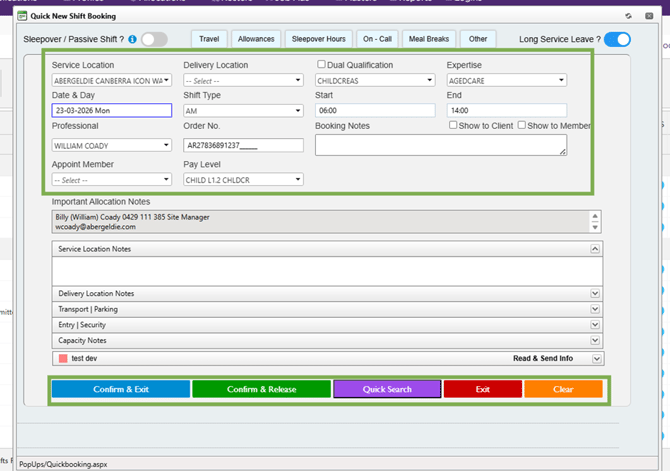
Shift Fields – Enter - Options
Recommend Reading: From where you can enter a single shift via the Calendar view, click here: Page Header – Screen Action Panel. The process is similar only the navigations differ.