
To view a member's profile, follow these step-by-step instructions:
Step-by-Step Process for Viewing a Member's Profile
-
Access the Allocations Screen: Click on the Allocations Bubble on your screen.
- Select the Shift: Choose the shift for which you want to view the member details.
- Click on the Human Button: Locate and click on the Human button situated right before the priority column.

Client Allocations - Human Button
- Open the Member Card: A new window will open, called the Member Card, which will display all the necessary details of the member, including their photo.
If you encounter any issues while trying to view a member's profile, ensure that you are following these steps correctly. If the Human icon is not visible or you experience technical difficulties, consider refreshing your screen or reaching out for further assistance.
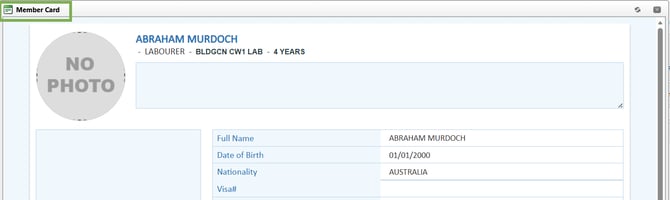
Human Button - Member Card
Recommend Reading: How to view a member card from the calendar view, click here: Shift Card Behaviour Based on Grouping – Actions Related.