
Service Location refers to the primary place where the core service is delivered, the main institution or facility where the shift takes place. For example, Frankston Hospital. Every shift is linked to a Service Location, as it establishes the main workplace for the member.
Delivery Location (child) refers to a specific sub-location, unit, or department within the Service Location where the shift or task actually occurs. For example, the Maternity Ward inside Frankston Hospital. A shift may or may not include a Delivery Location, but when used, it provides more precise detail for accurate allocation and communication.
Purpose of Location Information:
The inclusion of Service and Delivery Locations in shift cards serves the following purposes:
- Provide clear location information to members about where they will work.
- Allows you to access location-specific actions (call, SMS, email) directly via a ribbon menu.
- Enhance the accuracy and efficiency of shift communication and management.
Primary Interactions
|
Feature |
Function |
|
Primary Click (Service Location) |
Opens the Service Location Details pop-up |
|
Secondary Click (Delivery Location) |
Opens the Delivery Location Details pop-up |
|
Button |
Building |
Case Scenarios:
Two main behaviours are defined based on how shifts are grouped on screen:
- Case 1: Grouping NOT on Client (Grouping is on Member)
When shifts are grouped by Member, the full client information (service (building button) and delivery location(no location pin)) appears on each shift card.
- Steps / Behaviour
- Shifts are fetched from the Entire OnHire database.
- Grouping is set to Member, not Client — so client information is shown on each shift card.
- Each shift card will:
- Always display the Service Location.
- Display the Delivery Location only when it exists and show it without a location icon.
Ribbon Menu (on clicking the building icon)
When the building icon (placed in front of service location) is clicked, a ribbon menu appears with the following options:
- Launch Call – Initiates a call via VXT or the browser’s default dialler.
- Send Client SMS – Opens the Send Client SMS pop-up.
- Send Client Email – Opens the Send Client Email window.
- Service Location Details – Opens the full-Service Location Contact Card.
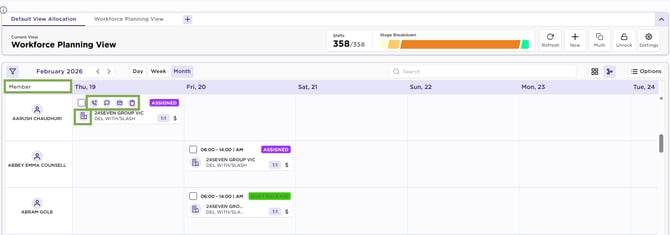
Grouping – Service Location – Building Button Options
Case 2: Grouping ON Client (Grouping is on Service Location or Delivery Location)
When shifts are grouped by a client-related option, the client information is already represented by the grouping.
Steps / Behaviour
- Shifts are fetched from the Entire OnHire (EOH) database.
- Grouping is set to a client-based field:
- Service Location, or
- Delivery Location
- Since the grouping already shows the main client information:
- Shift Card: Shows the member’s photo if available. If not, it displays a default person or user button. When you click the profile button, a small menu appears with these options:
- Call: Start a call through VXT or directly in your browser.
- Send SMS: Open the pop-up to send an SMS to the member.
- Send Email: Open the pop-up to send an email to the member.
- View Profile: Open the member’s contact card.
- Shift Card: Shows the member’s photo if available. If not, it displays a default person or user button. When you click the profile button, a small menu appears with these options:
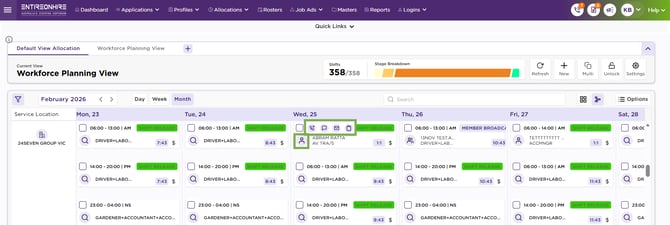
Grouping – Service Location – Member Profile - Options
Recommend Reading: How to send SMS to member or client from the allocations screen, click here: Sending SMS and Push Notifications.