
There are 2 main ways to filter and search for shifts within the client allocations screen:
1. Main Filter: A semi-permanent filter that works to apply what shifts appear within the allocations screen. It is specific for each user and the fields set will stay saved even when you refresh the browser until they are updated. This can be found on the tool tab (header) on the allocations screen as Filter.
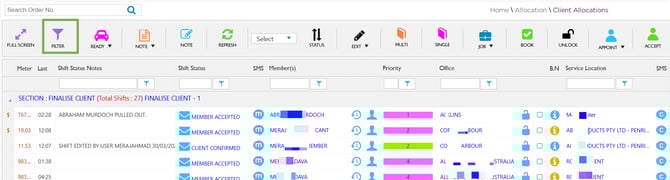
Allocations - Filter
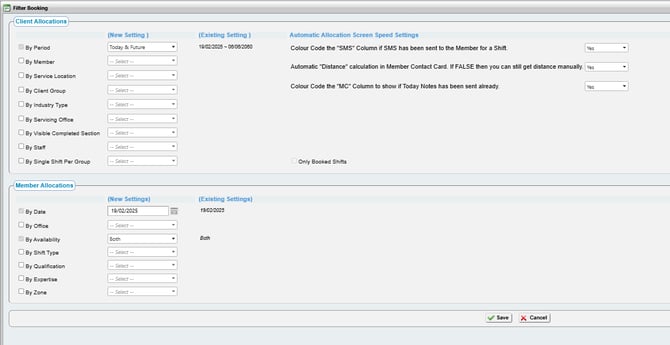
Filter - Apply Filter
There are different filter options are available on the selection of the small filter icon. The image below provides an example of a search for any service locations containing.
Column (Kendo) Filters
Click the Cancel Filter button as below to remove a filter.

Cancel Filter
Recommend Reading: How filters work on the calendar view, click here: Calendar – Apply Filter.