
There are several search options available in Entire OnHire to help match a member with a shift requested by a client. The system checks the Member’s availability (entered through the Apps, Portals, or by internal agency staff) along with the shift requirements defined by the client. Internal staff refers to agency personnel who manage payroll and staffing for their clients or for their own organisation.
The following information is always displayed within the search display:
- Matching Qualification of the Shift.
- Members will be listed based on their distance from the site location, with those closest appearing first.
- Member Request and Restrictions.
- Client Requests and Restrictions.
- Each search will only show “Active” members.
- If the shift breaches a member visa hour they will appear in red and if you hover over their name, it will tell you how many hours, they will go over their visa.
To navigate to the search option, follow the steps below:
- Click Allocations in the top header.
- Find the shift you want to work with and right-click on it.
- Hover over Search to view all available search options for finding a suitable Member for that shift.
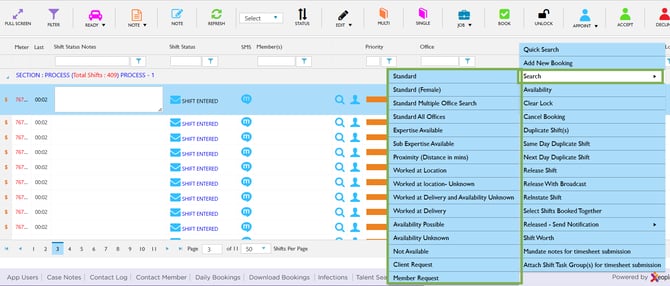
Allocations – Shift – Member
- Upon selecting a search option (such as Standard Multiple Office Search), the system opens the Assign Member screen.
- Select the required Offices using the check boxes in the drop‑down list.
- The system displays all available Members below. Select the Member you want to allocate using the check box.
- You can check the member availability and preferences before you allocate them to a shift.
- Then click Allocate at the top.
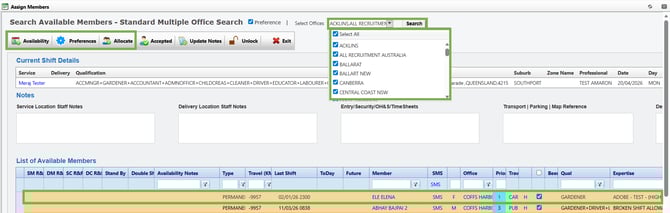
Assign Member – Select Offices – Member – Allocate
Member Search Options for Shift Allocation and When to Use Them
|
Search Option |
Why you would use it |
|
Standard |
Find members who are available and meet the basic requirements for the shift. |
|
Standard (Female) |
Find available members who meet the shift requirements and are female. |
|
Standard Multiple Office Search |
Search for available members across the primary and alternate offices. |
|
Standard All Offices |
Search for available members from all offices in the system. |
|
Expertise Available |
Find members who match the required expertise and are available for the shift. |
|
Sub Expertise Available |
Find members who match both expertise and sub-expertise requirements and are available. |
|
Proximity (Distance in mins) |
Find members located closest to the shift location based on travel time. |
|
Worked at Location |
Find members who have previously worked at the same service location. |
|
Worked at Location – Availability Unknown |
Find members who previously worked at the location, but whose availability is unknown. |
|
Worked at Delivery and Availability Unknown |
Find members who worked at the delivery location, but whose availability is unknown. |
|
Worked at Delivery |
Find members who previously worked at the delivery location and are available. |
|
Availability Possible |
Find members who may be available based on their usual availability patterns recorded through the Member App or Staff Portal (submitted on behalf of the member). |
|
Availability Unknown |
Find members whose availability is not recorded in the system. |
|
Not Available |
View members who are currently marked as unavailable for the shift. |
|
Client Request |
Find members specifically requested by the client for the shift. |
|
Member Request |
Find shifts or allocations requested by the member. |
Shift Search Options and Matching Criteria
|
Search Name |
Expertise Match |
Sub Expertise Match |
Availability Match |
Office Match |
Worked at Service Location |
Worked at Delivery Location |
Other Notes |
|
Standard |
No |
No |
Yes |
Primary |
Displayed |
No |
|
|
Standard (Female) |
No |
No |
Yes |
Primary |
Displayed |
No |
This will only bring up females |
|
Standard Multiple Office Search |
No |
No |
Yes |
Primary & Alt. |
Displayed |
No |
|
|
Standard All Offices |
Yes if Found |
No |
Yes |
All Offices |
Displayed |
No |
|
|
Expertise Available |
Yes |
No |
Yes |
Primary |
Displayed |
No |
|
|
Sub Expertise Available |
Yes |
Yes |
Yes |
Primary |
Displayed |
No |
|
|
Proximity (Distance in mins) |
No |
No |
Yes |
Primary |
Displayed |
No |
|
|
Worked at Location |
No |
No |
Yes |
Primary |
Yes |
No |
|
|
Worked at Location- Avails Unknown |
No |
No |
Unknown |
Primary |
Yes |
No |
|
|
Worked at Delivery - Avails Unknown |
No |
No |
Unknown |
Primary |
Yes |
Yes |
|
|
Worked at Delivery |
No |
No |
Yes |
Primary |
Yes |
Yes |
|
|
Availability Possible |
No |
No |
Possible |
Primary |
Displayed |
No |
|
|
Availability Unknown |
No |
No |
Unknown |
Primary |
Displayed |
No |
|
|
Not Available |
No |
No |
No |
Primary |
Displayed |
No |
|
|
Client Request |
No |
No |
Yes |
Primary |
Displayed |
No |
|
|
Member Request |
No |
No |
Yes |
Primary |
Displayed |
No |
|
Recommend Reading: How this search options look in a calendar view, click here: Shift Cards - Member / Broadcast / Search.