
When a shift is released, suitable members can view it in the Mobile App and choose to Accept or Decline it.
If a member cannot see a released shift, it is usually because one or more system rules are restricting visibility. These rules ensure that only suitable members can view and accept the shift.
When troubleshooting this issue, check the following parameters.
Common Reasons a Member Cannot See a Released Shift (Parameters)
- Qualification: The member must have the same qualification that is assigned to the shift. If the member does not have the required qualification, the shift will not appear in their app.
- State: Released shifts are only visible to members who live in the same state as the service location.
- Restrictions: If a member is restricted from a Service Location or Delivery Location, the system will not display those shifts to them.
- Member Priority: The system can restrict shift visibility based on Member Priority settings. Some shifts may only be visible to members with specific priority levels. To learn more about Member Priorities and their settings, click here: Main Masters - Priorities (Personnel).
- Visa Restricted Hours: The system automatically checks a member’s visa working hour limits. If accepting a shift would cause the member to exceed their allowed weekly hours, the shift will not be displayed.
- Visa Expiry Date: Members cannot see shifts that occur after their visa expiry date.
- App Version: Members must use the latest version of the Mobile App. Older versions may not display all released shifts correctly.
Optional System Setting – Expertise Matching
There is an optional system setting that restricts released shifts, so they are only visible to members whose expertise matches the expertise required for the shift.
Path: Application Settings → System Configurations → Other Settings
- If this setting is ON:
Members will only see released shifts where their expertise matches the expertise specified in the shift. - If this setting is OFF:
The expertise check is ignored, and members may see released shifts even if their expertise does not match.
If you would like this setting activated within your system, please contact Xeople Support.
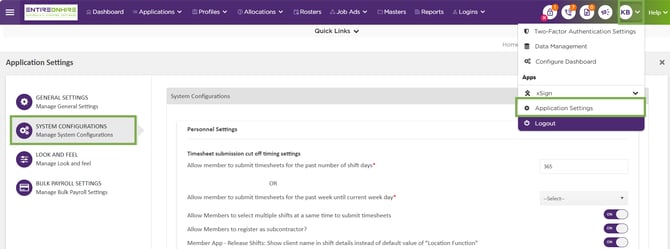
Application Settings - System Configurations
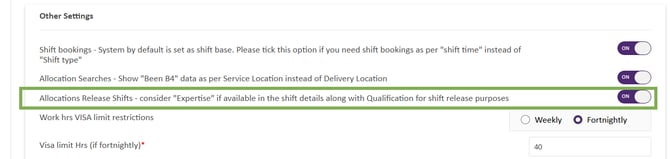
System Configurations - Other Settings