
When a Thread is opened, the page displays the complete communication history, processing details, and all shifts that belong to that Thread. From this screen, you can review the original request, monitor AI processing, manually correct errors if required, and navigate to related records.
Thread ID
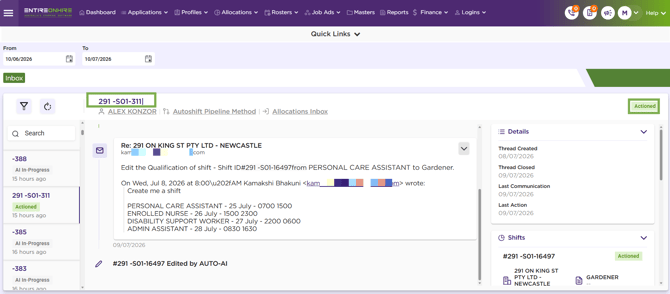
The Thread ID is displayed at the top of the page along with the thread status. The Thread ID uniquely identifies the entire email conversation between the Allocator, Handler, and AI agent.
Every incoming email creates a new Thread. All subsequent communication relating to the same request is maintained within the existing Thread, provided the email includes the corresponding Shift ID for the action being requested (such as Edit, Reinstate, Withdraw, or Cancel). This allows the AI agent to identify the correct shift and update it within the same Thread instead of creating a new one.
The Thread ID remains the same throughout the lifecycle of the request, regardless of how many shifts are created, updated, withdrawn, cancelled, reinstated.
Example: 291-S01-311
Where:
- 291-S01 represents the Client ID.
- 311 is the unique Thread number generated for that client.
A single Thread can contain one or many shift requests.
Thread ID
Professional
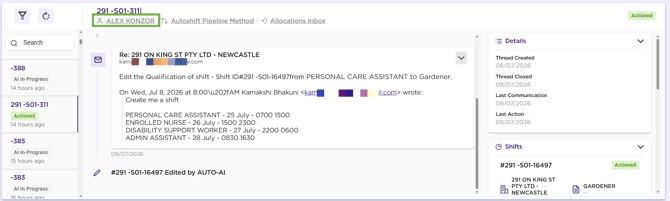
- The Professional name displayed below the Thread ID is a hyperlink.
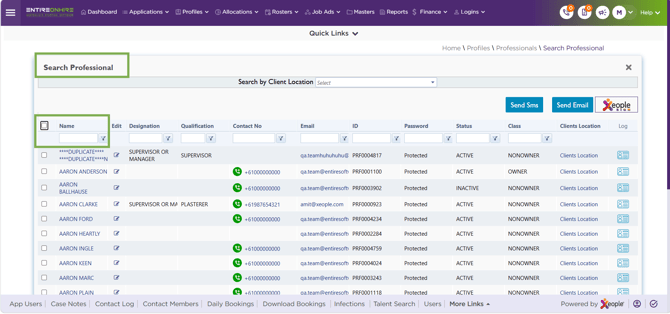
- Clicking the Professional name opens the Search Professional page in EOH.
- From this page, you can quickly search for and view the Professional's details.
- This provides quick access to the Professional's information without leaving the current AutoShifts workflow.
Professional (Client Contact)
Search Professional – Page
Shift Pipeline Workflow
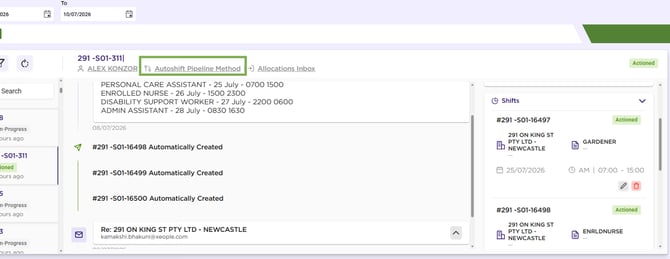
- The Shift Pipeline Workflow name displayed beside the Professional is also a hyperlink.
- Selecting this link opens the corresponding Shift Pipeline Workflow configuration in another tab.
- This allows you to review or maintain the workflow responsible for processing the email, including:
- Email extraction rules
- AI prompts
- Field mappings
- Required fields
- Matching rules
- Processing configuration
- This is particularly useful when troubleshooting why a Thread has entered an Error or Review state.
XR – Shift Pipeline
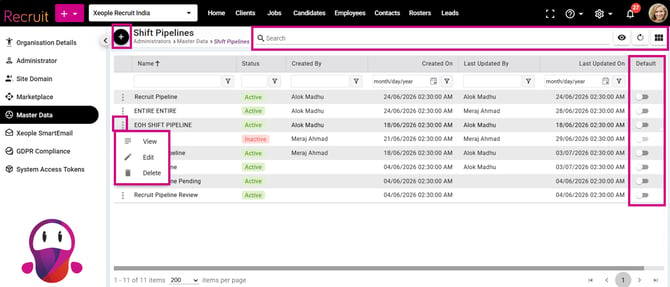
XR – Shift Pipeline Landing Page
Allocations Inbox
- The Allocations Inbox link returns the user to the AutoShifts Inbox (Thread landing page).
- You can return to the list of Threads without using the browser Back button.
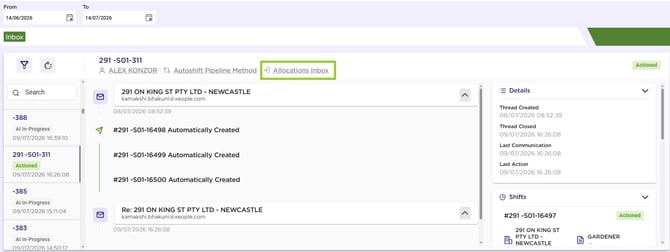
Back to Allocation Inbox
Thread Navigation Panel
The left navigation panel displays the list of Threads matching the selected filters.
- Search – Use the Search box to quickly locate a Thread by entering the Thread ID.
- Thread List –Status
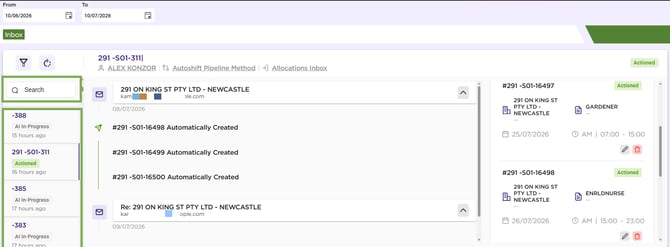
Left Navigation Panel – Thread List
Email Conversation
The centre section of the screen displays the complete email conversation associated with the Thread.
This includes:
- The email received from the professional.
- Every reply exchanged during processing.
- System-generated email responses.
- AI generated actions.
- Manual user interventions.
- All subsequent communication relating to the same request.
Maintaining the complete conversation in a single Thread provides a full audit trail of the request from creation through to completion.
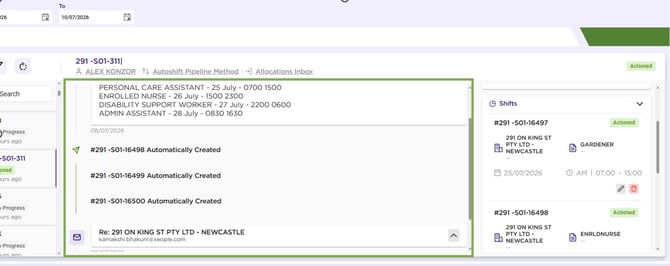
Email Conversation
Details Panel
The Details panel on the right display’s summary information about the selected Thread.
The panel includes:
- Thread Created – Date when the Thread was first created.
- Thread Closed – Date when the Thread was closed.
- Last Communication – Date of the most recent email received or sent within the Thread.
- Last Action – Date when the latest processing action was performed.
These timestamps help you understand the current progress and activity history of the Thread.
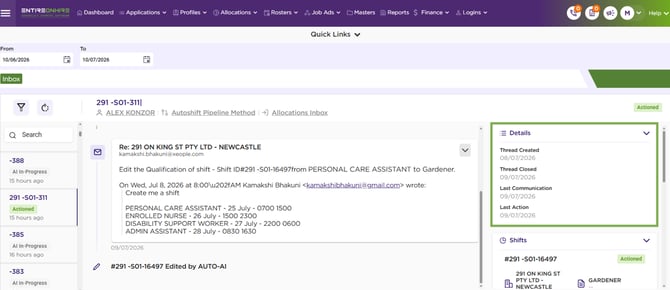
Details Panel
Shifts Panel
The Shifts panel, located on the right-hand side of the Thread Details page, displays all shifts that belong to the currently selected Thread.
If multiple shifts were requested in a single email, each shift is displayed as a separate card within this panel. This allows you to quickly review the outcome of every shift request without scrolling through the entire email conversation.
Each shift card provides a summary of the shift details, current processing status, and available actions.
Each shift is displayed individually with its own:
- Shift ID
- Current Status (Red in case of error and green if completed)
- Service Location
- Qualification
- Shift Date
- Shift Type
- Shift Time
If multiple shifts were requested in a single email, all of them appear in this panel.
The most recently updated shift is displayed at the top of the list.
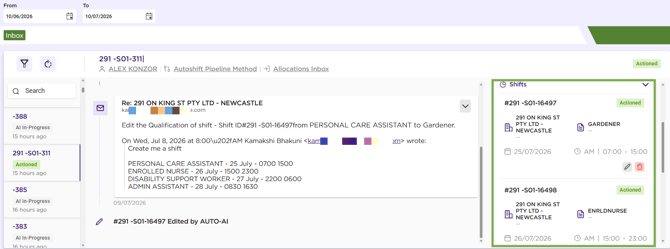
Right Panel – Shifts
Shift ID
The Shift ID is displayed at the top of each shift card. The Shift ID is a unique identifier assigned to an individual shift created in EOH.
Unlike the Thread ID, which represents the entire email conversation, each shift within the Thread has its own unique Shift ID.
For example, a single Thread may contain:
- #291-S01-16497
- #291-S01-16498
Each Shift ID represents a different shift created from the same email request.
The Shift ID should always be referenced when requesting actions such as Edit, Reinstate, Withdraw, or Cancel, so that the AI agent can identify the correct shift within the Thread.
Shift Status
The status badge displayed in the upper-right corner of each shift card indicates the current processing status of that specific shift. Examples include:
- Actioned – The shift has been successfully processed and created or updated.
- Pending – The shift is awaiting user review or approval before processing can continue.
- Error – The shift could not be processed because one or more required details could not be identified or matched.
- Review – Manual verification is required before the shift can proceed.
The status shown applies only to the selected shift and may differ from the status of other shifts within the same Thread.
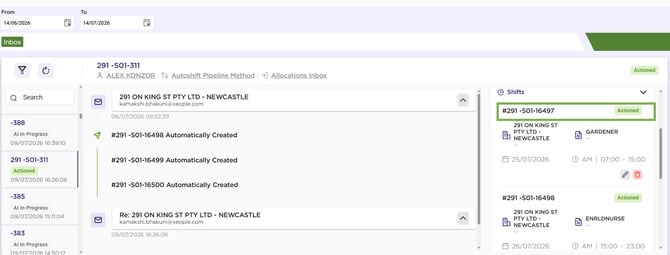
Shift ID and Status
Thread Status
If a thread contains multiple shifts with different statuses, the thread status displayed in the header is determined by the highest-priority shift status.
For example, if a thread contains:
- Shift 1 – Pending
- Shift 2 – Error
The thread status is displayed as Error, because Error has a higher priority than Pending.
The thread status priority is:
|
Thread Status |
Priority |
|
Error |
1 |
|
Review |
2 |
|
Pending |
3 |
|
Actioned |
4 |
|
Discarded |
5 |
Example Priority Order:
| Example | Action Statuses | Thread Status | Reason |
|---|---|---|---|
| 1 | Actioned | Actioned | Only one action, so thread status matches it. |
| 2 | Actioned, Actioned, Actioned | Actioned | All actions have the same status. |
| 3 | Actioned, Actioned, Error | Error | Error has higher priority than Actioned. |
| 4 | Pending | Pending | Single action, so thread status is Pending. |
| 5 | Discarded, Discarded, Pending | Pending | Pending has higher priority than Discarded. |
| 6 | Discarded, Actioned | Actioned | Actioned has higher priority than Discarded. |
| 7 | Pending, Actioned, Actioned | Pending | Pending outranks Actioned. |
| 8 | Error, Pending, Actioned, Discarded | Error | Error is the highest-priority status present. |
| 9 | 499 Actioned, 1 Error | Error | Even one Error determines the thread status. |
| 10 | 299 Discarded, 1 Pending | Pending | Pending has higher priority than Discarded. |
| 11 | 998 Actioned, 2 Pending | Pending | Pending is higher priority than Actioned. |
| 12 | 1,000 Discarded | Discarded | All actions are Discarded. |
| 13 | 997 Discarded, 2 Actioned, 1 Error | Error | Error overrides all other statuses. |
| 14 | 100 Pending, 200 Actioned, 50 Discarded | Pending | Pending is the highest priority present. |
| 15 | 10 Error, 100 Pending, 500 Actioned | Error | Error always takes precedence. |
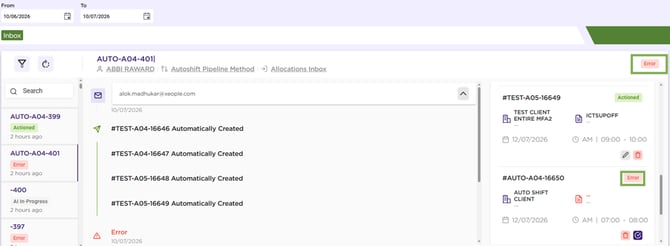
Shift Statues – Thread status
Service Location
The Service Location identifies where the shift will be performed. This value is extracted from the email request and matched against the corresponding Service Location records in EOH according to the configured Shift Pipeline Workflow.
Qualification
The Qualification identifies the type of Professional required for the shift. Examples include:
- Personal Care Assistant
- Enrolled Nurse
- Gardener
The value displayed is matched against the Qualification Master in EOH.
Shift Date
The calendar icon displays the scheduled date of the shift. This represents the date on which the Professional is expected to perform the shift.
Shift Time
The clock icon displays the scheduled start and end time of the shift. The times shown are the final values processed by AI Agent after validation against the Shift Pipeline Workflow.
Edit Shift
The Edit icon (pencil) allows the selected shift to be modified. Selecting this option opens the Edit Shift screen, where users can update shift information such as dates, times, locations, qualifications, or other permitted details.
Any changes made are recorded within the same Thread, maintaining the complete audit history of the request.
The Edit/Correct pop-up can be dragged by its header, allowing you to view the original email while correcting shift details. This eliminates the need to repeatedly close and reopen the pop-up, making corrections faster and more accurate. The pop-up remains within the screen boundaries when moved and retains any data already entered. The existing Save and Cancel functionality remains unchanged.
Delete Shift
The Delete icon (bin) allows you to remove the selected shift. Deleting a shift only affects the selected Shift ID and does not remove the entire Thread or any other shifts contained within it.
You should ensure you are deleting the correct Shift ID before confirming the action.
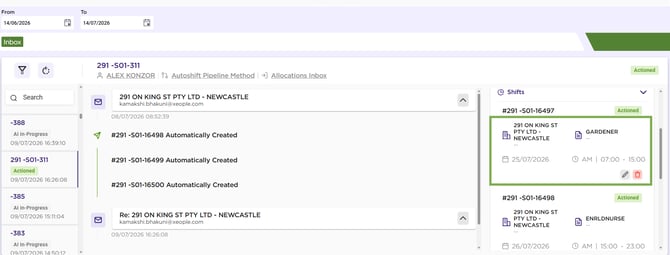
Thread – Shift Card
Multiple Shifts Within a Thread
A single Thread may contain one or many shifts. Each shift is displayed as an individual card in the Shifts panel, allowing you to:
- View the status of each shift independently.
- Identify which shifts were processed successfully.
- See which shifts require manual review.
- Perform actions on individual shifts without affecting the others.
This is particularly useful when one email contains multiple roster requests.
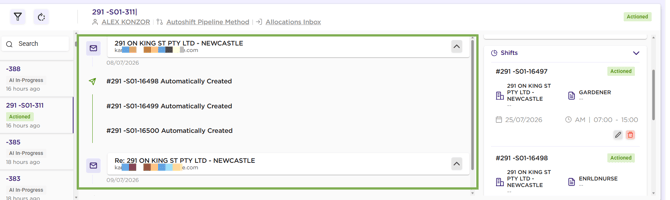
Thread - Multiple Shifts
Automatic Updates
Whenever a shift is created, edited, reinstated, withdrawn, or cancelled, the corresponding Shift ID is automatically updated within this panel.
The latest information is always displayed, allowing you to monitor the current state of every shift associated with the Thread without reopening the email conversation separately.
Shift Actions
Each shift displayed in the Shifts panel can be managed individually. Depending on its current status and permissions, you can perform actions such as:
- Edit (In case of any shift error user can manually edit)
- Delete
- Correct
- Manually Release, in case of shift in pending status or error is resolved.
These actions apply only to the selected Shift ID and do not affect other shifts within the same Thread.
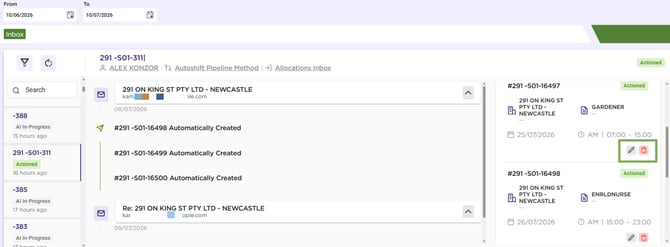
Shift - Edit Manually
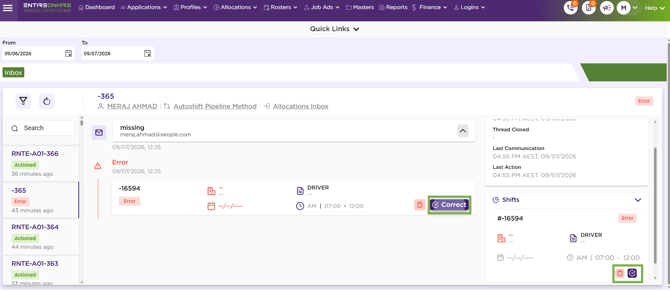
Correct Manually
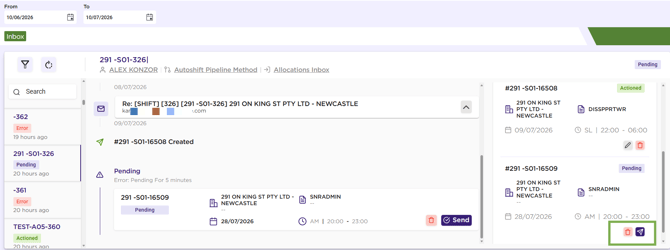
Shift Pending – Release Manually
Recommend Reading: What is a Thread ID and Shift ID in detail, click here: Thread/Shift ID.
Future Actions on Existing Shifts
When requesting any action on an existing shift, such as:
- Edit
- Reinstate
- Withdraw
- Cancel
always include the Shift ID in the email.
Since a single Thread can contain multiple shifts, the Shift ID tells the AI agent exactly which shift the requested action applies to.
When the Shift ID is provided:
- the email is processed within the existing Thread,
- the requested action is applied to the correct shift,
- the complete communication history remains together in the same Thread.
A new Thread is not created for these actions.
If the Shift ID is omitted, AutoShifts cannot determine which shift should be updated. In such cases, the request may remain in AI In-Progress or Pending until sufficient information is available or manual intervention is performed.
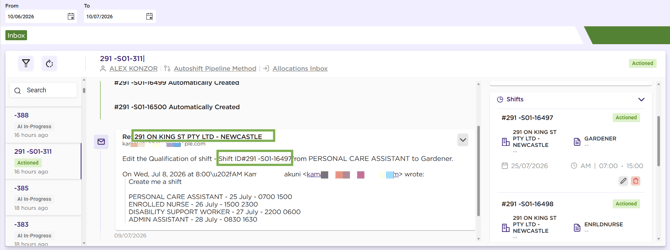
Edit Request – Add Shift ID in the Email Request
AI Agent Support for Multiple Shift Requests
If a single email contains multiple shift creation requests, the AI agent can process them successfully. For example:
- Create a PERSONAL CARE ASSISTANT shift for Service Location: 291 ON KING ST PTY LTD - NEWCASTLE – 25 July – 07:00–15:00.
- Create an ENROLLED NURSE shift for Service Location: 291 ON KING ST PTY LTD - NEWCASTLE – 26 July – 15:00–23:00.
- Create a DISABILITY SUPPORT WORKER shift for Service Location: 291 ON KING ST PTY LTD - NEWCASTLE – 27 July – 22:00–06:00.
- Create an ADMIN ASSISTANT shift for Service Location: 291 ON KING ST PTY LTD - NEWCASTLE – 28 July – 08:30–16:30.
Since all requests are for the same action (Create), the AI agent will create all the shifts.
However, if a single email contains different types of actions, the AI agent cannot process the request. For example:
- Edit the ENROLLED NURSE shift for Service Location: 291 ON KING ST PTY LTD - NEWCASTLE – 26 July from 15:00–23:00 to 16:00–00:00
- Reinstate the DISABILITY SUPPORT WORKER shift for Service Location: 291 ON KING ST PTY LTD - NEWCASTLE – 27 July – 22:00–06:00
- Cancel the ADMIN ASSISTANT shift for Service Location: 291 ON KING ST PTY LTD - NEWCASTLE – 28 July – 08:30–16:30
Because the email contains multiple action types (Create, Edit, Reinstate, and Cancel), the AI agent will not process the request. Send each action type in a separate email with the Shift ID.
|
Scenario |
Supported |
|
One email with only Create intent |
✅ Yes |
|
One email with only Cancel / Withdraw / Edit / Reinstate intent |
✅ Yes |
|
One email with multiple shifts of the same action type |
✅ Yes |
|
One email mixing Create + Cancel + Edit (or other action types) |
❌ No |
Supported Scenario – Multiple Create Requests Across Multiple Service Locations
The AI agent can process multiple shift creation requests in a single email, even when they are for different service locations, provided the professional is mapped to each service location and all requests are Create actions.
Example:
- Create a PERSONAL CARE ASSISTANT shift for Service Location: Sunrise Care Home – 25 July – 07:00–15:00
- Create an ENROLLED NURSE shift for Service Location: Green Valley Aged Care – 26 July – 15:00–23:00
- Create a DISABILITY SUPPORT WORKER shift for Service Location: Riverdale Support Centre – 27 July – 22:00–06:00
- Create an ADMIN ASSISTANT shift for Service Location: Harbourview Community Hub – 28 July – 08:30–16:30
Since all requests are Create actions and the professional is mapped to all the specified service locations, the AI agent will create all the shifts successfully.
The professional must be mapped to each of the requested service locations. If the professional is not mapped to one or more service locations, the corresponding shift request cannot be processed.
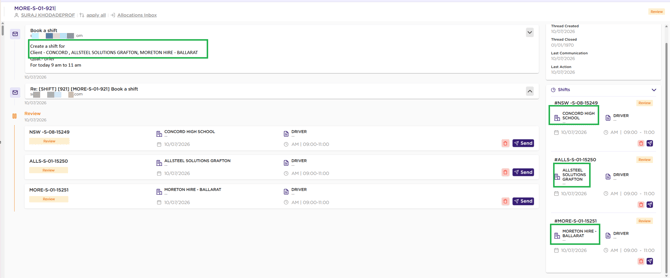
Emails from Different Senders for the Same Shift
If the same shift request is received from different email senders, but the emails contain information for the same shift, AutoShifts associates them with the same thread.
Instead of creating a new thread, the subsequent email is added to the existing thread, and both emails are displayed under the same Thread ID. Example:
A shift request is received from sender1@example.com and AutoShifts creates Thread ID - 123. Later, the same shift information is received from sender2@example.com. Since both emails refer to the same shift, AutoShifts adds the second email to Thread ID - 123 instead of creating a new thread.
Managing Shifts with AutoShifts
After a shift is created, AutoShifts can process follow-up email requests to edit, withdraw, cancel, or reinstate the same shift. To ensure the AI agent updates the correct shift, include the Shift ID.
Support for editing, withdrawal, cancellation, and reinstatement depends on the configured Shift Pipeline workflows.
Editing Shifts
When a Professional (Client Contact) sends an email requesting changes to an existing shift, AutoShifts attempts to:
- Identify the matching shift from the existing email thread.
- Apply the requested updates according to the configured Shift Pipeline.
If AutoShifts cannot identify a matching shift, the request cannot be processed automatically. The email is assigned to the configured Handler for manual review and corrective action.
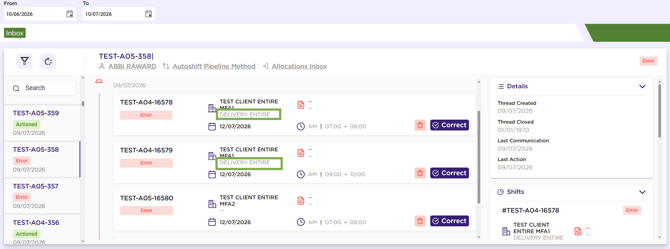
Correct Manuallly
Withdrawing and Cancelling Shifts
When a Professional (Client Contact) sends an email requesting that an existing shift be withdrawn or cancelled, AutoShifts attempts to:
- Identify the matching shift.
- Process the request according to the configured Shift Pipeline.
The outcome depends on whether the shift has been filled.
- Unfilled Shift: If no member is assigned to the shift, AutoShifts can automatically withdraw or cancel the shift based on the configured workflow.
- Filled Shift: If a candidate is already assigned to the shift, the cancellation request is placed in Review status for manual approval.
If AutoShifts cannot identify the correct shift, the request is assigned to the configured Handler for manual review.
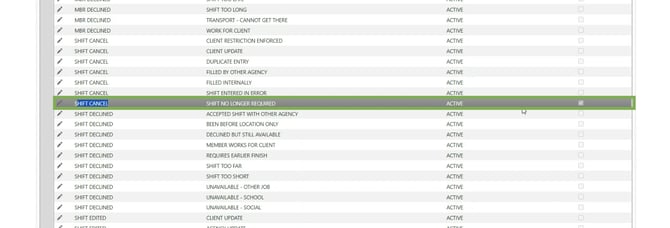
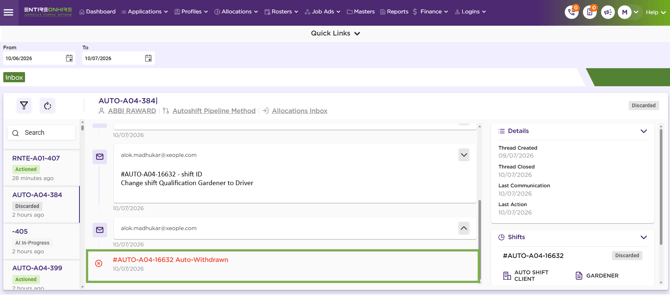
Before a shift is withdrawn or cancelled, a pop-up is displayed where you need to select the Professional and the Reason for the action as per the logic.
AutoShift identifies the Professional from whom the withdrawn or cancelled email is received. However, a Reason is required when a shift is withdrawn or cancelled.
A default Reason, “Shift no longer required,” is configured for withdrawn and cancelled shifts. This allows AutoShift to identify and process these shifts correctly without being blocked due to a missing Reason.
Reinstating Shifts
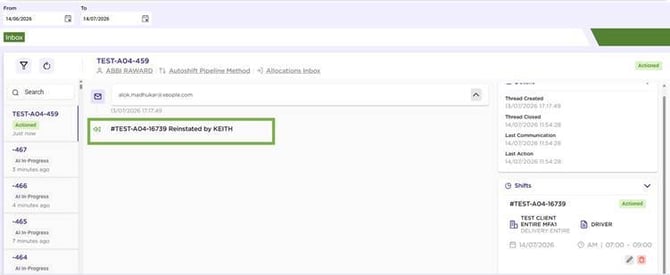
When a Professional (Client Contact) sends an email requesting that a previously withdrawn or cancelled shift be reinstated, AutoShifts:
- Identifies the matching shift.
- Reinstates the shift according to the configured Shift Pipeline.
If the matching shift cannot be identified, the request is assigned to the configured Handler for manual review.
Shift Reinstated
Entire OnHire - Rosters
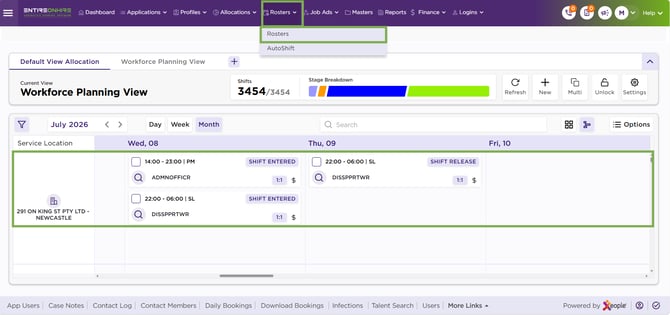
Once a thread has been Actioned and a shift has been created in EOH, the shift will follow the statuses defined in Allocations. For more information about shift statuses and their meanings, click here: Glossary of Shift Status Keywords.
EOH - Rosters Page
XR – Rosters - View Mode
The Rosters page enables you to monitor shifts that have been processed by AutoShifts AI agent. You can use this page to confirm that shifts have been successfully created, edited, withdrawn, cancelled, or reinstated in Entire OnHire. This page is provided for tracking and verification purposes only.
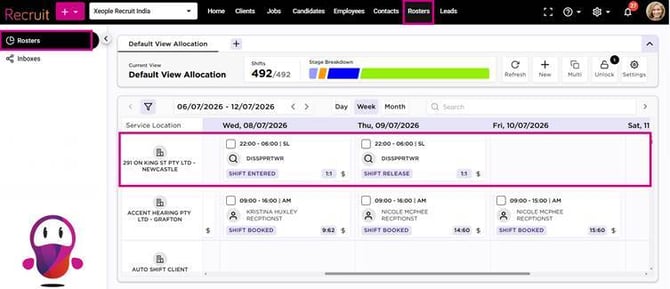
XR Rosters – Read Only (View)