-
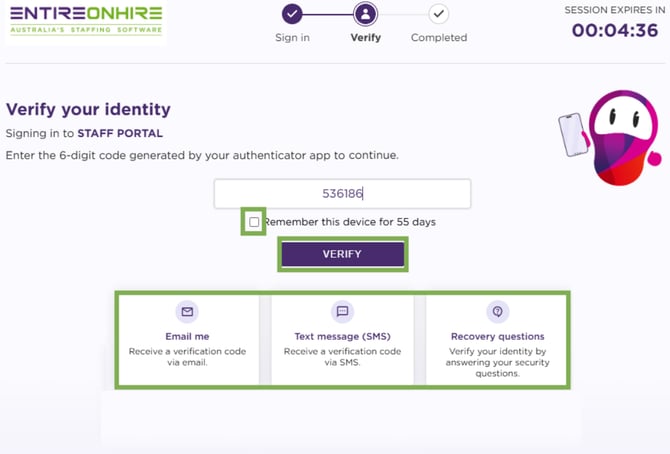
When you sign in to the Staff Portal after completing 2FA settings, you will be taken directly to the Verify Your Identity screen. Only this verification screen will appear before you can access the staff portal.
- If Authenticator App is selected as your default method, open your mobile authenticator app and enter the 6-digit code to continue.
- If needed, click Use a different method to verify using another available option.
Remember This Device
- If you select Remember this device, you will not be asked to complete 2FA again on this device/browser for the configured period (for example, 20 days).
- After the selected period expires, 2FA verification will be required again.
The system uses a device token to remember trusted devices. If this token expires or becomes invalid, 2FA will be required again.
- Click Verify. Once the code is verified successfully, you will be logged in to the Staff Portal.
The default session timer is set to 5 minutes.
Sign in Again – Verify
-
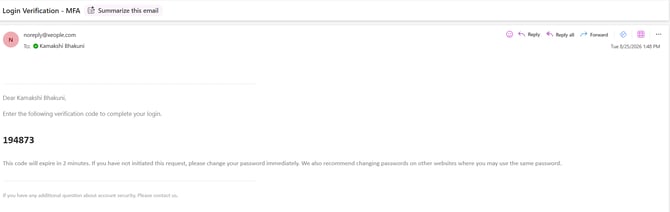
In case of Email, you will receive a verification code at your registered email ID.
Verification Code - Registered Email ID
-
-
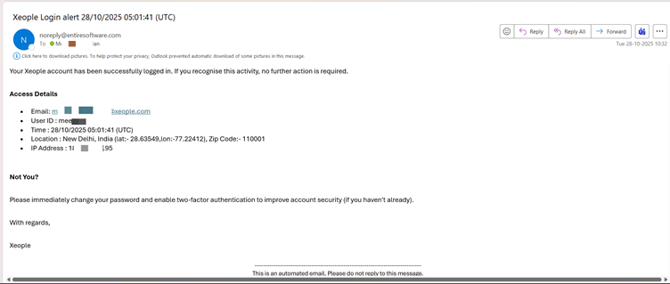
After successful login, an email notification is sent to your registered email address. This email provides a summary of your login activity, including your Email Id, User Id, Time, Location, and IP Address.
- For the SMS method, the verification code will be sent to your registered mobile number.
-