
The Timing Element on the shift card displays each shift’s timing clearly, ensuring you can easily view when a shift starts and ends.
Recommend Reading: How the shift types are configured from the masters, click here: Allocation Master - Member Shifts.
To navigate to the shift timings on the card, follow the steps below:
- Click Rosters to open the Calendar View.
- Shift data is fetched from the source (for example, Entire OnHire). On each shift card, you’ll see timing details (e.g., 13:00–21:00 I AM) that indicate the exact duration of the shift.
- When you select a shift and click the timing element, the system opens the Edit Shift pop‑up. You can update the shift timing via this pop-up.
Every shift includes a Start Time and End Time, which are essential details available regardless of the source.
Every shift includes:
- Shift Type (e.g., AM, PM, NS) — a user-defined label that identifies the kind of shift.
- Start Time and End Time — defining when the shift begins and ends.
- Display Format: The shift card combines these values in the following format: Start Time - End Time | Shift Type.
- For example: A shift with Shift Type: AM, Start Time: 09:00, End Time: 17:00
will display as → 09:00 - 17:00 | AM.
- For example: A shift with Shift Type: AM, Start Time: 09:00, End Time: 17:00
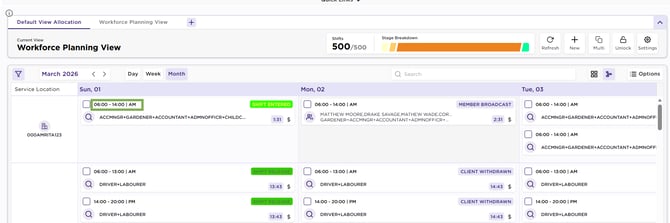
Calendar – Card – Timing