
SMS and Push Notifications can be sent from various places within the system. Each screen that supports messaging is listed below. You can also use predefined Templates on these screens to speed up the process and ensure consistent communication.
Sending SMS from Allocations (to Members)
You can send an SMS to a member directly from the Allocations screen.
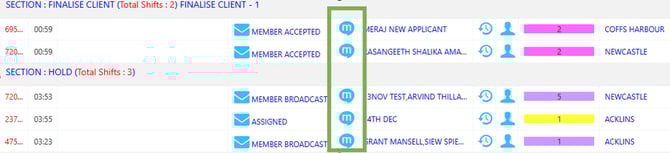
Allocations – SMS- Member
- The system automatically loads the member(s) name, destination, location into the message.
- Select an SMS template from the drop-down. appear automatically because they are predefined in the SMS Template Master.
- Click Send SMS or Send Push Notification.
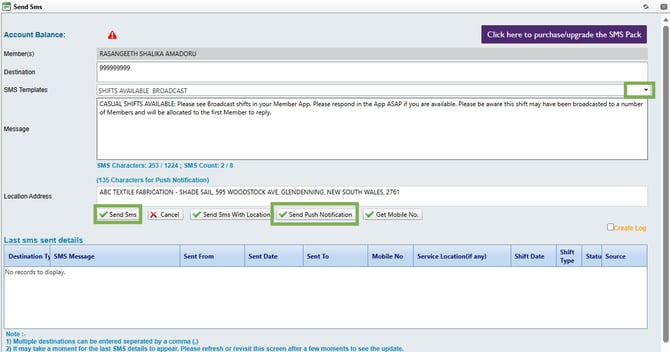
Send SMS – Send SMS/Push Notification
Using the Contact Member option
- You can also send SMS or email using the Contact Member option available in the footer of every web portal screen.
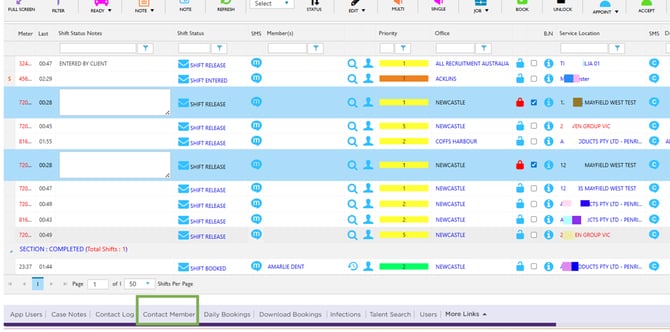
Footer – Contact Member
- Once there, you will see a filter at the top that allows you to search through members. You can filter by various options—such as status, specific skill sets, or location—to select the appropriate groups.
- After filtering, select the member(s) using the checkboxes and click Send Email or Send SMS.
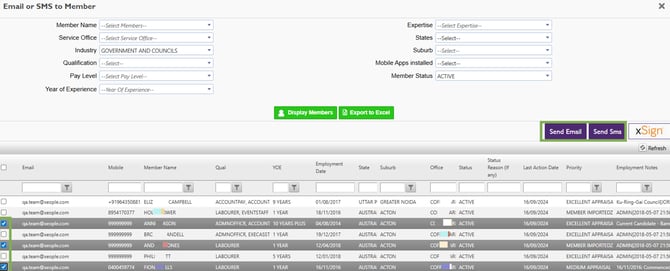
Email or SMS Member – Select Member – Send Email/SMS
- The system will automatically populate the Email To field with the selected email address(es) for emails, and the phone number(s) for SMS messages.
This feature allows you to send bulk emails and SMS messages to members, saving the time it would take to send them individually.
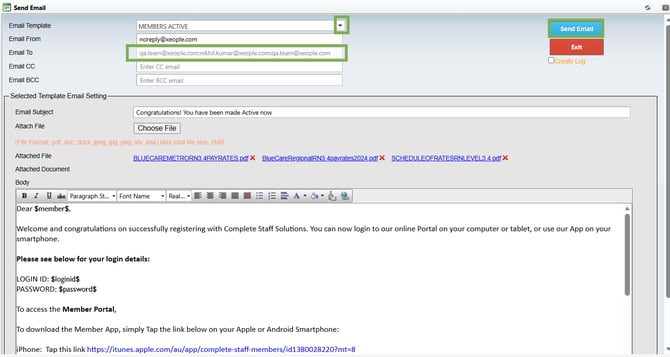
Send Email Screen
SMS Client
To send an SMS to a client from the Allocations screen, select this icon to open the messaging window and compose your message.

SMS Client
Push notifications can currently be sent only to the Member App and Client App, and only when users are logged in and have notifications enabled.
Recommend Reading: How to send an SMS to member or client from the calendar view, click here: Shift Card Behaviour Based on Grouping – Actions Related.