
Two-Factor Authentication (2FA) is a security feature integrated into the Entire OnHire staff portal, providing extra security to prevent unauthorised access to your account. It adds an additional layer of security beyond a login ID & password, using methods such as registered email OTP, SMS verification, security questions, and authenticator app authentication.
What this is about
This document provides an overview of the new SaaS‑based Two‑Factor Authentication (2FA) system introduced for the Staff Portal. In simple terms, the old 2FA has been replaced with a more secure, reliable, and user‑friendly solution that works consistently across all portals.
This manual explains:
- Why the new system was built
- What it includes
- How navigation works
- How each login method works
Why this was built
The new 2FA platform was introduced to modernise authentication and strengthen overall security within the Entire OnHire Staff Portal. Check the comparison below:
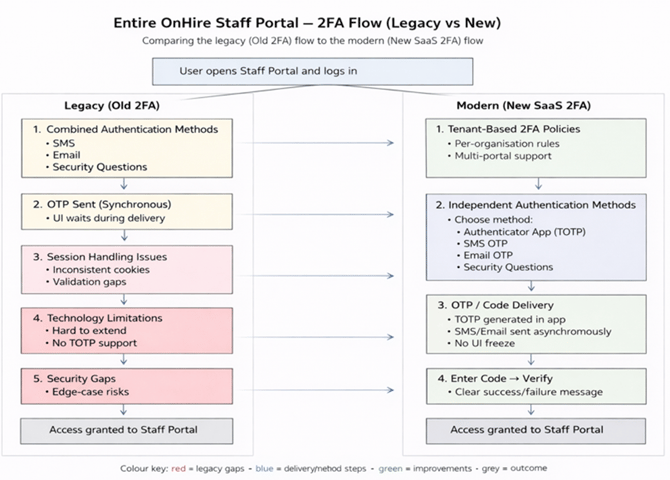
Comparison – Legacy VS New 2FA
What we achieved in the New 2FA
The new 2FA system is stronger, simpler, and more flexible.
Better Security
- Sessions and cookies are now handled properly and consistently.
- 2FA cannot be bypassed.
- Login sessions are securely tied to the user’s browser.
Clear & Separate Authentication Methods
Earlier, SMS, Email, and Security Questions were grouped together.
Now:
- Each authentication method works independently.
- Users can clearly select their preferred method.
- Switching methods is easier and more transparent.
New: Authenticator App (TOTP)
- We have introduced support for Authenticator Apps.
- Users can now use apps like Google Authenticator or Microsoft Authenticator.
- A secure 6-digit code is generated every 30 seconds.
- This adds a stronger and more modern level of protection.
Smoother OTP Experience
- SMS and Email OTPs are sent in the background.
- The screen no longer freezes while waiting.
- Clear messages are shown for success or failure.
Flexible Tenant Setup
- Each organisation (tenant) can have its own security settings.
- One tenant can manage multiple portals and users.
- Security rules can be different for each organisation.
Recommend Reading: How to create a user login credentials, click here: How to Create a New Staff User to Access the Staff and Finance Portal?
Recommend Reading: To learn how admins configure 2FA settings and what users see when they first sign in, see Main Masters - Two-Factor Authentication.
Navigation Overview
To navigate to the 2FA, follow the steps below:
- Go to the login screen enter the User ID and Password.
- Click Login.
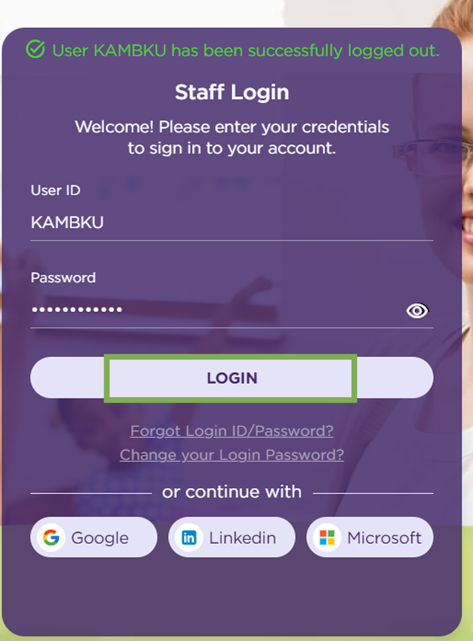
Staff Portal - Login
- Upon login, you will be asked to set up your 2FA per as per your tenant level policies.