
Guide to quickly create multiple shifts and/or dates using the MULTI option in Allocations. Helps you save time by entering and managing many shifts at once, including bulk confirming or releasing them.
To enter multiple shifts and/or multiple dates, follow the steps below:
- Click on MULTI.
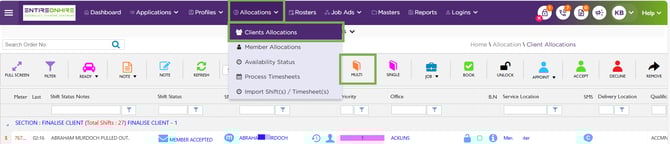
Allocations - Shift Booking – Options
- A new browser tab will automatically open, providing access to the multi-shift entry page.
- Mandatory fields appear with a red asterisk (*). Select options from the drop-down for fields:
- Service Location* – The client location where the staff member will attend like Northwest Hospital.
- Delivery Location – A specific area within the service location (e.g., Maternity Ward at Northwest Hospital).
- Qualification* – The key skill or qualification requested by the client.
- Expertise / Sub-Expertise – Additional skills or specialisations requested by the client.
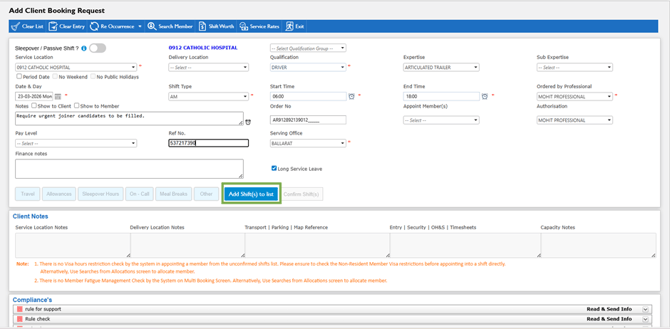
Multi - Shift Booking Page
- Date and Day * – Select Period Date to apply a date range.
- Period Date- If selected, allows users you to apply a From and To date range for shifts. All these three fields appear just above the Date and Day field.
- No Weekend- If selected, will exclude creating shifts for Saturday and Sunday in a date range.
- No Public Holidays- If selected, will exclude creating shifts for listed Public Holidays.
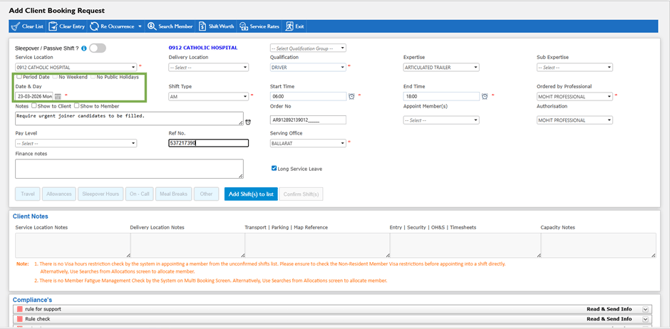
Date and Day - Select
- Shift Type* – Availability type (e.g., AM for morning, PM for afternoon).
- Start Time* – Shift start time.
- End Time* – Shift end time.
- Ordered by Professional* – The key contact who requested the booking.
- Order Number – For client-provided order references ( to be included on the invoice).
- Appoint Member – This field allows you to directly choose a member to nominate for the shift. If you choose to appoint a member you will be required to choose what status you want to enter the shift as.
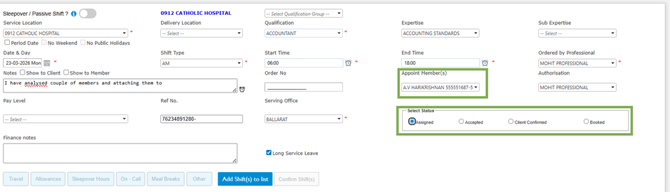
Status - Select
- Authorisation – Record secondary (personnel) approval if required.
- Pay Level – This can be an optional or mandatory field depending on your system settings. This will allow you to appoint a pay level for the shift instead of using the level set against the members profile.
- Ref No. – This is an additional field to add in any extra data for reference. Depending on your invoice settings this may appear on the invoice.
- Servicing Office – This is automatically appointed from the client profile, and you won't need to update it unless the office is different.
- Booking Notes – Here is where you can add notes that are specific to the shift. You can choose to have these as internal notes, or client/member facing.
- Click Add Shift(s) to list. All the shifts will be added to the list of Unconfirmed Shifts.
- Click the checkboxes to Confirm or Release shifts in bulk. This lets you manage multiple shifts at once instead of reviewing and updating each shift individually.
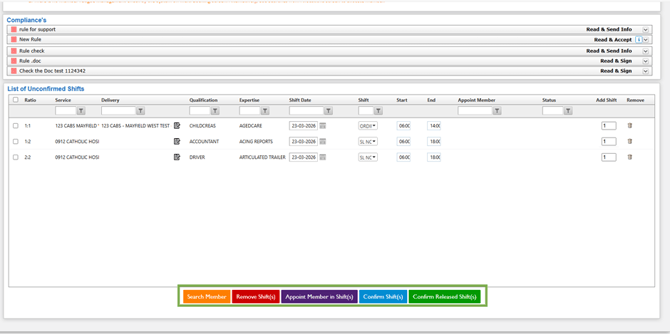
Unconfirmed Shifts – Confirm Shifts/Release Shift
Action Buttons (Top Toolbar)
These buttons allow you to manage shifts quickly from the screen without needing to enter then action each one individually.

Shift - Actions
- Search Member: Use this to look up suitable members for a selected shift.
You can filter based on availability, skills, compliance and other rules to find the best match.
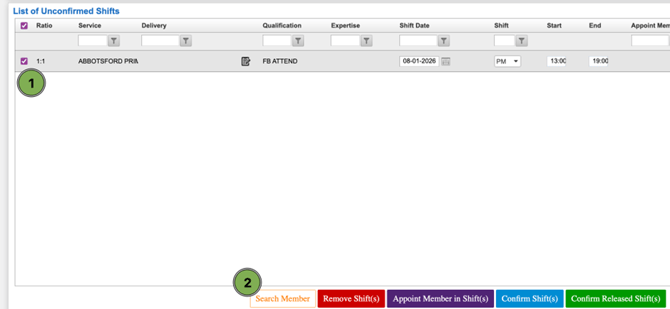
Shift - Search Member
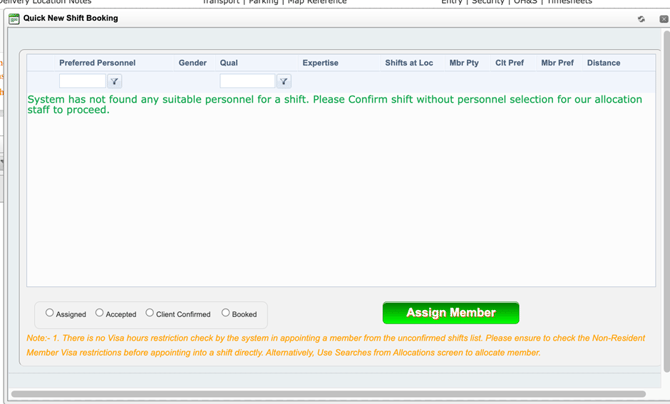
Assign Member
- Remove Shift(s): Removes the selected shift(s) from the roster. Use this when:
- A shift was created in error
- The client no longer needs coverage
- The job has been cancelled
Removing a shift does not appoint a replacement — it completely deletes it.
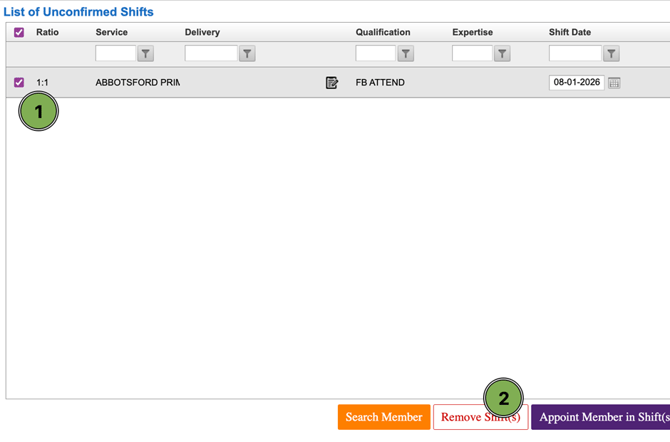
Shift - Remove Shift
- Appoint Member in Shift(s): Allows you to manually select and appoint a member straight into the shift. When using this option, you will also be asked to choose the shift status (Assigned, Accepted, Client Confirmed, or Booked). Use this when you already know exactly who should be placed.
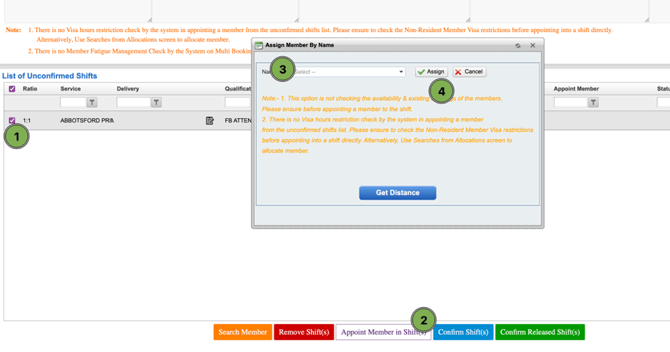
Shift - Appoint Member in Shift
- Confirm Shift(s): Confirms the selected shift(s) as approved and they will be entered as into the allocations screen
- Confirm Released Shift(s): Used when a shift has been “released” to all suitable members and it is not assigned to specific people and available in the release section of the app
Recommend Reading: How to add multiple shifts directly from the Calendar View, click here: Page Header – Screen Action Panel. The steps to create will be as above.