
You can apply date(time) - based filter using the slider, which works in combination with the selected period—Day, Week, or Month. Each view defaults to Week (changed via Master Data – View), so the calendar initially loads with the week filter applied and the time-based slider operates on a weekly range.
For example, when the period is set to Week, the slider displays 12/01/2026 – 18/01/2026 (Monday to Sunday). If Show Workdays Only is enabled under Options, the slider range remains the same, but shift data is displayed only for workdays (12/01/2026 – 16/01/2026, Monday to Friday).
To apply the date-based condition, follow the steps below:
- On the calendar view, click on date- based scroller (< >) after the filter option.
- To apply a customised filter, select a date period range as per your preference.
- To view only workdays (Monday to Friday):
- Click Options at the top right, enable Show Workdays Only, and click Confirm. The calendar will display shifts from Monday to Friday.
- To view all days (Monday to Sunday):
- Simply turn off Show Workdays Only and click Confirm to restore the full week view.
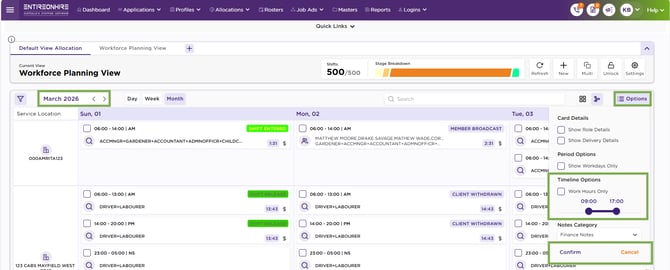
Calendar View – Option – Date (Timeline) Options