
The Calendar View header allows you to quickly switch between different calendar views created via the XR - View Master. The system only displays views you have permission to access. If no custom views exist, a default view loads automatically.
Recommended Reading: To learn how to configure calendar views, see Calendar View Master.
- Accessing Views
- Only views you have View permission for are shown in the header and dropdown.
- Each view appears as a tab in the header. Click a tab to load its shift data.
- Close Open Views
- Hover over a tab to display the X icon, then click X to close the view.
- Ellipsis (+) for Hidden Views
- When all view tabs cannot fit in the header, an ellipsis (+) button This indicates additional views that are available but not visible in the main row.
- Using the (+) View Dropdown
- Click the (+) Add button to open the View drop-down. The drop-down contains:
- Search Bar
- Filters views by name only.
- Starts searching as you type (no need to press Enter).
- Shows a loading indicator during filtering.
- Displays a clear (X) button when text is entered.
- Starred (Favourite) Views
- Click the Star icon to mark a view as favourite.
- Star view(s) always appear at the top of the dropdown.
- Other Views
- Non-favourite views appear below Starred Views.
- Click any view to open it as a new tab in the header.
- Search Bar
- Click the (+) Add button to open the View drop-down. The drop-down contains:
When you click a view, it is set as the current view, and the calendar updates to show its corresponding shift information.
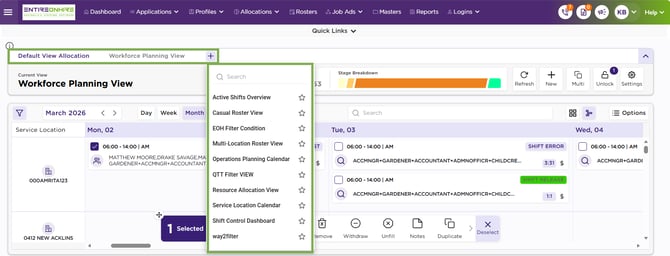
Header - Calendar View – Views