
Choose Day, Week, or Month to control how many shifts the calendar displays. This selection works with the date‑based slider. For example, if you choose Month, the slider updates to the monthly range and the calendar shows all shifts for that month.
To navigate to the period selector, follow the steps below:
- On the Calendar view, locate the Day / Week / Month options. These define the period for which shift information is retrieved from the source.
- Click Day to display shifts for the current day.
- Click Week to display shifts for the current week (Monday to Sunday).
- To view only workdays (Monday to Friday):
- Click Options at the top right, enable Show Workdays Only, and click Confirm. The calendar will display shifts from Monday to Friday.
- Click Month to display shifts for the current running month.
The default calendar period is Week. However, this may differ based on the period defined in the View configuration under Master Data – View. To learn more, click: Master Data – View.
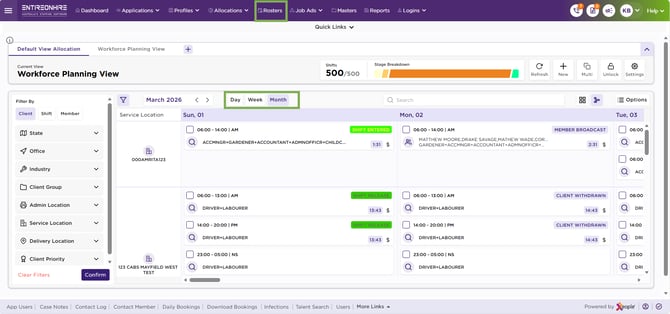
Calendar View – Select Period