
The Calendar offers two display modes that let you interact with shift data (fetched from the source) in different ways. Each mode supports a distinct user need and helps you interpret shift information more effectively.
Block Mode
- Displays shift cards in a fixed width, regardless of the shift’s duration.
- Works best for workflows like the current Allocations screen, where users mainly need a clear, uniform overview of shifts.
Timeline Mode
- Displays shift cards in a dynamic width, based on each shift’s start and end time.
- Allows you to visually understand shift length, overlap, and distribution across the day.
The default calendar mode is Block, unless a different mode is specified in the configured view. To learn more, click: Master Data – View.
To use the block or timeline mode, follow the steps below:
- On the Calendar view, locate the Block or Timeline mode next to the search bar.
- You will see the shift in block mode. Click on the Timeline mode to view the shift distribution across the day.
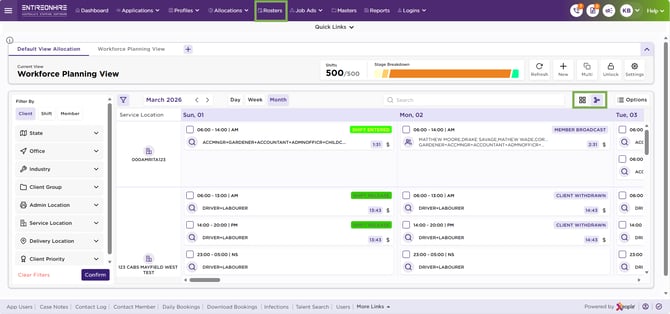
Calendar – Block or Timeline