
Once the card details are rendered, you can apply additional filters option to control selected elements of both the shift card layout and the overall calendar layout.
To access and use Additional Options, follow the steps below:
- On the Calendar view, click Options.
- These options become available after you select a specific grouping, and the shift cards appear based on the selections on the screen.
Service Location (Primary Grouping) VS Options:
When grouping by Service Location: To customise the details shown on each shift card, click Options and choose one or more of the following:
- Show Role Details
- Show Delivery Details (shows Location Pin)
- Period Options
- Enable Show Workdays Only to display shifts only for the configured working days which is Monday to Friday.
- You can select any combination of these options (OR/AND) and then click Confirm. The card will update to display information based on your preferences.
Delivery Location (Secondary Grouping) VS Options:
- Creates two grouping levels:
- First level - Service Location
- Second level - Delivery Location. Shifts will populate based on the delivery location grouping showing the service location grouping.
When grouping by Delivery Location: To customise the details shown on each shift card, click Options and choose one or more of the following:
- Show Role Details
- Period Options
- You can select any combination of these options (OR/AND) and then click Confirm. The card will update to display information based on your preferences.
Member Grouping (Primary Grouping) VS Options:
When grouping by Member: To customise the details shown on each shift card, click Options and choose one or more of the following:
- Show Role Details
- Period Options
- You can select any combination of these options (OR/AND) and then click Confirm. The card will update to display information based on your preferences.
- Disable it hides the role information from the card view.
Shift Type Grouping (Primary Grouping) VS Options:
When grouping by Shift Type: To customise the details shown on each shift card, click Options and choose Show Workdays Only and then click Confirm. The card will update to display information based on your preferences.
Notes Category VS Shift Card
The Notes button displayed on the shift card is controlled through Options. Under the Notes category, select a note type from the dropdown to enable the Notes button on all shift cards. For example, selecting Shift Status Notes will display that specific Notes button across all shift cards.
- To add a note against a shift, select a shift.
- You can either click on the note button directly on the shift card or use the action panel to add notes against a shift. To know more details, click here: Shift Card – Notes.
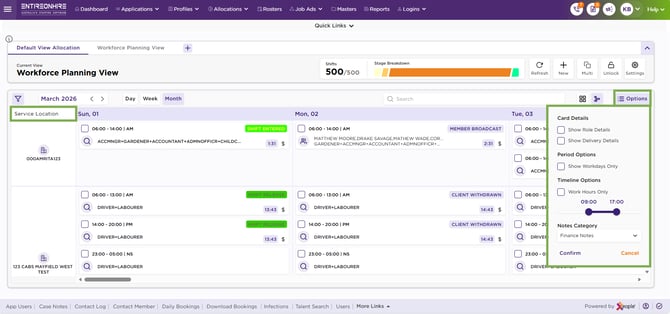
Calendar – Options