Content
1. Entire OnHire User Master Accurately Displays the Last Login Attempt for Logged-inUsers
2. Client Allocations - Booking Notes in SMS Messages Follow Client and Member
Visibility Settings
3. Bulk SMS Sends a Single Message Per Recipient, Regardless of Multiple Device
Logins
4. Weekly/Yearly Performance Graph Displays Distinct Year-wise Trend Lines
5. Last Shift Information and Availability Unknown Search Results Display Correctly
6. Client Allocation - Assign Members Search Filter
7. Member Availability - Standby Option Enabled
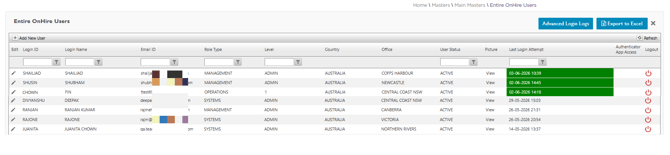
1. Entire OnHire User Master Accurately Displays the Last Login Attempt for Logged-in Users – ✅ Resolved
Issue resolved. The Entire OnHire Users master page in the Staff Portal now correctly displays the Last Login Attempt timestamp for each logged-in user, ensuring accurate visibility of user login activity.
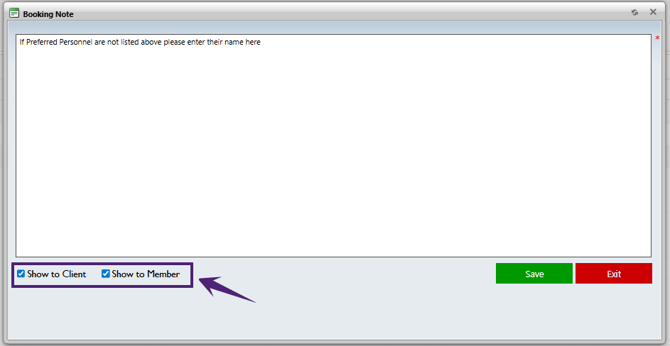
2. Client Allocations - Booking Notes in SMS Messages Follow Client and Member Visibility Settings – ✅ Resolved
When an SMS template contains the Booking Notes dynamic field:
- For Member SMS - Booking Notes are included only when 'Show to Member' is selected.
- For Client SMS - Booking Notes are included only when 'Show to Client' is selected.
The following visibility rules apply:
| Show to Client | Show to Member | Result |
|---|---|---|
| ✓ | ✗ | Booking Notes are included in Client SMS only. |
| ✗ | ✓ | Booking Notes are included in Member SMS only. |
| ✓ | ✓ | Booking Notes are included in both Client and Member SMS messages. |
| ✗ | ✗ | Booking Notes are excluded from both Client and Member SMS messages. |
This ensures that Booking Notes are shared only with the intended recipients in accordance with the configured visibility settings.
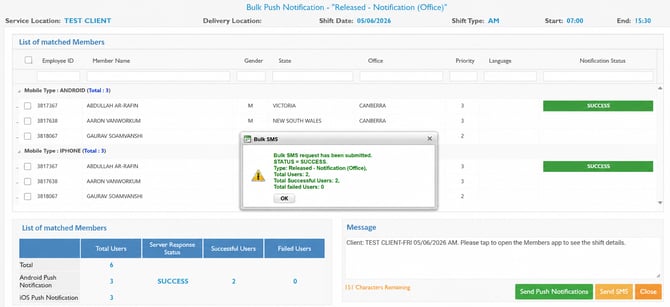
Issue resolved. When a Bulk SMS is sent and the same member is logged in simultaneously on multiple devices, the system ensures that only one SMS message is delivered to the member's phone number for each successful SMS transaction.
This prevents duplicate SMS deliveries and ensures recipients receive a single message, regardless of the number of active device sessions associated with their account.
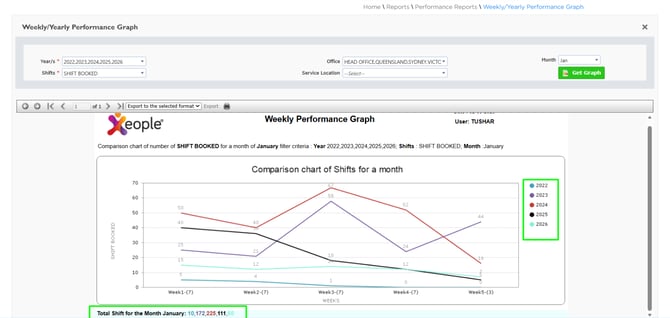
4. Weekly/Yearly Performance Graph Displays Distinct Year-wise Trend Lines – ✅ Resolved
Issue resolved. In Reports → Weekly/Yearly Performance Graph, each selected year is now displayed using a distinct line colour, making it easier to compare performance trends across multiple years including Total Shifts for the Month.
5. Last Shift Information and Availability Unknown Search Results Display Correctly – ✅ Resolved
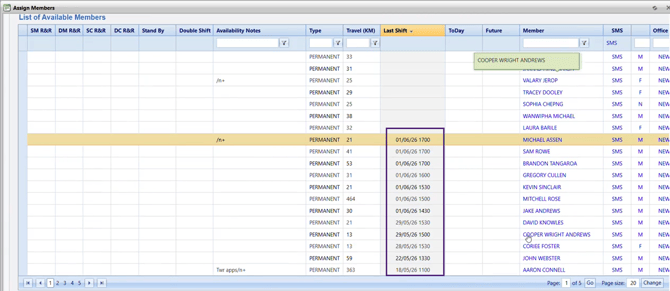
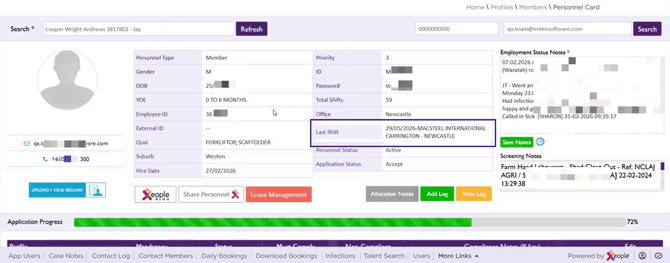
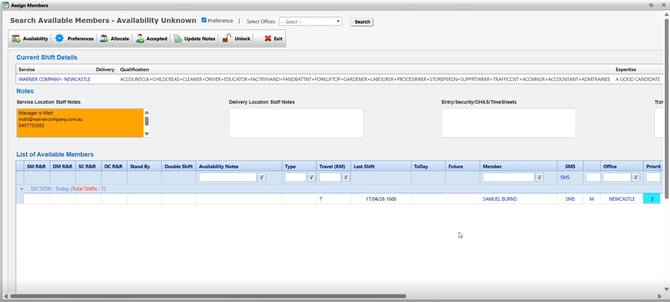
Issue resolved. The Last Shift date and time information is now displayed accurately across the Assign Members, Personnel Card, and Employment Status screens in the Staff Portal.
Additionally, the Last Shift date and time are sorted correctly in both ascending and descending order.
The Availability Unknown search has also been corrected, ensuring that matching members are displayed accurately in the search results.
6. Client Allocation - Assign Members Search Filter – ✅ Resolved
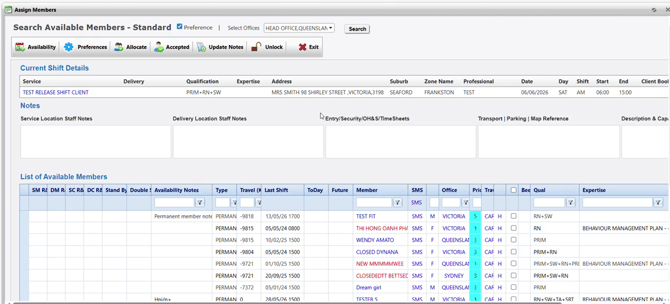
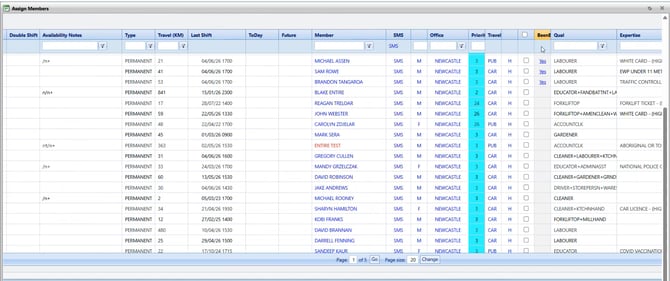
Issue resolved. In Client Allocation → Assign Members, the Search Available Members section now accurately filters and displays members based on the selected search criteria, ensuring accurate and relevant search results during member assignment.
Additionally, when the BeenB4 column is selected, records with a Yes value are automatically prioritised and displayed in ascending order of distance of Travel (KM).
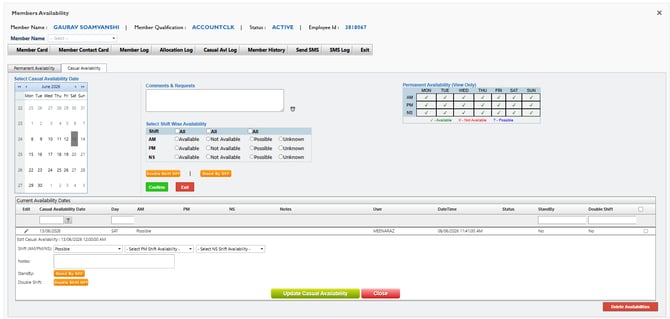
7. Member Availability - Standby Option Enabled – ✅ Resolved
Issue resolved. The Standby option is now correctly available and can be enabled when member availability is updated either via the Workforce App or by staff in the Staff Portal.