Content
1. Oracle Clients Report Exports Data Accurately2. Members Employment Work Status Report Displays Correct Shift Count in 'No. of
Shifts Wkd' Column
3. Client Allocations – Displays all Available Expertise Details for the Member in the
Assign Members Screen
4. Finance - Invoice Total Hours Calculation
5. Finance - KMS Unit Allowance Now Calculates Pay Amount ($) Accurately
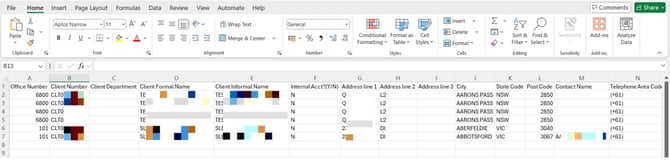
1. Oracle Clients Report Exports Data Accurately – ✅ Resolved
Issue resolved. In Reports → Client Reports → Oracle Clients Report, exported PDF and CSV files now display all required client information accurately and completely.
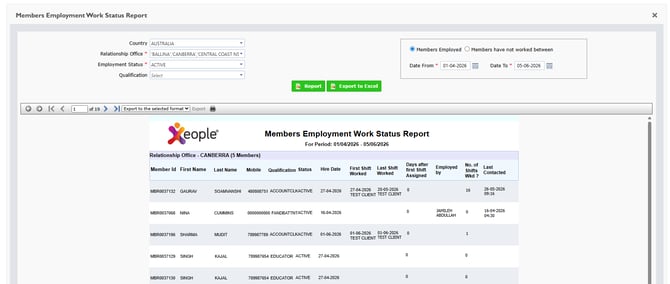
2. Members Employment Work Status Report Displays Correct Shift Count in 'No. of Shifts Wkd' Column – ✅ Resolved
Issue resolved. In Reports → Recruitment Reports → Members Employment Work Status Report, the 'No. of Shifts Wkd' column now displays the correct number of shifts worked. The same accurate shift count is also reflected in the exported Excel file.
3. Client Allocations – Displays all Available Expertise Details for the Member in the Assign Members Screen – ✅ Resolved
Issue resolved. In the Client Allocations → Assign Members screen, all Expertise and Sub-Expertise details associated with a member are now displayed when hovering over the Qualification column.
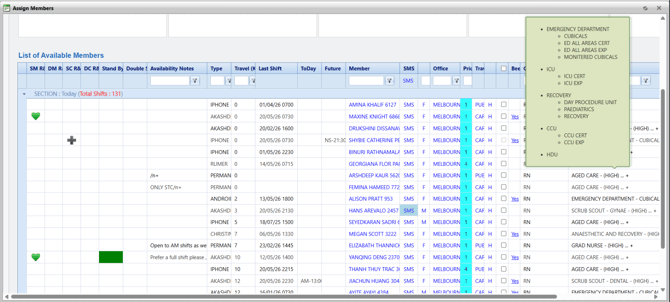
The information shown matches the details available in the member's Personal Details page.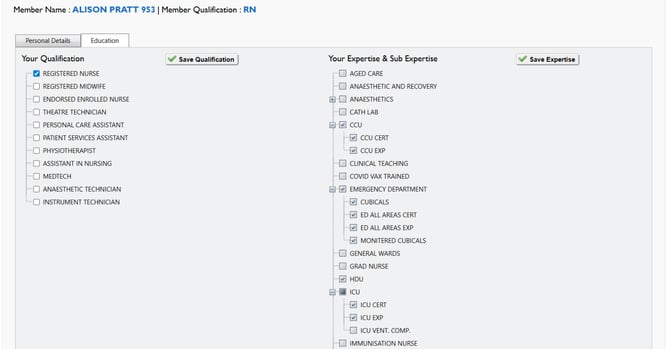
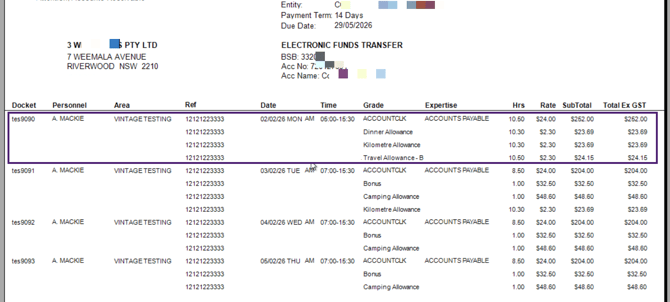
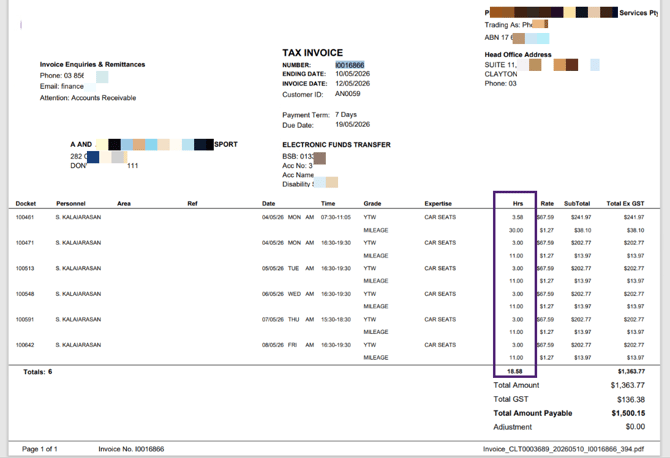
4. Finance – Invoice Total Hours Calculation – ✅ Resolved
The issue has been resolved. Total Hours on invoices in the Finance Portal are now calculated accurately, ensuring invoice totals correctly reflect the hours worked.
5. Finance - KMS Unit Allowance Now Calculates Pay Amount ($) Accurately – ✅ Resolved
Issue resolved. In the Finance Portal → Shift Verification and Awards Interpretation screen, the Pay Allowance total for a member is now calculated accurately when the KMS unit is selected either in the member's allowance or in Payroll Settings → Nominate Allowance For Travel Claim.
The allowance amount is calculated using the formula: Amount ($) = Rate × KMS
This ensures that travel allowance payments are calculated accurately based on the configured kilometre value and applicable rate.